

Create a HubSpot CRM contact when an Upflowy flow is finished
When a visitor reaches the end of an Upflowy flow, this workflow creates a contact in HubSpot CRM from the answers they gave, so finished flows show up as people your team can follow up with.
 Upflowy
 HubSpot CRM
2 steps Setup ~5 min Used on 1.2k sites Free to import
What this workflow does
Upflowy flows collect answers step by step: a quiz, an onboarding sequence, a multi-page lead form. Once someone completes one, those answers are most useful in the CRM your sales or success team already works in. Copying them over by hand is slow, and entries get missed. This workflow passes each finished flow straight to HubSpot.
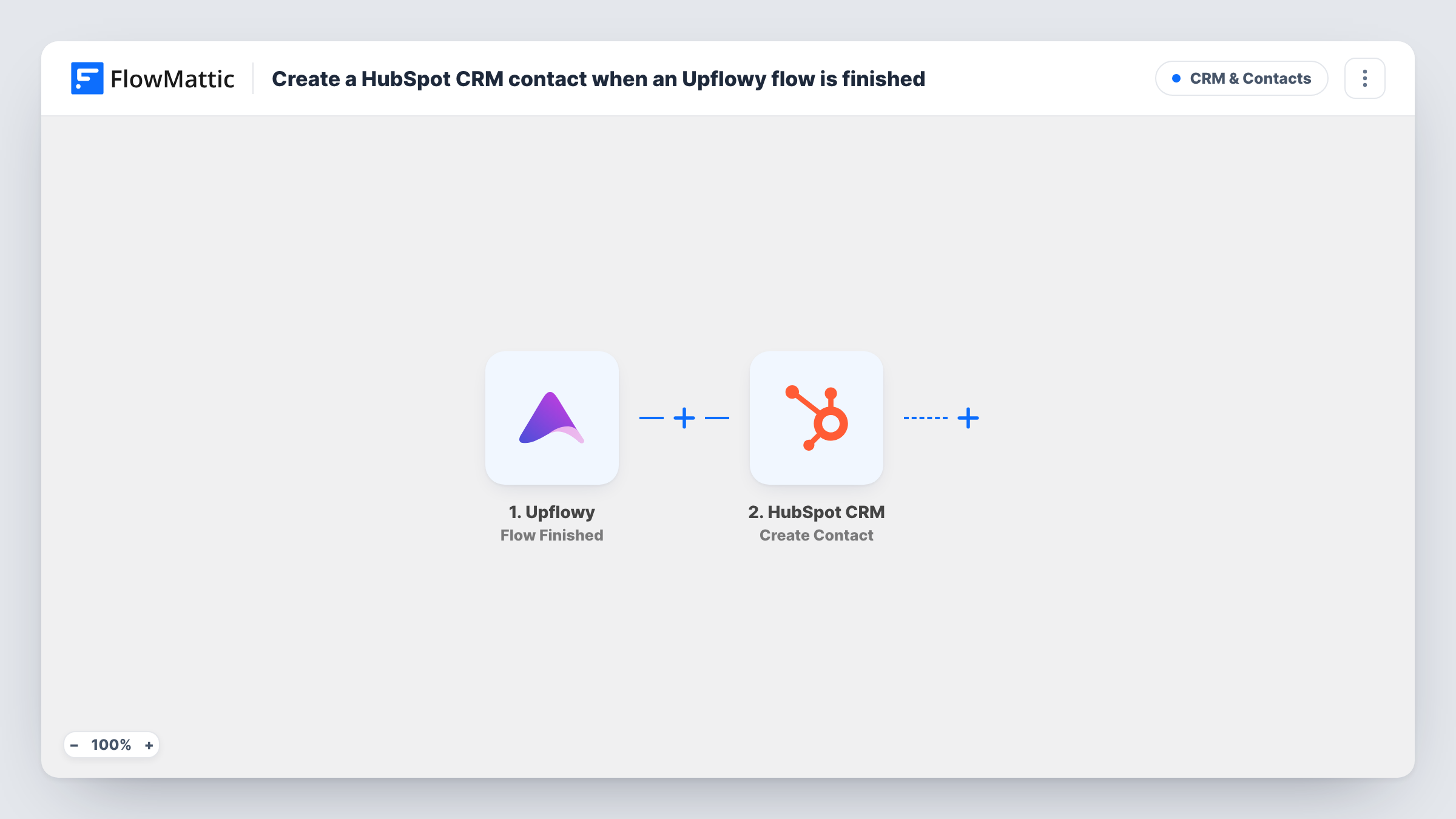
The Upflowy trigger fires when a person finishes a flow. The data from that completed flow becomes available inside FlowMattic for mapping. The next step uses HubSpot CRM to create a new contact, filled with the values you map from the flow, such as the email address and name the visitor entered.
Nothing else happens in between, so every finished flow produces one Create Contact call. People who drop out partway do not reach HubSpot, because the trigger waits for the flow to be finished. Each run is listed in Task History, where you can see the data Upflowy sent and what HubSpot returned.
Product quiz leads for a sales team
A visitor completes an Upflowy product-fit quiz. Their contact details arrive in HubSpot CRM so a rep can reach out with the answers in front of them.
Trial onboarding sign-ups
New trial users finish an Upflowy onboarding flow, and each one is created as a HubSpot contact your success team can track from day one.
Consultation booking requests
A multi-step Upflowy form asks about budget and timeline. Completing it adds the person to HubSpot, ready for the consultant who handles first calls.
How this workflow runs
What happens at each step once the workflow is on, and what you need before you import it.
 Upflowy Flow Finished
Runs each time a person completes an Upflowy flow you have connected. The answers collected in that flow are passed on for the HubSpot step to use.
- HubSpot CRM Create Contact
Creates a new contact in HubSpot CRM. Connect your HubSpot account, then map the email and other details from the finished Upflowy flow into the contact. Run a test to confirm which values land where.
What you need
- FlowMatticCore
- Upflowy AccountAccount
- HubSpot CRM AccountAccount
After importing, map your own data. To keep the template universal, not every step is pre-filled. Open each step in the builder and connect your accounts and fields (channels, lists, sheets, recipients) before you switch the workflow on.
Make it yours
Changes worth making after you import it.
- Finish the Upflowy flow once yourself after import. FlowMattic then captures a real sample of its data, which makes mapping the HubSpot step much easier.
- Add a Filter between the two steps that continues only when the email answer is not empty, so flows finished without an address do not reach HubSpot.
- If returning visitors may finish a flow twice, swap the action for a HubSpot step that updates or looks up an existing contact, so repeat completions don't simply fail as duplicates.
Questions about this workflow
What happens if the Upflowy visitor is already a HubSpot contact?
This step creates contacts and does not update them. HubSpot keeps one contact per email address, so a second contact with the same email is refused and the error shows on that step in Task History.
Are half-finished Upflowy flows sent to HubSpot?
No. The trigger is Flow Finished, so only people who reach the end of the flow create a run. Visitors who leave partway are not passed on.
Which Upflowy answers can I store on the HubSpot contact?
Any value the finished flow sends to FlowMattic can be mapped into the contact. Complete a test flow first, then pick the answers you want in the HubSpot step.
Does importing this change my Upflowy flow?
No. FlowMattic only receives the data Upflowy sends when someone finishes a flow. Your flow's questions and design are not edited.
More CRM & Contacts workflows
Other ready-to-import templates from the same category.








Import this workflow into your WordPress site
Download the JSON, import it from the Workflows screen and connect your accounts. Every run stays on your server, with no per-task fees.
30-day money-back guarantee Unlimited workflows and runs Self-hosted