

When a MoonClerk payment succeeds, add a Google Sheets row and notify finance in Slack
Each successful MoonClerk payment is added as a new row in Google Sheets, then a message about it is posted to your finance team’s Slack channel, giving you both a payment log and a live alert.
 MoonClerk
 Google Sheets
 Slack
Slack3 steps Setup ~5 min Used on 3.4k sites Free to import
What this workflow does
MoonClerk handles your recurring and one-off payments, but your finance team works from spreadsheets and talks in Slack. Copying each payment into a sheet by hand is slow, and nobody hears about a payment until they check. This workflow records every successful payment and tells the team about it.
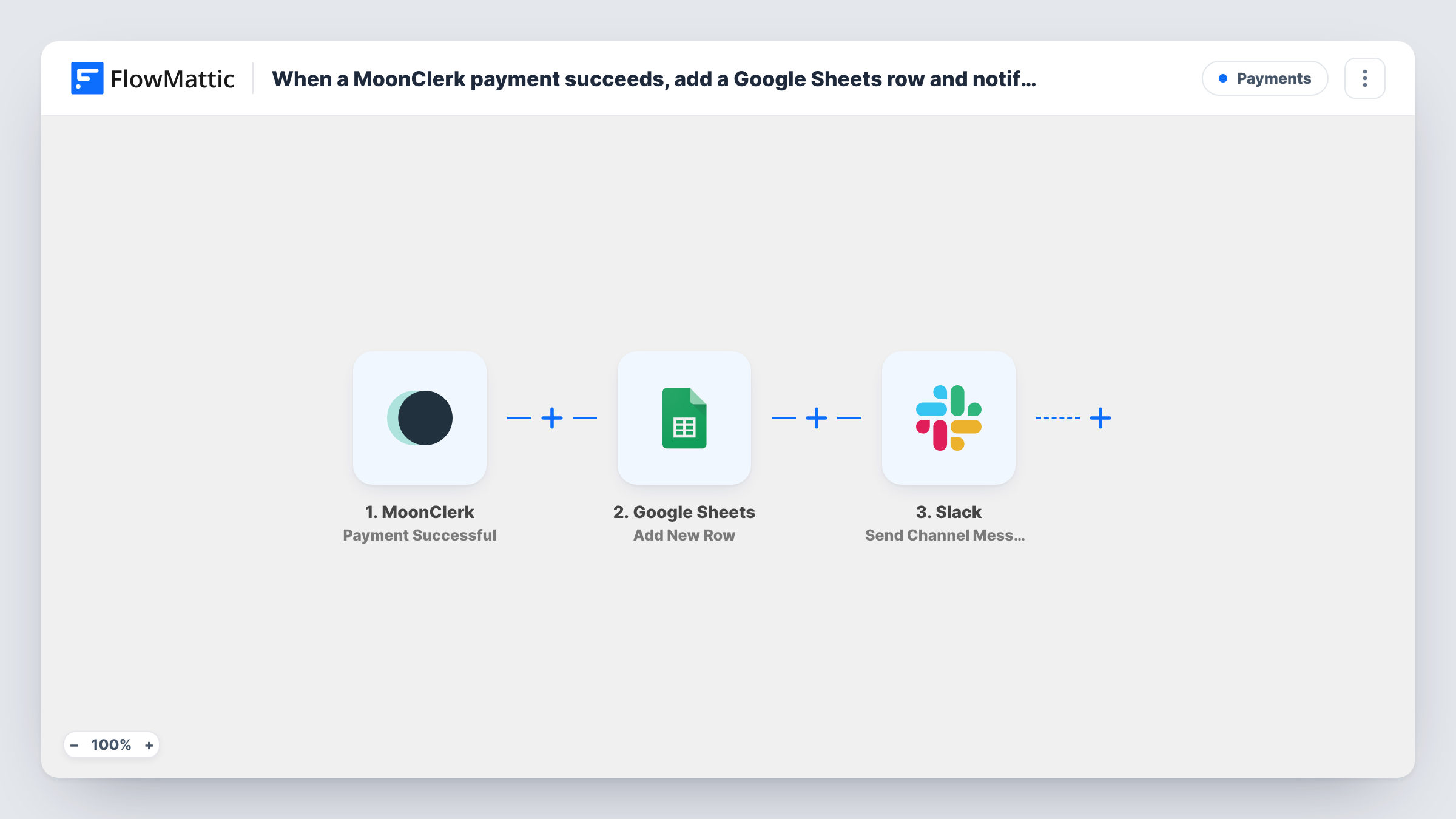
The MoonClerk trigger fires when a payment succeeds. FlowMattic first sends the payment data to Google Sheets, which adds a new row to the spreadsheet you choose. The run then moves to Slack and posts a message in the finance channel you pick, with the payment details you map into the text.
Recurring plans produce a successful payment each billing cycle, so a subscriber appears in the sheet and in Slack once per charge. Failed payments don't fire this trigger. You can review every payment run in Task History.
Monthly donations for a nonprofit
Each recurring donation charged through MoonClerk becomes a sheet row for the bookkeeper and a short note in the finance channel.
Membership fees for a club or association
Member dues collected in MoonClerk build a running payments sheet, while the treasurer sees each payment in Slack without logging in.
Service retainers for a small agency
Client retainers paid through MoonClerk are logged for reconciliation, and the account lead gets a Slack message confirming the client has paid.
How this workflow runs
What happens at each step once the workflow is on, and what you need before you import it.
 MoonClerk Payment Successful
Fires when a payment succeeds in your MoonClerk account. The payment data is passed to the Google Sheets and Slack steps for mapping.
- Google Sheets Add New Row
Adds a row to the Google Sheets spreadsheet you choose for each successful MoonClerk payment. Connect your Google account and map the payment values to the sheet's columns.
- Slack Send Channel Message
Posts a message to the Slack channel your finance team uses. Write the text and map in the MoonClerk payment details you want finance to see, then connect your Slack workspace.
What you need
- FlowMatticCore
- MoonClerk AccountAccount
- Google Sheets AccountAccount
- Slack AccountAccount
After importing, map your own data. To keep the template universal, not every step is pre-filled. Open each step in the builder and connect your accounts and fields (channels, lists, sheets, recipients) before you switch the workflow on.
Make it yours
Changes worth making after you import it.
- Make a test payment in MoonClerk after import, or wait for the first real one, so FlowMattic captures the payment fields you can map into both steps.
- Add a Filter before the Slack step if finance only wants alerts for larger payments. The sheet row is added first, so every payment is still logged.
- For a private finance channel, swap the last step for Slack's Send Private Channel Message action.
Questions about this workflow
Does a recurring MoonClerk plan add a new Google Sheets row every billing cycle?
Yes. Each successful charge fires the trigger, so every renewal adds its own row and posts its own Slack message.
Are failed MoonClerk payments logged too?
No. The trigger only fires on successful payments. For failed charges, build a second workflow on MoonClerk's Plan Payment Failed trigger.
What happens if the Google Sheets step fails?
Task History shows the error on that step, and the Slack message is still posted. Check the run and add the missing row by hand if you need it.
Are past MoonClerk payments added to the sheet?
No. Only payments that succeed after you turn the workflow on start a run. Earlier charges would need a manual export from MoonClerk.
More Payments workflows
Other ready-to-import templates from the same category.





Import this workflow into your WordPress site
Download the JSON, import it from the Workflows screen and connect your accounts. Every run stays on your server, with no per-task fees.
30-day money-back guarantee Unlimited workflows and runs Self-hosted