

When a new ANGI lead arrives, add them to Zoho CRM and create a Todoist follow-up task
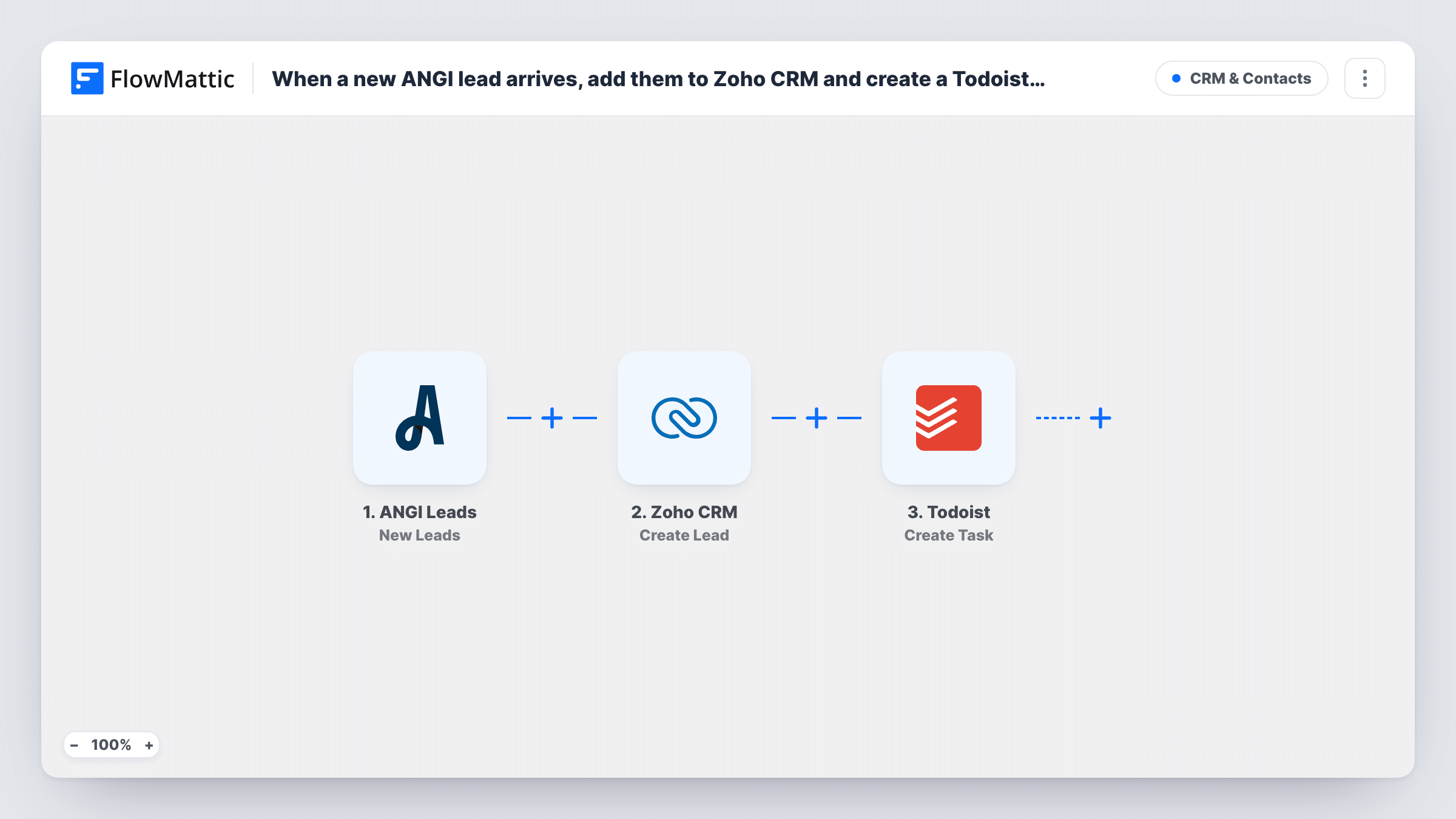
When ANGI Leads assigns you a new lead, this workflow creates a lead in Zoho CRM and then adds a follow-up task in Todoist, so each homeowner is on record and someone has a to-do to contact them.
 ANGI Leads
 Zoho CRM
 Todoist
3 steps Setup ~5 min Used on 679 sites Free to import
What this workflow does
A lead from ANGI is only worth something if someone calls back quickly. When leads arrive in one portal, your pipeline lives in another tool and your to-do list in a third, it is easy for one to slip. This workflow records each ANGI lead in your CRM and puts a reminder on a to-do list in the same run.
Runs start with the ANGI Leads trigger, New Leads, each time ANGI assigns a lead to you. The Zoho CRM step, Create Lead, adds a new lead record using the details you map from ANGI. Then the Todoist step, Create Task, adds a task with the text you write, such as Call plus the lead's name and phone number.
Task History shows what Zoho CRM and Todoist returned for each ANGI lead, so look there first if a lead is missing from Zoho or a call task never shows up.
Contractor who works from Todoist
A handyman keeps the day's calls in Todoist. Each ANGI lead adds a call task there, while Zoho CRM keeps the record for quotes and follow-ups.
Office manager assigning callbacks
Leads land in Zoho CRM for reporting, and the Todoist task goes to a shared project where the office manager hands each call to an estimator.
Seasonal service rush
During a busy spring for a landscaping firm, every ANGI lead gets a Zoho lead and a Todoist task so no request waits in the portal unseen.
How this workflow runs
What happens at each step once the workflow is on, and what you need before you import it.
 ANGI Leads New Leads
Starts the run whenever ANGI hands your business a fresh lead. The details ANGI sends with the lead are available to map in both later steps.
- Zoho CRM Create Lead
Adds the homeowner to Zoho CRM as a lead record. Map the homeowner's name, email and phone from ANGI into the lead, and connect your Zoho CRM account on import.
- Todoist Create Task
Creates a task in Todoist after the Zoho step. Write the task text and insert the lead's name and contact details so the person doing the call has them on the task.
What you need
- FlowMatticCore
- ANGI Leads AccountAccount
- Zoho CRM AccountAccount
- Todoist AccountAccount
After importing, map your own data. To keep the template universal, not every step is pre-filled. Open each step in the builder and connect your accounts and fields (channels, lists, sheets, recipients) before you switch the workflow on.
Make it yours
Changes worth making after you import it.
- If the Zoho CRM response includes the new lead's ID, map it into the Todoist task so whoever picks up the call can find the matching Zoho record quickly.
- Give the Todoist task a due date of today in the Todoist step, if your setup offers one, so each ANGI callback shows in your Today view.
- Once the first live lead arrives, look in Task History to see every value ANGI sent, then adjust the Zoho and Todoist mapping to include anything useful you left out.
Questions about this workflow
What if the ANGI homeowner is already in Zoho CRM?
Create Lead always makes a new lead and does not search Zoho first. A repeat enquiry gives you a second lead record that you can merge in Zoho if you need to.
Which Todoist project does the follow-up task go to?
That depends on how you set up the Todoist step after import. Run one test and check where the task lands; Todoist puts tasks with no project in your Inbox.
Can the Todoist task include the homeowner's phone number?
Yes, if ANGI sends it with the lead. You write the task text in the Create Task step and insert the homeowner's name and phone from the trigger data. A test lead shows which values ANGI includes.
Are ANGI leads from before the workflow was on included?
No. Only leads assigned to your account after you turn the workflow on start a run and reach Zoho CRM and Todoist.
More CRM & Contacts workflows
Other ready-to-import templates from the same category.





Import this workflow into your WordPress site
Download the JSON, import it from the Workflows screen and connect your accounts. Every run stays on your server, with no per-task fees.
30-day money-back guarantee Unlimited workflows and runs Self-hosted