

When a new blog is published in WordPress, run a workflow in Leap AI to generate social media posts
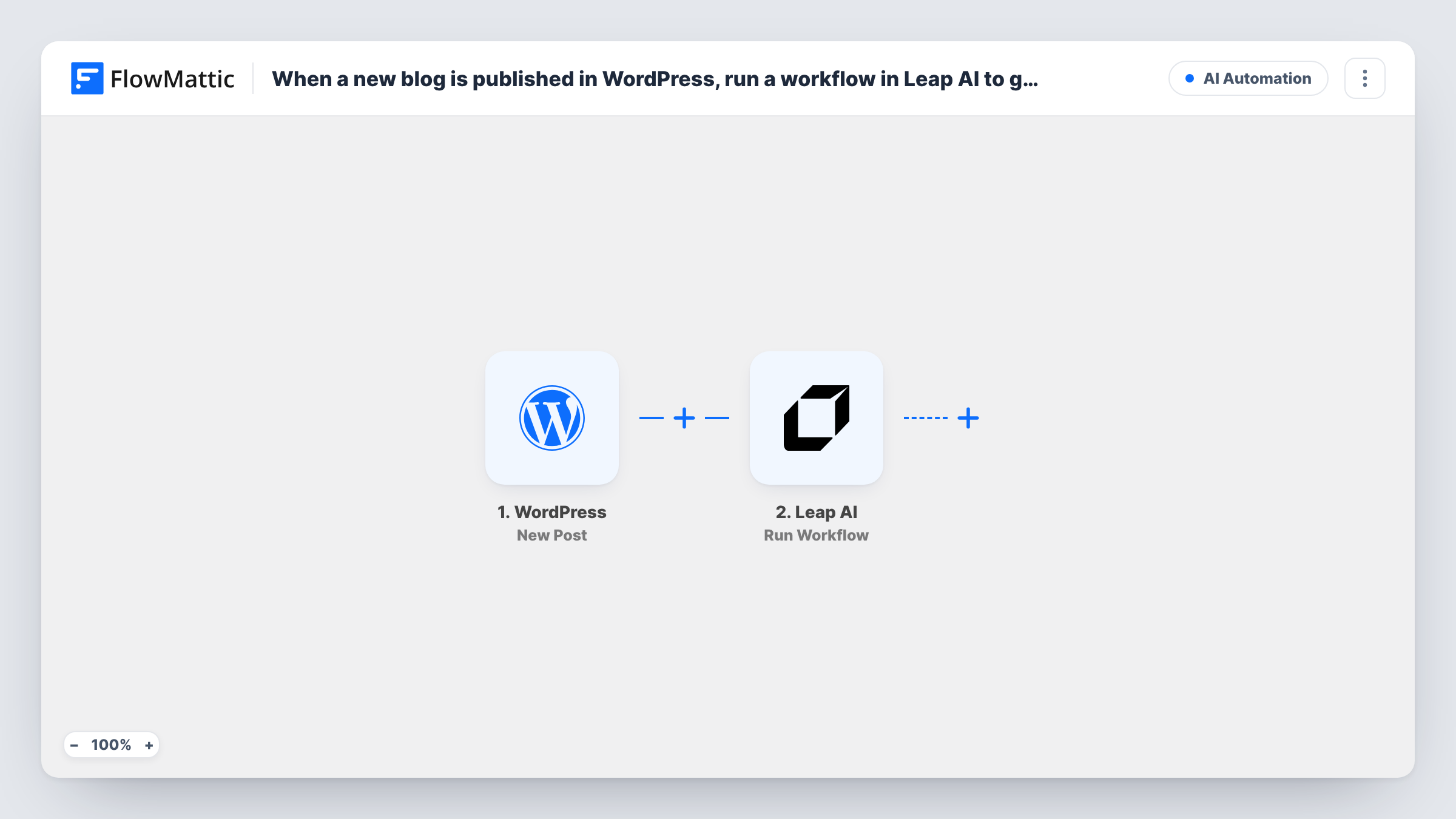
When you publish a new WordPress post, this workflow starts a published Leap AI workflow with the post’s details as input, so the social media drafts you built that Leap workflow to write are started without you copying the article over.
 WordPress
 Leap AI
2 steps Setup ~5 min Used on 3.1k sites Free to import
What this workflow does
Writing social posts for every new article is the same chore each time: open the post, pull out the main points, rewrite them for each network. If you have built a Leap AI workflow that turns an article into social copy, this template feeds it every new post as soon as it goes live.
The WordPress trigger starts the run as soon as you publish a new post. FlowMattic captures the post data and passes it to Leap AI, where Run Workflow executes a published Leap workflow with input parameters. You choose which Leap workflow runs and map the post's title, content or link into its inputs.
The template only starts the Leap AI run. What gets written depends on the workflow you built in Leap, and FlowMattic does not fetch the result or post it anywhere as imported. To bring the output back, add Leap AI's Get Workflow Run step, which checks the status and results of a run, then send the text where you need it. Task History records each start along with Leap's response.
Blog-to-social drafts for a small team
Each new article starts your Leap AI workflow that writes a LinkedIn post and a short tweet, and your social manager reviews the drafts in Leap before posting.
Agency client blogs
For a client site, every published post runs a Leap workflow tuned to that client's voice, so drafts are ready for the account team without extra requests.
Newsletter teaser lines
A Leap workflow that turns articles into one-line teasers runs on each new post, and you collect the results for the next newsletter.
How this workflow runs
What happens at each step once the workflow is on, and what you need before you import it.
 WordPress New Post
Starts the workflow when you publish a new WordPress post. The post's data is captured and becomes available to pass into Leap AI.
- Leap AI Run Workflow
Runs the published Leap AI workflow you select, with WordPress post data mapped into its input parameters. Connect your Leap AI account on import. The run's output is not used by any later step as imported.
What you need
- FlowMatticCore
- Leap AI AccountAccount
After importing, map your own data. To keep the template universal, not every step is pre-filled. Open each step in the builder and connect your accounts and fields (channels, lists, sheets, recipients) before you switch the workflow on.
Make it yours
Changes worth making after you import it.
- Add Leap AI's Get Workflow Run step after Run Workflow to read the status and results of the run, then send the generated text to a Google Sheets row or a Slack message for review.
- Leap AI may need some time to finish a run. Put a Delay before Get Workflow Run so the results are more likely to be ready when FlowMattic asks.
- Add a Filter after the trigger that continues only for posts in a chosen category, so pages or announcements you don't promote never reach Leap AI.
Questions about this workflow
Do I need my own Leap AI workflow?
Yes. Run Workflow executes a published workflow in your Leap AI account. Build and publish the workflow that writes the social posts in Leap first, then select it in the step.
Does this post the generated text to social networks?
No. As imported it only starts the Leap AI run. Add Get Workflow Run and a step for your social or review tool if you want the output used.
Will editing an old WordPress post start the Leap AI workflow?
It shouldn't. The trigger is for newly published posts, so changes to articles that are already live are not meant to start a run.
What if the Leap AI run fails?
Task History shows the response from Leap AI on the Run Workflow step. The WordPress post is not affected either way.
More AI Automation workflows
Other ready-to-import templates from the same category.









Import this workflow into your WordPress site
Download the JSON, import it from the Workflows screen and connect your accounts. Every run stays on your server, with no per-task fees.
30-day money-back guarantee Unlimited workflows and runs Self-hosted