

When a new Calldrip lead arrives, create a Zoho CRM record and notify sales in Slack
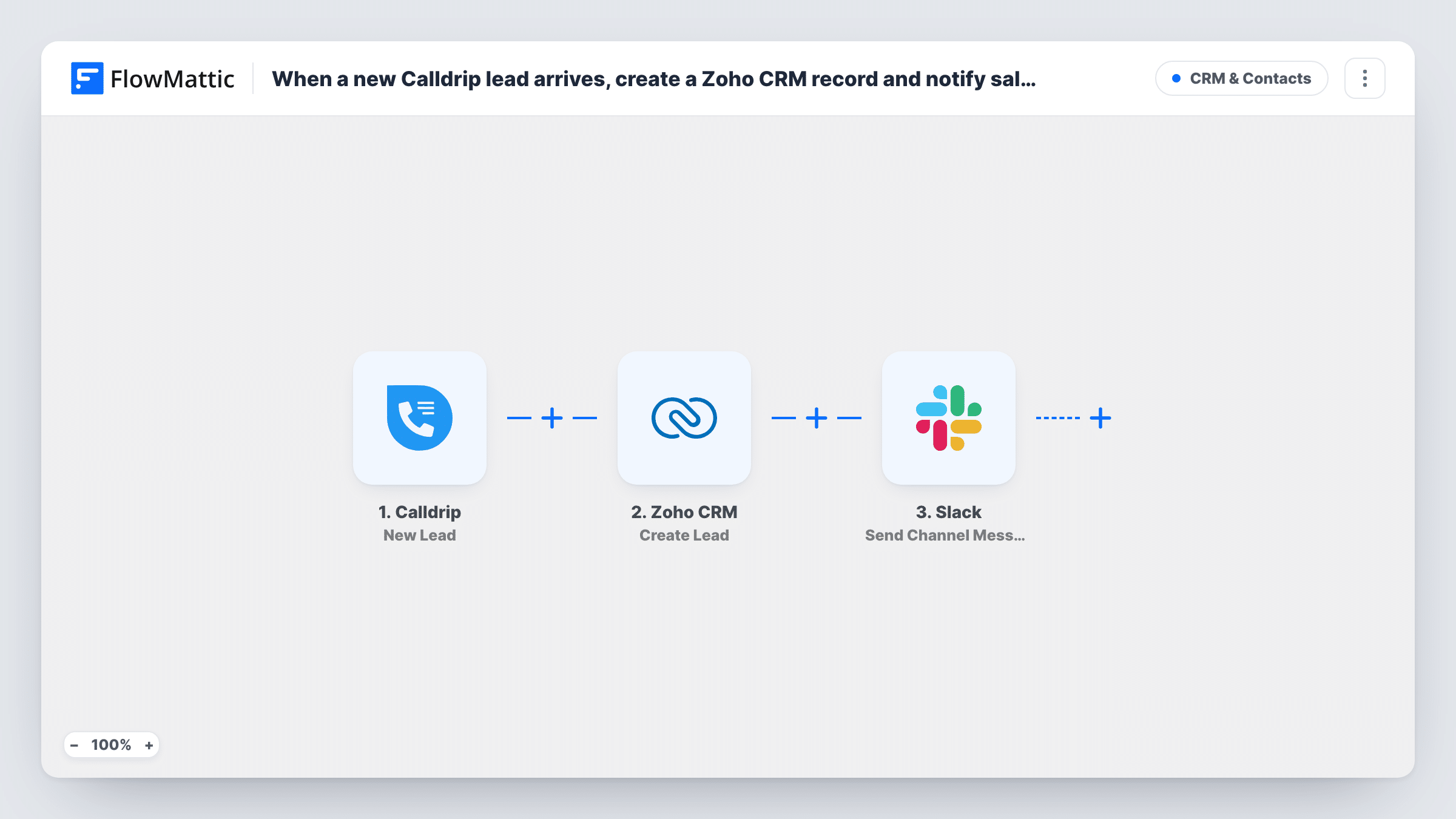
Each new lead that Calldrip generates from a call is created as a lead in Zoho CRM, and a message about it is posted to a Slack channel, so the caller is on record and your sales team hears about them.
 Calldrip
 Zoho CRM
 Slack
3 steps Setup ~5 min Used on 2.7k sites Free to import
What this workflow does
Phone leads tracked in Calldrip are only useful to your pipeline once they are in Zoho CRM, and only acted on once someone on the sales team sees them. Copying each caller into the CRM and then telling the team by hand is two chores per call. This workflow does both.
A call that Calldrip turns into a lead starts the run through the Calldrip New Lead trigger. Its details go to Zoho CRM, where Create Lead adds a lead record from the fields you map, such as the caller's name and phone number. The Slack step then posts a message to the channel you pick, built from the Calldrip data and, if you like, details Zoho returns about the new lead.
Create Lead always makes a new record. A caller who reaches Calldrip as a lead twice gets two Zoho CRM leads, since no step looks for an existing one first. The Slack message is posted even when Zoho returns an error, and Task History shows that error on the Zoho step.
Insurance agency taking quote calls
Every caller logged by Calldrip becomes a Zoho CRM lead for the agents' follow-up queue, and the sales channel shows who called and from which number.
Real estate team handling listing inquiries
Calls about a property create leads in Zoho CRM, while agents in Slack see the new inquiry and claim it in the thread.
Franchise locations sharing one CRM
Calldrip leads from each location's number go into the same Zoho CRM, and a Slack channel per region keeps managers informed.
How this workflow runs
What happens at each step once the workflow is on, and what you need before you import it.
 Calldrip New Lead
Starts on each Calldrip lead created from an incoming call. The lead details are passed to the Zoho CRM and Slack steps for mapping.
- Zoho CRM Create Lead
Adds the caller to Zoho CRM as a fresh lead record. Map the Calldrip details into the lead fields the step shows after import, and connect your Zoho account.
- Slack Send Channel Message
Alerts the sales team in the Slack channel you set. Write the alert and map in the caller's details from Calldrip, plus anything from the Zoho CRM response you want the team to see.
What you need
- FlowMatticCore
- Calldrip AccountAccount
- Zoho CRM AccountAccount
- Slack AccountAccount
After importing, map your own data. To keep the template universal, not every step is pre-filled. Open each step in the builder and connect your accounts and fields (channels, lists, sheets, recipients) before you switch the workflow on.
Make it yours
Changes worth making after you import it.
- If your Calldrip leads include an email, swap Create Lead for Zoho CRM's Find or Create Lead, which checks for a lead by email first, so repeat callers don't become duplicates.
- For a private sales channel, use Slack's Send Private Channel Message action in place of Send Channel Message, or Send Direct Message to alert one rep.
- Map the ID that Zoho CRM returns for the new lead into the Slack text if a test run shows it, so reps can find the record in Zoho quickly.
Questions about this workflow
Will repeat callers create duplicate Zoho CRM leads?
They can. Create Lead makes a new record each time, and the template has no lookup step. Zoho CRM's Find or Create Lead action is an alternative when your Calldrip leads include an email address.
Is the Slack message sent if the Zoho CRM step fails?
Yes. The Slack step still runs for that lead. Task History shows the Zoho error, so you can fix the mapping and add the lead by hand.
Which Calldrip details reach Zoho CRM?
The ones you map. Run a test after import to see what Calldrip sends with a new lead, then match those values to Zoho's lead fields.
Do I need a Zoho CRM account with access to the Leads module?
Yes. The Create Lead step writes to Leads, so the Zoho account you connect in FlowMattic must be allowed to create lead records.
More CRM & Contacts workflows
Other ready-to-import templates from the same category.





Import this workflow into your WordPress site
Download the JSON, import it from the Workflows screen and connect your accounts. Every run stays on your server, with no per-task fees.
30-day money-back guarantee Unlimited workflows and runs Self-hosted