

Add new imeetify booking contacts to a HubSpot CRM list on confirmation
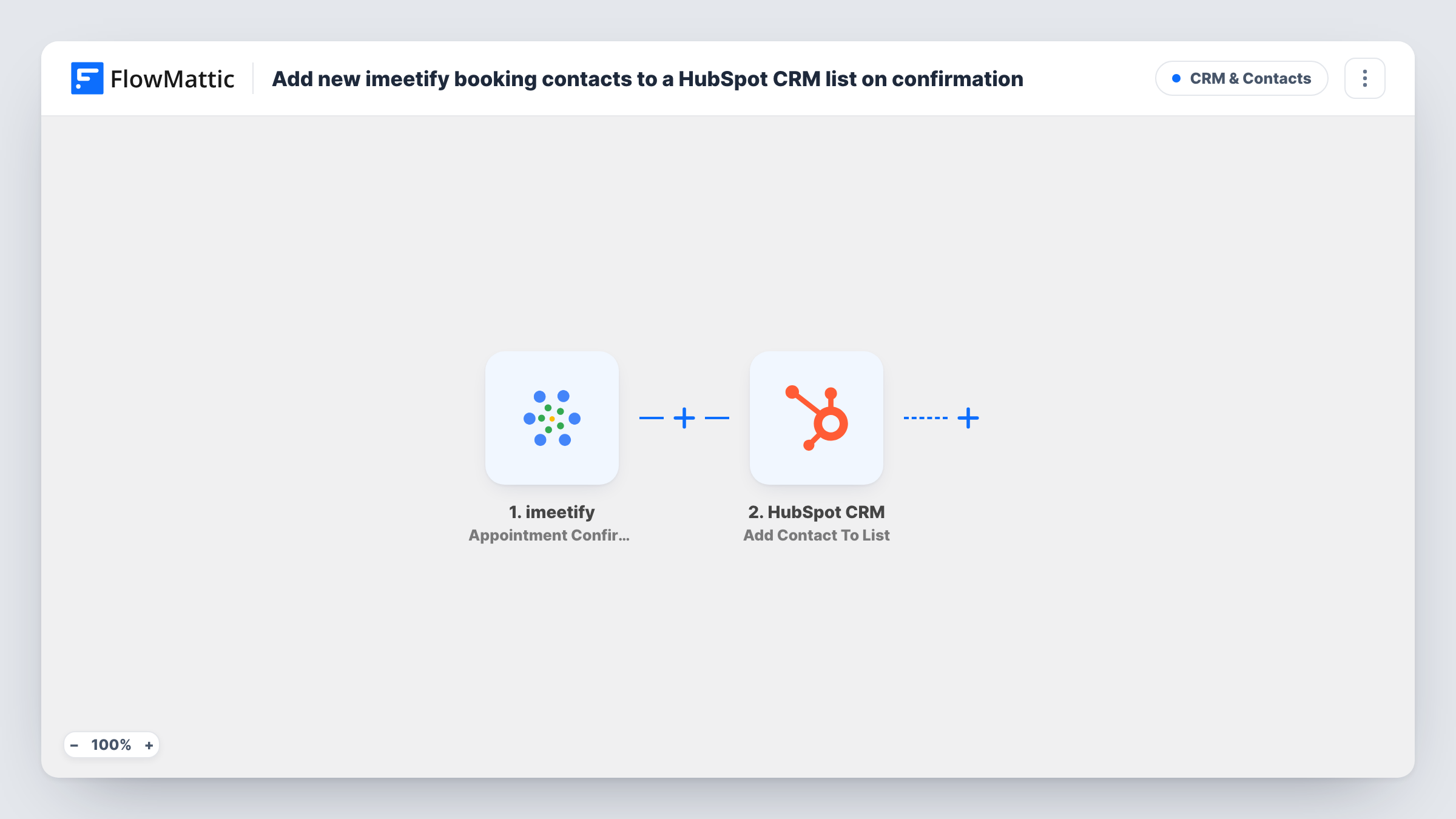
Each confirmed imeetify appointment creates the booker as a contact in HubSpot CRM, then adds that new contact to a static HubSpot list you pick for follow-up.
 imeetify
 HubSpot CRM
3 steps Setup ~5 min Used on 3.2k sites Free to import
What this workflow does
People who book a call with you are some of your warmest contacts, yet their details often stay inside the scheduling tool. This workflow copies each confirmed booker into HubSpot and drops them into a list, so your sales or onboarding team can see them and reach out without retyping anything.
The imeetify trigger starts a run when an appointment is confirmed. FlowMattic passes the booking data, such as the booker's name and email, to the next step. The first HubSpot CRM step creates a contact from that data. The second step adds the contact it just created to a static list.
Neither HubSpot step has any mapping yet. After import you connect your HubSpot account, map the imeetify fields into the Create Contact step, then pick the list in the Add Contact To List step and map the contact from the step before it. Run one test booking and open Task History to see what each HubSpot step returned, so you know which value identifies the new contact.
The Create Contact action never updates an existing record. Someone who books a second time already exists in HubSpot, and HubSpot may refuse a duplicate email; Task History shows its response for that run.
Discovery calls straight into a sales list
A consultant who takes intro calls through imeetify keeps every confirmed booker on a HubSpot list the sales team works through each morning.
Demo bookings for a nurture email
A software company adds people who confirm a demo slot to a static list, then sends that list a short pre-demo email from HubSpot.
Clinic or salon client records
A service business builds its client base in HubSpot from confirmed appointments, so staff can look up a client's details before the visit.
How this workflow runs
What happens at each step once the workflow is on, and what you need before you import it.
 imeetify Appointment Confirmation
Starts the workflow when an appointment is confirmed in imeetify. The booking details, including the person's name and email, become available to map into HubSpot.
- HubSpot CRM Create Contact
Creates a new contact in HubSpot CRM from the booking. The step ships unmapped: connect HubSpot and map the booker's email, name and any other imeetify fields you want on the contact.
- HubSpot CRM Add Contact To List
Puts the contact from step 2 on a static HubSpot list. Choose the list after import and map the new contact from the Create Contact result, then confirm with a test booking that it lands on the list.
What you need
- FlowMatticCore
- imeetify AccountAccount
- HubSpot CRM AccountAccount
After importing, map your own data. To keep the template universal, not every step is pre-filled. Open each step in the builder and connect your accounts and fields (channels, lists, sheets, recipients) before you switch the workflow on.
Make it yours
Changes worth making after you import it.
- Create a dedicated static list in HubSpot for imeetify bookers before you import, so it is ready to select in the Add Contact To List step.
- Map the appointment date or service name into a contact property in the Create Contact step, so your team sees why the person is on the list.
- To keep only some bookings, put a Filter between the imeetify trigger and the Create Contact step. Pick the field to check, such as the meeting type, from a test run; bookings it stops never reach HubSpot.
Questions about this workflow
Does the imeetify trigger fire for cancelled appointments too?
No. This template uses Appointment Confirmation, which FlowMattic describes as firing when a new appointment is confirmed. imeetify cancellations use a separate trigger.
What if the booker is already a contact in HubSpot?
The Create Contact step only creates contacts, so HubSpot may reject a second contact with the same email. Check that run in Task History to see HubSpot's response.
Can I add bookers to an active list instead of a static one?
The Add Contact To List step adds a contact to a static list. Active lists in HubSpot fill themselves from their own filters, so you would set the filter in HubSpot rather than use this step.
Which booking details reach HubSpot CRM?
Only the ones you map. Both HubSpot steps are empty in the template, so you choose which imeetify fields go into the contact and which list it joins.
More CRM & Contacts workflows
Other ready-to-import templates from the same category.






Import this workflow into your WordPress site
Download the JSON, import it from the Workflows screen and connect your accounts. Every run stays on your server, with no per-task fees.
30-day money-back guarantee Unlimited workflows and runs Self-hosted