

Create a HubSpot CRM contact from each new Waalaxy prospect
When Waalaxy sends a prospect to your FlowMattic webhook, this workflow creates a contact in HubSpot CRM from that data, so LinkedIn outreach leads reach your CRM without copying them by hand.
 Waalaxy
 HubSpot CRM
2 steps Setup ~5 min Used on 2.0k sites Free to import
What this workflow does
Waalaxy runs your LinkedIn outreach, but your sales team works from HubSpot. Copying each prospect across by hand is slow and easy to forget. This workflow takes the prospect data Waalaxy sends and creates a HubSpot contact from it.
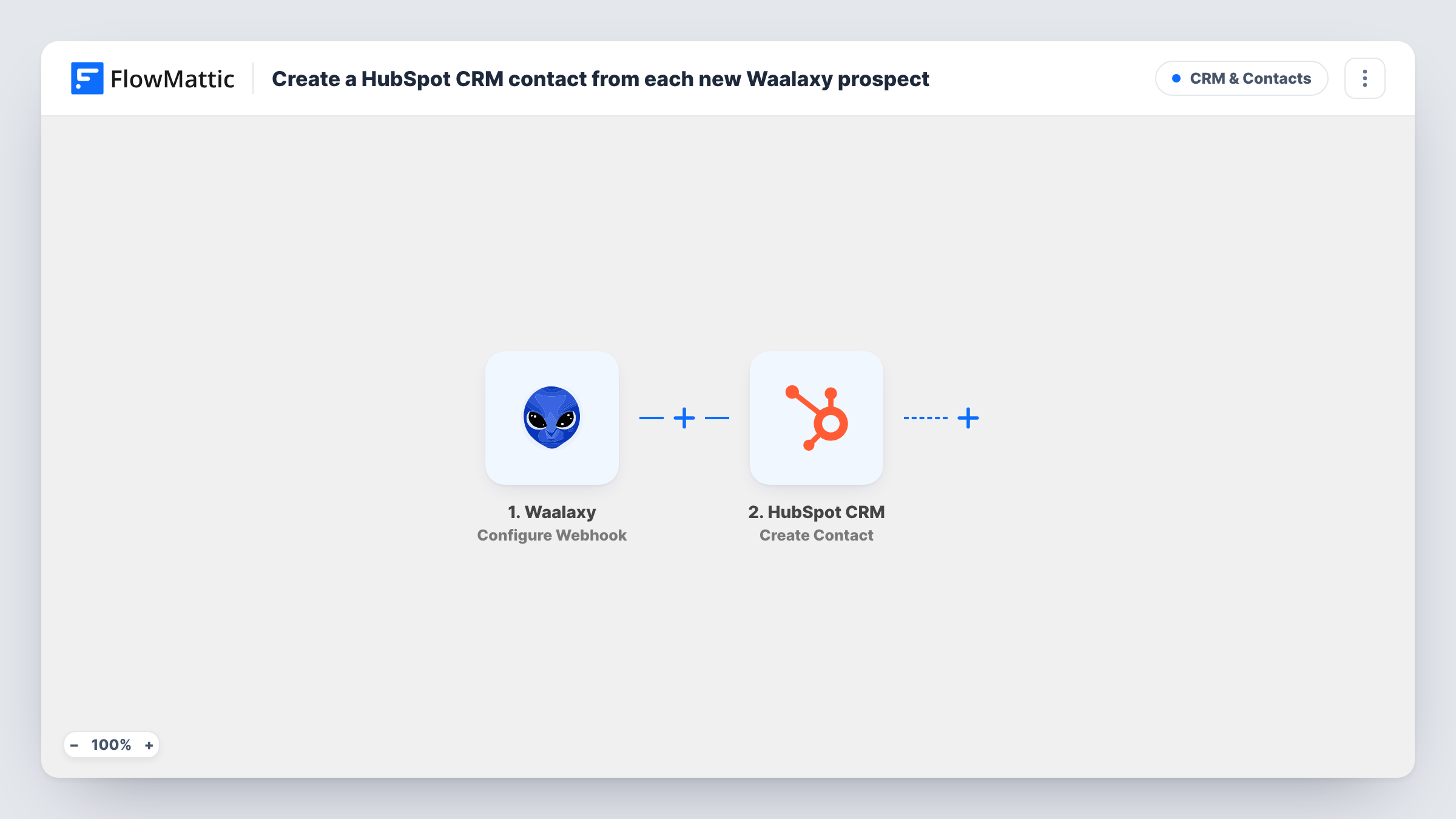
The Waalaxy trigger is a webhook: FlowMattic gives you a URL, and the run starts each time Waalaxy posts data to it. You set Waalaxy up to send prospects to that URL. The second step is the HubSpot CRM Create Contact action, which adds a contact built from the values you map, such as the prospect's name, company and any email Waalaxy includes.
The HubSpot action adds new contacts and does not edit existing ones. If a prospect is already in HubSpot with the same email, HubSpot may refuse the new contact, and Task History shows its response for that run. Every data push Waalaxy makes to the URL starts a run, so check which events you send from Waalaxy.
Founder-led LinkedIn prospecting
You run Waalaxy campaigns yourself and hand warm prospects to a sales rep. Each one Waalaxy sends shows up as a HubSpot contact the rep can work.
Agency running outreach for clients
An agency sends Waalaxy prospects into a client's HubSpot portal, so the client sees every lead the campaign produced in their own CRM.
Recruiting outreach
A recruiter uses Waalaxy to contact candidates on LinkedIn and keeps them in HubSpot to track conversations and next steps.
How this workflow runs
What happens at each step once the workflow is on, and what you need before you import it.
 Waalaxy Configure Webhook
Gives you a webhook URL and runs each time Waalaxy posts prospect data to it. Set Waalaxy to send to this URL, then send a test so FlowMattic captures the fields for mapping.
- HubSpot CRM Create Contact
Creates a new contact in HubSpot CRM from the Waalaxy data. Connect your HubSpot account and map the prospect's details, such as name, company and email when Waalaxy sends one.
What you need
- FlowMatticCore
- Waalaxy AccountAccount
- HubSpot CRM AccountAccount
After importing, map your own data. To keep the template universal, not every step is pre-filled. Open each step in the builder and connect your accounts and fields (channels, lists, sheets, recipients) before you switch the workflow on.
Make it yours
Changes worth making after you import it.
- Add a Filter after the trigger that continues only when the prospect data includes an email, if your team needs every HubSpot contact to have one.
- Send a test prospect from Waalaxy after import and check Task History to see which fields arrive before you map the HubSpot step.
- Turn on the webhook's "Require authentication on incoming requests" setting if Waalaxy can send the key with its request, so only Waalaxy can start a run.
Questions about this workflow
What happens if the Waalaxy prospect is already a HubSpot contact?
Nothing is merged, because this HubSpot action is create-only. HubSpot may refuse a contact with an email that already exists, and Task History shows the response. The workflow does not update the existing contact.
How does Waalaxy send prospects to FlowMattic?
Through the webhook URL the trigger gives you. You set Waalaxy to post prospect data to that URL, and each post starts one run.
Which prospect details reach HubSpot?
Only the ones Waalaxy includes in its data and you map into the HubSpot step. Send a test after import to see the available values.
Do I need a paid HubSpot plan for this Waalaxy workflow?
You need a HubSpot account you can connect to FlowMattic that lets you create contacts. Check your HubSpot account if you are unsure what it allows.
More CRM & Contacts workflows
Other ready-to-import templates from the same category.




Import this workflow into your WordPress site
Download the JSON, import it from the Workflows screen and connect your accounts. Every run stays on your server, with no per-task fees.
30-day money-back guarantee Unlimited workflows and runs Self-hosted