

When a new booking is created in SimplyBook.me, add the client to HubSpot CRM
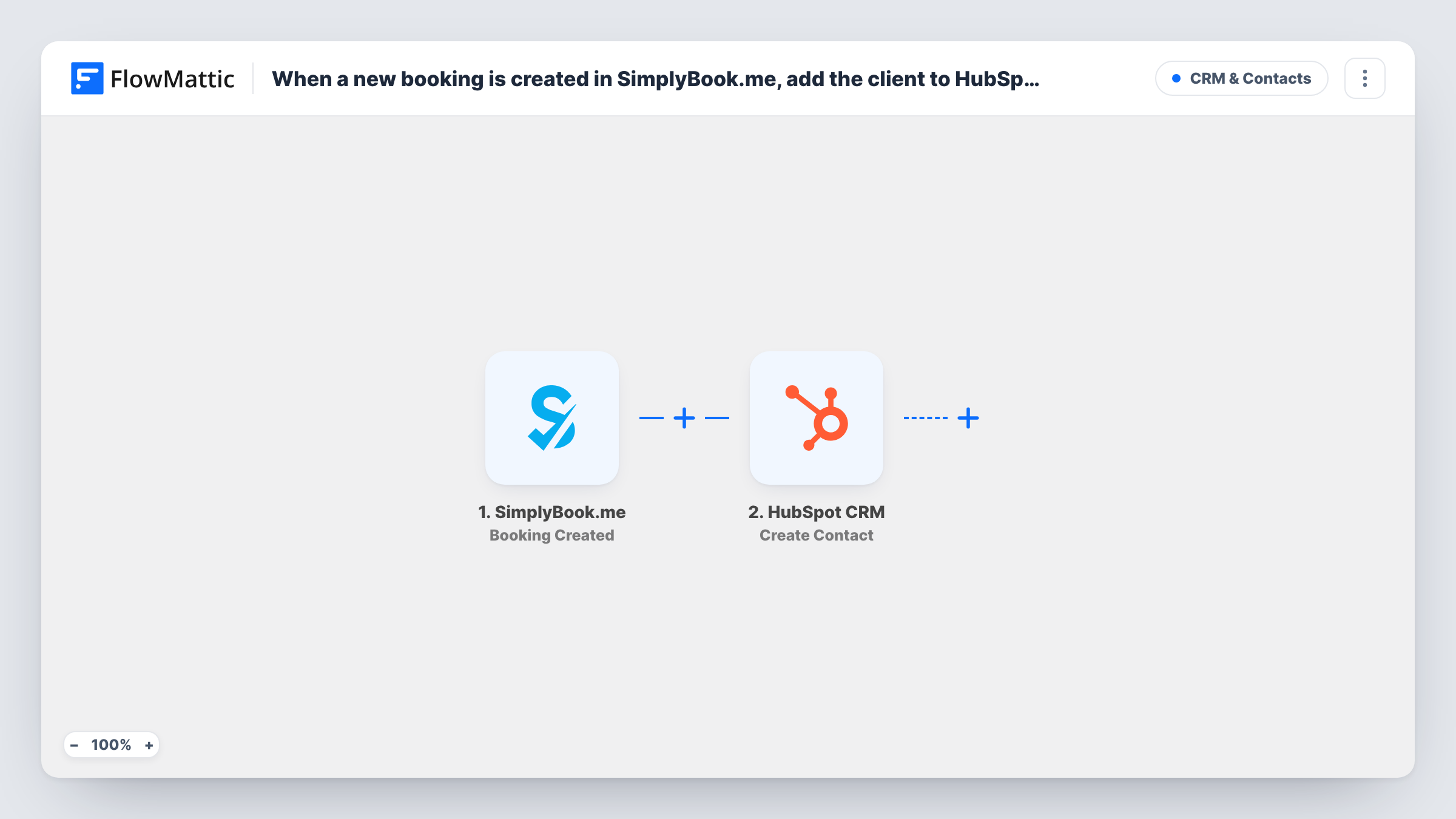
When a client books through SimplyBook.me, this workflow creates a HubSpot CRM contact from the booking details, so the people who book with you are in your CRM without retyping them.
 SimplyBook.me
 HubSpot CRM
2 steps Setup ~5 min Used on 1.9k sites Free to import
What this workflow does
SimplyBook.me keeps your calendar full, but the people who book are stored in its client list, not in the CRM where you plan follow-ups and campaigns. This workflow copies each booking client into HubSpot CRM as a contact, so sales and marketing work from the same records as your schedule.
The SimplyBook.me trigger, Booking Created, fires when a new booking is made. The booking's details, which can include the client's name, email and phone along with the service and time, become values you can map. A test booking shows exactly what arrives.
The HubSpot CRM step, Create Contact, creates a contact from the values you map. It runs for every booking, including bookings from returning clients. Because the action only creates contacts, HubSpot may refuse a second contact with the same email, and Task History shows its response for that run. Updated or cancelled bookings don't start this workflow.
Salon or spa building a client list
Each new client who books a treatment online appears in HubSpot, ready for your newsletter or a rebooking reminder sent from HubSpot.
Consultants tracking discovery calls
A coach whose prospects book a free call through SimplyBook.me sees each booker as a HubSpot contact before the call starts.
Clinics sharing details with front-desk staff
Staff who work in HubSpot can look up a patient's contact details there without logging in to SimplyBook.me.
How this workflow runs
What happens at each step once the workflow is on, and what you need before you import it.
 SimplyBook.me Booking Created
Starts a run each time someone books a slot with you on SimplyBook.me. Connect SimplyBook.me on import and make a test booking so FlowMattic captures the client and booking details.
- HubSpot CRM Create Contact
Adds the booking client to HubSpot CRM as a new contact. Connect HubSpot and map the client's email, name and phone from the booking into the contact.
What you need
- FlowMatticCore
- SimplyBook.me AccountAccount
- HubSpot CRM AccountAccount
After importing, map your own data. To keep the template universal, not every step is pre-filled. Open each step in the builder and connect your accounts and fields (channels, lists, sheets, recipients) before you switch the workflow on.
Make it yours
Changes worth making after you import it.
- Map the booked service into a HubSpot contact property you set aside for it, so you can later find everyone who booked a given service.
- Add a Filter after the trigger that continues only when the client email is not empty, so bookings made without an address don't reach HubSpot.
- Want each booking tracked as a sale too? Add HubSpot's Create Deal action after the contact step and map the service and booking time into it.
Questions about this workflow
Will a regular client who books every month cause problems in HubSpot?
Each booking runs the workflow, so HubSpot is asked to create the same person again. Create Contact is create-only, so HubSpot may refuse the duplicate email, and Task History shows its response. Their first HubSpot record stays unchanged.
Does a cancelled SimplyBook.me booking remove the HubSpot contact?
No. This template only listens for Booking Created. SimplyBook.me's Booking Cancelled trigger exists in FlowMattic, but nothing here uses it, and the contact stays in HubSpot.
Which booking details end up on the HubSpot contact?
Only the values you map. Check a test booking for the client's email, name and phone, then place each in the matching HubSpot field.
Will clients from past SimplyBook.me bookings be added?
No. Only bookings created after you turn the workflow on reach HubSpot. Import older clients into HubSpot separately if you need them.
More CRM & Contacts workflows
Other ready-to-import templates from the same category.






Import this workflow into your WordPress site
Download the JSON, import it from the Workflows screen and connect your accounts. Every run stays on your server, with no per-task fees.
30-day money-back guarantee Unlimited workflows and runs Self-hosted