

Create a HubSpot CRM contact from Chatfuel bot submissions
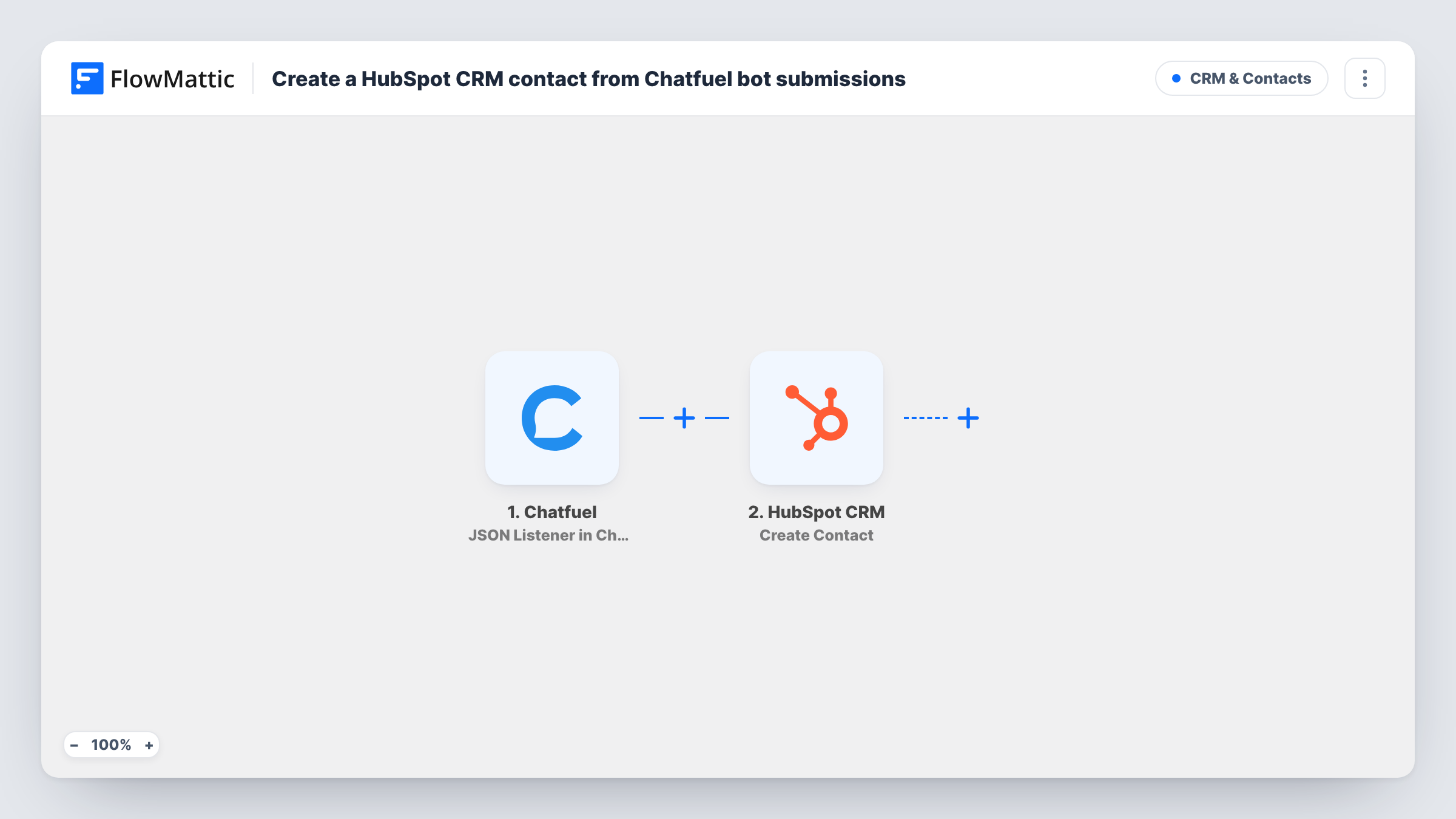
When your Chatfuel bot sends a lead’s details to FlowMattic’s JSON listener, this workflow creates a contact in HubSpot CRM, so people your bot talks to reach your sales pipeline.
 Chatfuel
 HubSpot CRM
2 steps Setup ~5 min Used on 2.5k sites Free to import
What this workflow does
A bot that collects names and email addresses is only half the job. If those details stay in Chatfuel, your sales team works from a different list than the one the bot builds. This workflow moves each lead into HubSpot as a contact.
The Chatfuel trigger is a JSON listener: your bot sends a request with the values it gathered, and FlowMattic receives them. Those values are passed to HubSpot CRM, where the Create Contact action creates a new contact from the bot values you map into it.
This step never updates an existing record. If the email address is already a HubSpot contact, HubSpot may refuse the duplicate, and Task History shows its response on that step. Your bot keeps running as normal either way, and the contact is ready for your sales team's follow-up in HubSpot.
Demo requests from a website chatbot
Visitors who ask your bot for a demo leave their email and company name. Each request becomes a HubSpot contact your sales rep can call.
Lead capture from Instagram or Messenger ads
A bot greets people who click your ad and asks for contact details. Those leads join HubSpot instead of sitting in the bot's user list.
Qualifying questions before a sales call
The bot asks about budget and timeline, and you map the answers into HubSpot contact properties so the rep sees them before calling.
How this workflow runs
What happens at each step once the workflow is on, and what you need before you import it.
 Chatfuel JSON Listener in Chatfuel
Runs each time your Chatfuel bot sends data to the FlowMattic JSON listener. The values in the bot's request become fields you can map into HubSpot.
- HubSpot CRM Create Contact
Creates a new contact in HubSpot CRM from the bot's data. Map the email address and any name or phone values your bot collected, and connect your HubSpot account.
What you need
- FlowMatticCore
- Chatfuel AccountAccount
- HubSpot CRM AccountAccount
After importing, map your own data. To keep the template universal, not every step is pre-filled. Open each step in the builder and connect your accounts and fields (channels, lists, sheets, recipients) before you switch the workflow on.
Make it yours
Changes worth making after you import it.
- Add a Filter after the trigger that continues only when the email value is not empty, so the HubSpot step runs only for leads that gave an address.
- Trigger a test request from Chatfuel after import so the listener captures your bot's fields, then map them into the HubSpot step.
- Add a Google Sheets Add New Row step after HubSpot if you also want a plain list of every bot lead, including ones HubSpot turned away as duplicates.
Questions about this workflow
What happens if the person is already a HubSpot contact?
Create Contact is create-only, so HubSpot may refuse a duplicate email address. Task History shows the response on that step, and the existing contact is left as it was.
Which Chatfuel details can go into HubSpot?
Only values your bot includes in the request it sends to the listener. Add any attribute you need on the Chatfuel side before mapping it into HubSpot.
Does every Chatfuel request create a HubSpot contact?
Every request runs the workflow. Without a Filter, the HubSpot step tries to create a contact each time, even when the email is missing.
More CRM & Contacts workflows
Other ready-to-import templates from the same category.



Import this workflow into your WordPress site
Download the JSON, import it from the Workflows screen and connect your accounts. Every run stays on your server, with no per-task fees.
30-day money-back guarantee Unlimited workflows and runs Self-hosted