

Create a HubSpot CRM contact from each successful CCAvenue order
When a customer completes a CCAvenue payment, FlowMattic creates a contact in HubSpot CRM from the order details, so your buyers are in your CRM without exporting payment reports.
 CCAvenue
 HubSpot CRM
2 steps Setup ~5 min Used on 1.2k sites Free to import
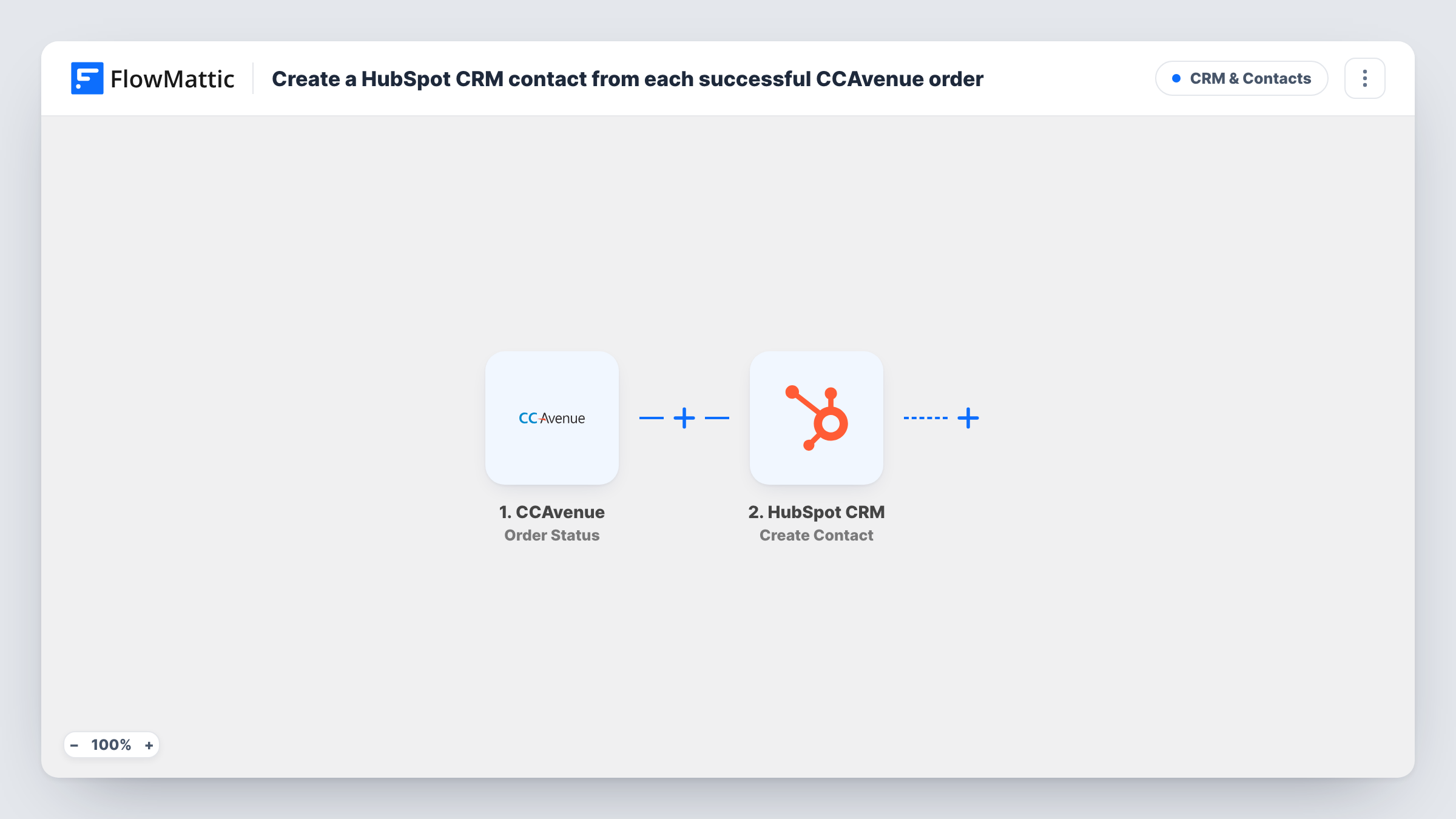
What this workflow does
CCAvenue processes the payment, but the person behind it stays in your gateway's reports unless someone copies them into the CRM. If your sales and marketing work happens in HubSpot, that copying is a chore that gets skipped. This workflow adds the buyer for you.
The CCAvenue trigger, Order Status, fires when a customer completes a payment. The order details CCAvenue sends come into FlowMattic for mapping. The HubSpot CRM step then uses Create Contact to add a new contact from those details.
This HubSpot action makes new records and never searches for one first. A repeat buyer starts another run, and HubSpot may refuse a contact whose email it already holds. Task History shows HubSpot's reply for that run. Payments that are never completed don't start the workflow.
Online course sales in India
An education site takes course fees through CCAvenue. Each paying student is added to HubSpot, ready for onboarding emails sent from there.
Event ticket buyers
Ticket payments through CCAvenue put each buyer into HubSpot, so the events team has one list of attendees to email updates to.
Service bookings paid in advance
A consultancy collects booking fees with CCAvenue. The client shows up in HubSpot as soon as they pay, before the first call.
How this workflow runs
What happens at each step once the workflow is on, and what you need before you import it.
 CCAvenue Order Status
Starts a run once a buyer finishes paying with CCAvenue. The details CCAvenue sends with the order become available to map into HubSpot.
- HubSpot CRM Create Contact
Creates a new contact in HubSpot CRM from the order. Map the buyer's email and name from the CCAvenue data, connect HubSpot, and test with one real payment.
What you need
- FlowMatticCore
- CCAvenue AccountAccount
- HubSpot CRM AccountAccount
After importing, map your own data. To keep the template universal, not every step is pre-filled. Open each step in the builder and connect your accounts and fields (channels, lists, sheets, recipients) before you switch the workflow on.
Make it yours
Changes worth making after you import it.
- Map the buyer's email address in the HubSpot step. HubSpot uses email to tell contacts apart, so it is the field that matters most here.
- Make a small test payment after import so FlowMattic captures the CCAvenue order fields, then finish mapping the HubSpot step.
- Want a record of each payment as well as the contact? Add a Google Sheets Add New Row step after HubSpot and map the order values you want to keep.
Questions about this workflow
What happens when a repeat customer pays through CCAvenue again?
Their second payment starts a fresh run, which asks HubSpot to create the same person again. HubSpot can reject an email it already holds; Task History records its reply, and the earlier HubSpot contact is left untouched.
Do failed CCAvenue payments create HubSpot contacts?
No. The Order Status trigger fires when a customer completes a payment, so abandoned or failed attempts don't start a run.
Does the HubSpot contact include the order amount?
Not unless you map it. The template creates a contact from the details you map; to store order data, add the values to contact properties you have set up in HubSpot.
Are past CCAvenue orders added to HubSpot?
No. Only payments completed after you turn the workflow on create contacts.
More CRM & Contacts workflows
Other ready-to-import templates from the same category.







Import this workflow into your WordPress site
Download the JSON, import it from the Workflows screen and connect your accounts. Every run stays on your server, with no per-task fees.
30-day money-back guarantee Unlimited workflows and runs Self-hosted