

When a new card is created in ClickUp, get studio template in Orshot
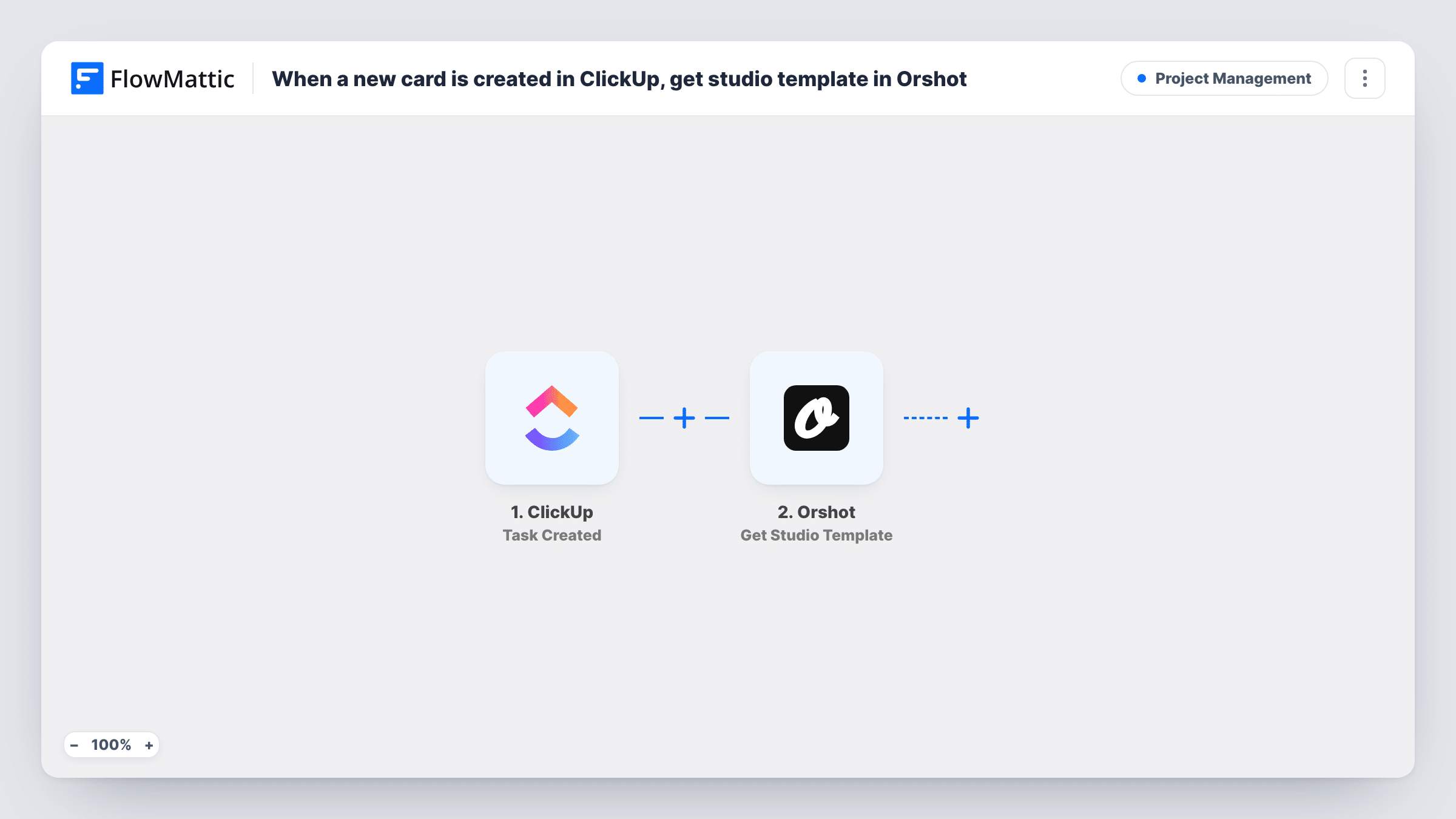
Each new ClickUp task makes FlowMattic fetch the details of an Orshot studio template, giving you a starting point for flows that turn new tasks into designed images or documents.
 ClickUp
 Orshot
2 steps Setup ~5 min Used on 2.1k sites Productivity Free to import
What this workflow does
Teams that produce social graphics, banners or certificates often start each piece as a ClickUp task. Orshot holds the design templates those pieces are built from. This workflow joins the two at the first step: when a task is created, it fetches an Orshot studio template so its details are ready for whatever you add next.
The ClickUp trigger runs whenever a task is created. FlowMattic receives the task's data. The Orshot step then runs Get Studio Template and returns that template's details as data you can use in later steps.
As imported, that is where the workflow ends. Fetching a template does not create an image, change the template or update the ClickUp task, so on its own nothing visible happens. Treat it as a base: add the steps that use the template data, and test each run in Task History. Which template is fetched, and how you choose it, is set in the Orshot step, so check it with a test run.
Design request intake
A marketer adds a ClickUp task for a new banner. The workflow fetches the Orshot template details, ready for a step you add to produce the design.
Checking template details before production
A test run shows exactly what Orshot returns for a template, which helps you plan the next steps before building the full flow.
Per-task template look-up
If your tasks carry a template reference, map it into the Orshot step so each task fetches the template it names.
How this workflow runs
What happens at each step once the workflow is on, and what you need before you import it.
 ClickUp Task Created
Runs each time a task is created in ClickUp. The task's data is passed on for use in the Orshot step and any steps you add.
- Orshot Get Studio Template
Fetches an Orshot studio template and returns its details as mappable data. Connect Orshot, choose or map the template, and run a test to see what comes back.
What you need
- FlowMatticCore
- ClickUp AccountAccount
- Orshot AccountAccount
After importing, map your own data. To keep the template universal, not every step is pre-filled. Open each step in the builder and connect your accounts and fields (channels, lists, sheets, recipients) before you switch the workflow on.
Make it yours
Changes worth making after you import it.
- Add a step after Orshot that uses the template data, such as a Slack message to the designer with the task and template details, so each run produces something people can see.
- Add a Filter after the trigger so only tasks in a design list, or with a certain tag, fetch a template.
- Run a test after import and read the Orshot output in Task History before you build further steps on it.
Questions about this workflow
Does this workflow create an image in Orshot from the ClickUp task?
No. Get Studio Template only fetches a template's details. Generating anything from it needs a step you add after import.
Will the ClickUp task be updated with the Orshot template?
Not as imported. Nothing is written back to ClickUp. Add a ClickUp step after Orshot if you want the task changed.
Does every new ClickUp task start a run?
Yes. Every task the ClickUp trigger picks up starts a run, so check during setup which part of ClickUp it watches. A Filter placed right after the trigger can limit runs to the tasks you care about.
More Project Management workflows
Other ready-to-import templates from the same category.





Import this workflow into your WordPress site
Download the JSON, import it from the Workflows screen and connect your accounts. Every run stays on your server, with no per-task fees.
30-day money-back guarantee Unlimited workflows and runs Self-hosted