

Create a ClickUp task for follow-up on new Reclaim AI scheduling activity
Every booking, reschedule or cancellation through your Reclaim AI scheduling links creates a ClickUp task, so each change to your meetings lands in the list where you plan your follow-up work.
 Reclaim AI
 ClickUp
2 steps Setup ~5 min Used on 3.2k sites Productivity Free to import
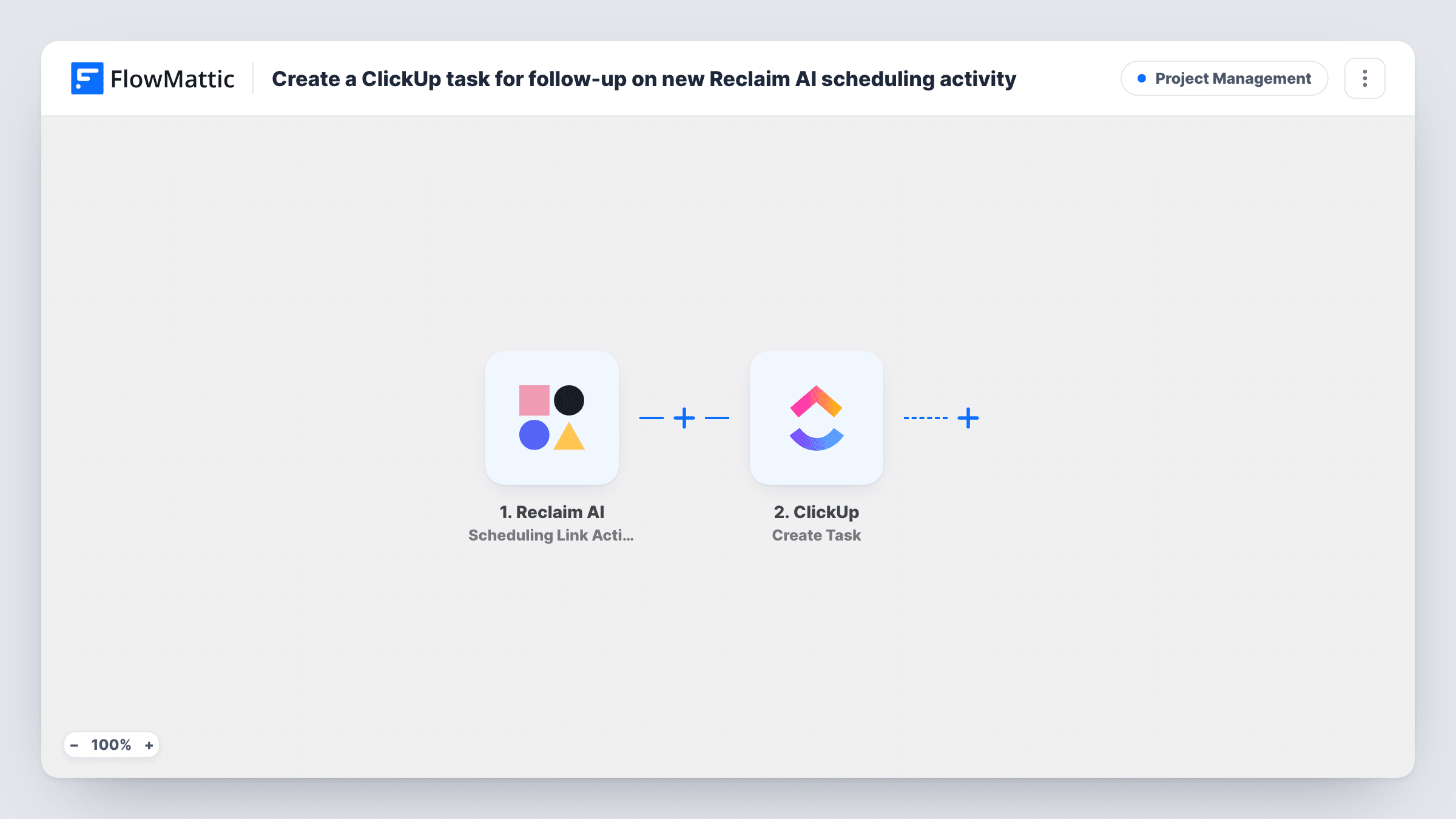
What this workflow does
A meeting on your calendar often brings work with it: notes to send, a proposal to draft, a slot to rebook. If that work lives only in your head, it gets missed. This workflow turns scheduling link activity in Reclaim AI into a ClickUp task you can assign and track.
Any booking, reschedule or cancellation made through one of your Reclaim AI scheduling links starts a run. FlowMattic passes the event details to the ClickUp Create Task action, which creates a new task. You choose where it goes and map details from the event, such as the attendee and the meeting time, into the task.
All three kinds of activity create a task, which suits a team that wants to act on cancellations and reschedules as well as new bookings. Put the type of activity in the task name so each task says what happened. Task History logs every run if you need to check what reached ClickUp.
Prep work before sales calls
Each new booking gives a sales rep a ClickUp task to research the prospect and prepare an agenda before the meeting.
Rebooking cancelled sessions
A coach sees a ClickUp task whenever a client cancels through the Reclaim AI link, and uses it as a reminder to offer a new time.
Agency kickoff calls
When a new client books a kickoff, the project manager gets a task to send the onboarding pack and set up the project space.
How this workflow runs
What happens at each step once the workflow is on, and what you need before you import it.
 Reclaim AI Scheduling Link Activity
Starts the workflow on any activity through your Reclaim AI scheduling links: a new booking, a moved meeting or a cancellation. The event details go on to the ClickUp step.
- ClickUp Create Task
Adds a follow-up task to ClickUp for the Reclaim AI event. Pick where the task goes after import and map event details into it, such as the attendee's name and the meeting time. A test booking shows which details you can use.
What you need
- FlowMatticCore
- Reclaim AI AccountAccount
- ClickUp AccountAccount
After importing, map your own data. To keep the template universal, not every step is pre-filled. Open each step in the builder and connect your accounts and fields (channels, lists, sheets, recipients) before you switch the workflow on.
Make it yours
Changes worth making after you import it.
- Only want tasks for new bookings? Add a Filter after the trigger on the event field that names the activity type, so reschedules and cancellations stop there.
- Use a Router to send bookings and cancellations to different ClickUp steps, for example a prep task for one and a rebooking task for the other. The activity types can't overlap.
- Add the attendee's email to the task description so whoever picks it up can contact the person without opening Reclaim AI.
Questions about this workflow
Does a Reclaim AI reschedule create a second ClickUp task?
Yes. The trigger fires for bookings, reschedules and cancellations, and each event runs the Create Task step. A Filter on the activity type cuts that down to the events you care about.
Is the ClickUp task removed if the meeting is cancelled?
No. Nothing in this template edits or deletes ClickUp tasks. A cancellation creates its own task rather than closing an earlier one.
Can each Reclaim AI follow-up task in ClickUp go to a set teammate?
Open the Create Task step after import to see the options FlowMattic offers, and test with a booking to confirm the task lands where you expect.
Which Reclaim AI scheduling links does this cover?
Activity through your Reclaim AI scheduling links runs the workflow. A test booking on each link you use confirms that its events come through.
More Project Management workflows
Other ready-to-import templates from the same category.






Import this workflow into your WordPress site
Download the JSON, import it from the Workflows screen and connect your accounts. Every run stays on your server, with no per-task fees.
30-day money-back guarantee Unlimited workflows and runs Self-hosted