

Create ClickUp tasks from new Typeform entries
Each new Typeform response creates a task in ClickUp with the answers you map, so requests, applications and feedback collected in Typeform become work your team can assign and track.
 Typeform
 ClickUp
2 steps Setup ~5 min Used on 1.8k sites Productivity Free to import
What this workflow does
Typeform is good at asking questions; ClickUp is where the team does the work that follows. Copying each response into a task by hand is slow and easy to skip on busy days. Here, FlowMattic opens that ClickUp task as each response comes in.
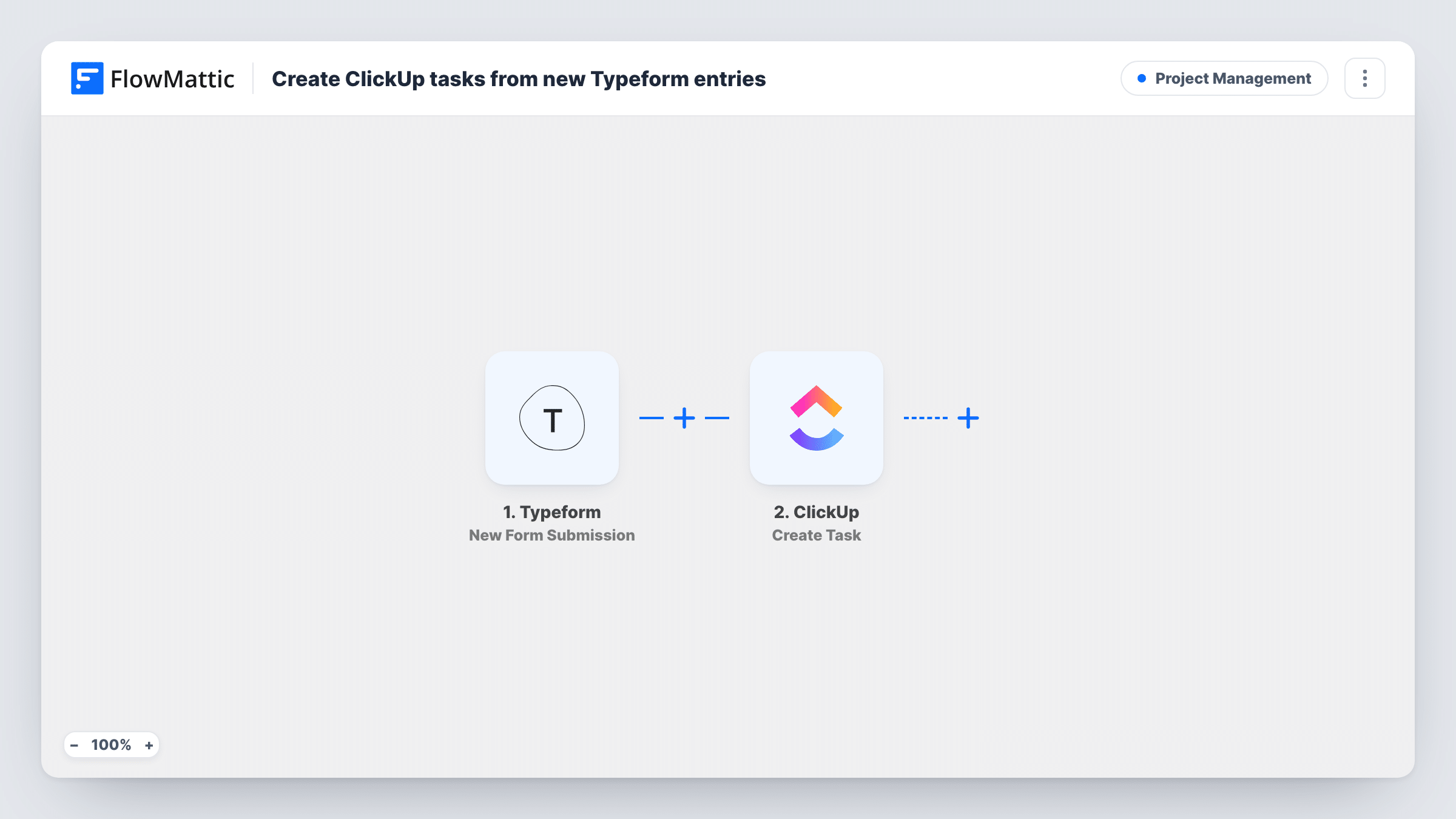
The Typeform trigger runs when a new form submission arrives. FlowMattic sends the answers to ClickUp, where Create Task adds a task to the list you pick. After import, you map the answers into the task, such as the respondent's name or request title as the task name and the rest of the answers in the description.
Every response creates one task. The workflow doesn't assign it or set a due date unless you map those yourself in the ClickUp step, so check the step after import to see what you can set. Task History lists each run with the answers Typeform sent.
Design or content requests
A marketing team takes requests through Typeform. Each one becomes a ClickUp task in the creative team's list, with the brief in the description.
Bug reports from users
A product's feedback form creates a ClickUp task per report, so the developers triage them in the same place as the rest of their work.
Client onboarding questionnaires
An agency's onboarding form produces a task holding the client's answers, ready for the account manager to pick up.
How this workflow runs
What happens at each step once the workflow is on, and what you need before you import it.
 Typeform New Form Submission
Starts a run for each completed response to your Typeform. All of their answers are passed to the ClickUp step for mapping.
- ClickUp Create Task
Creates a task in ClickUp from the Typeform response. Connect your ClickUp account, choose where the task goes, then map the answers into its name and description.
What you need
- FlowMatticCore
- Typeform AccountAccount
- ClickUp AccountAccount
After importing, map your own data. To keep the template universal, not every step is pre-filled. Open each step in the builder and connect your accounts and fields (channels, lists, sheets, recipients) before you switch the workflow on.
Make it yours
Changes worth making after you import it.
- Put a short answer, such as the request title, in the task name and the longer answers in the description, so the ClickUp list stays easy to scan.
- Add a Filter after the trigger to create tasks only for some responses, for example when a request type answer equals Design.
- Add a ClickUp Add Tag to Task step after Create Task to tag each new task by its source, such as typeform, for filtering in ClickUp.
Questions about this workflow
Does every Typeform response create a ClickUp task?
Yes, as imported. There is no Filter, so each response becomes one task. Add a Filter if only some should.
Can a Typeform answer set the ClickUp assignee or due date?
Open the ClickUp step once the template is imported. If it offers those options, map a suitable answer into them and confirm with a test response.
Are older Typeform responses turned into tasks?
No. Only responses submitted while the workflow is on start a run.
Can I send responses from several Typeforms to ClickUp?
Import the workflow once for each form, or duplicate it and set a different form in the trigger.
More Project Management workflows
Other ready-to-import templates from the same category.




Import this workflow into your WordPress site
Download the JSON, import it from the Workflows screen and connect your accounts. Every run stays on your server, with no per-task fees.
30-day money-back guarantee Unlimited workflows and runs Self-hosted