

When a new chat session starts in Tawk.to, add a new member in Mailchimp list
When a chat starts in Tawk.to, FlowMattic sends the visitor’s details to Mailchimp and adds them to your audience, or updates them if they are already on it, so chat visitors join your email list.
 tawk.to
 Mailchimp
2 steps Setup ~5 min Used on 2.3k sites Free to import
What this workflow does
People who open a chat on your site are interested enough to ask a question. If you later want to email them, they need to be in Mailchimp, and copying them across after each conversation is tedious. This workflow does it when the chat begins.
The Tawk.to trigger fires when the first message in a chat is sent, by the visitor or by an agent. FlowMattic passes the chat data to the Mailchimp Add New Member action. That action adds the person to the audience you choose, or updates them if they already exist, so a returning visitor isn't added twice.
An audience member can't be added without an email address. If a visitor starts chatting without giving one, the run has no address to send, and Task History shows the error from Mailchimp on that step. Before you rely on the workflow, run a test chat to see what Tawk.to sends and check that you have consent to email the people it adds.
Pre-chat form that asks for email
Your Tawk.to widget asks visitors for a name and email before they chat. Each chat then gives Mailchimp a usable address for your newsletter audience.
Following up on sales questions
Visitors who ask about pricing join a Mailchimp audience, so you can send them a follow-up campaign about your plans later.
Building a list for a new shop
A new online store has few subscribers. Chat visitors who give their email are added to Mailchimp, where you can include them in launch emails.
How this workflow runs
What happens at each step once the workflow is on, and what you need before you import it.
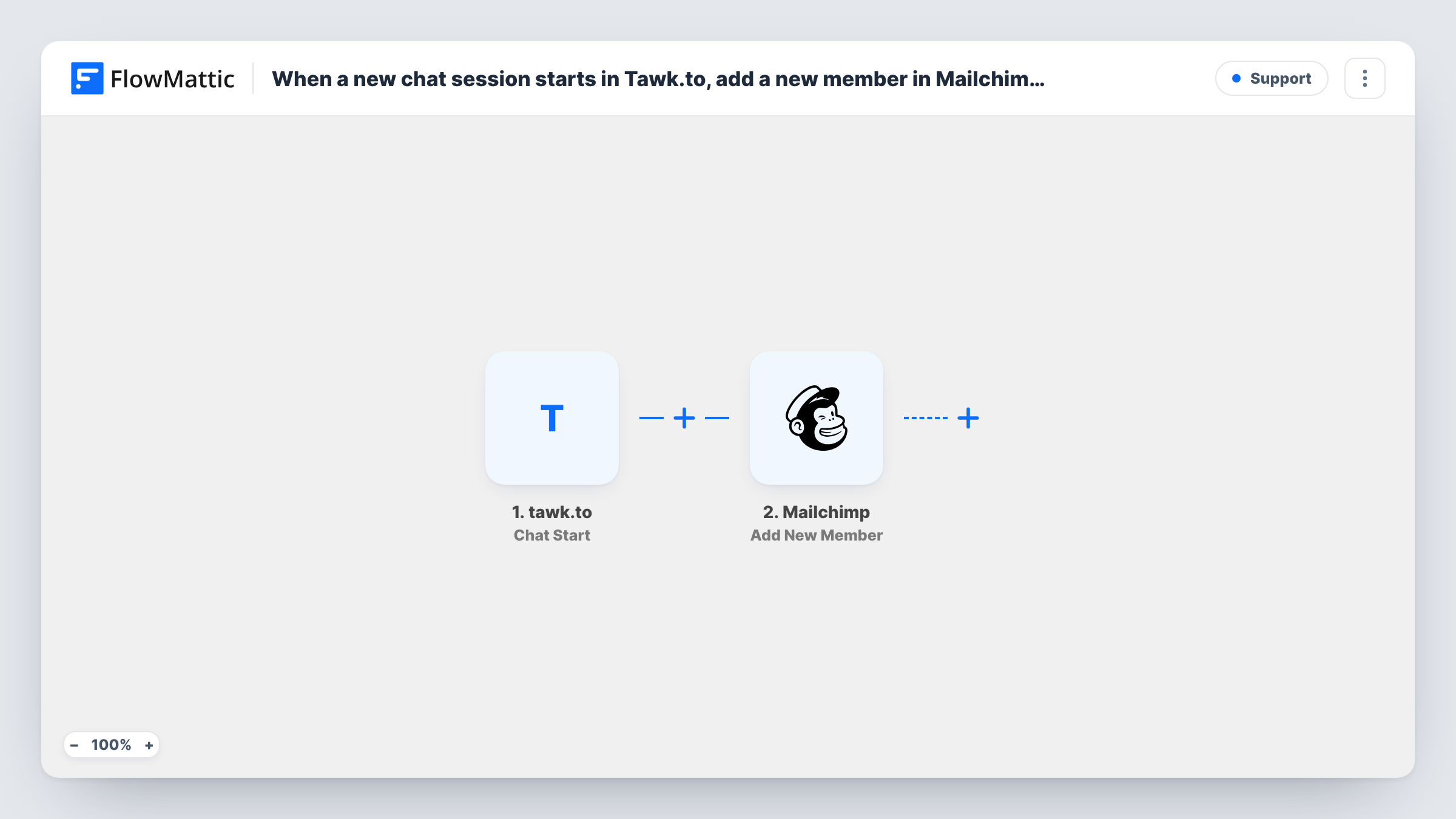
 tawk.to Chat Start
Fires when the first message in a Tawk.to chat is sent by the visitor or an agent. The chat and visitor data is passed on. Run a test chat to see which values Tawk.to includes.
- Mailchimp Add New Member
Adds the visitor to the Mailchimp audience you pick, or updates them if they already exist. Connect your Mailchimp account and map the visitor's email, plus any name values Tawk.to sends.
What you need
- FlowMatticCore
- Tawk.to AccountAccount
- Mailchimp AccountAccount
After importing, map your own data. To keep the template universal, not every step is pre-filled. Open each step in the builder and connect your accounts and fields (channels, lists, sheets, recipients) before you switch the workflow on.
Make it yours
Changes worth making after you import it.
- Add a Filter between the steps that continues only when the visitor email is not empty, so chats without an address stop there instead of failing at Mailchimp.
- Turn on the pre-chat form in your Tawk.to widget settings and make the email question required, so more chats arrive with an address.
- Add a consent question to the pre-chat form and a Filter on its answer if your audience should only hold people who agreed to marketing email.
Questions about this workflow
What if the chat visitor never gives an email address?
Mailchimp can't add a member without one, so that run fails at the Mailchimp step and Task History shows the error. A Filter on the email value avoids those failed runs.
What happens when a returning visitor starts another chat?
The trigger fires again, but Add New Member updates an existing member instead of adding a duplicate, so the person stays on your audience once.
Does it fire for chats an agent starts?
Yes. The trigger fires on the first message in a chat, whether the visitor or an agent sends it.
Can I add chat visitors to a specific Mailchimp audience?
Yes. You choose the audience in the Mailchimp step when you set up the workflow.
More Support workflows
Other ready-to-import templates from the same category.







Import this workflow into your WordPress site
Download the JSON, import it from the Workflows screen and connect your accounts. Every run stays on your server, with no per-task fees.
30-day money-back guarantee Unlimited workflows and runs Self-hosted