

When a visitor enters the queue, send an automated acknowledgment email via Gmail
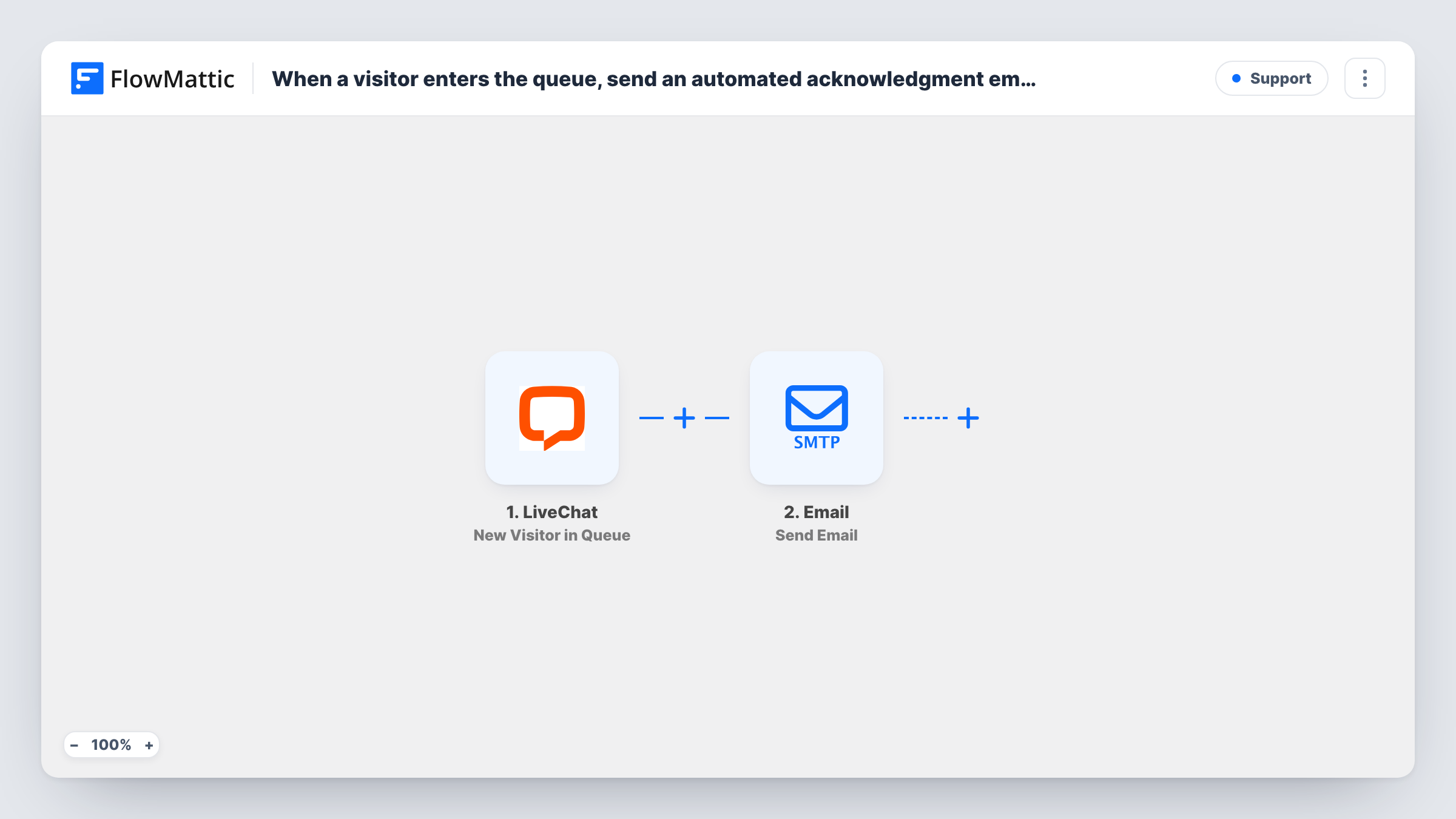
When a visitor enters the LiveChat queue, FlowMattic sends them an acknowledgment email through its Email module, using WordPress mail or your SMTP account, which can be Gmail’s SMTP server.
 LiveChat
 Email
2 steps Setup ~5 min Used on 1.9k sites Free to import
What this workflow does
When every agent is busy, LiveChat puts new visitors in a queue. Some of them leave before anyone answers. An acknowledgment email tells them their request was seen and gives them a way to hear back later. This workflow sends that email when a visitor joins the queue.
The LiveChat trigger fires each time a new visitor enters the queue. The second step is FlowMattic's Email module, not the Gmail app. It sends through WordPress mail or an SMTP account you set up. To send from Gmail, enter Gmail's SMTP details in that step, or swap in the Gmail app's Send Email action.
The email can only go to visitors whose queue event carries an email address, for example one they typed into a pre-chat form. Queue a test visitor after import and check the trigger data in Task History to see whether an address is there before you map the recipient.
Busy support hours
During a product launch, queued visitors who gave an email get a note saying the team will reply, along with a link to your help centre.
Small teams with one agent online
A solo store owner on a call can't take every chat at once, and queued visitors get an email instead of silence.
After-hours fallback
Visitors who queue just before closing receive an email confirming their question will be picked up the next working day.
How this workflow runs
What happens at each step once the workflow is on, and what you need before you import it.
 LiveChat New Visitor in Queue
Runs when a new visitor enters the LiveChat queue. The visitor details from the event are passed on, including an email address when the visitor provided one.
 Email Send Email
Sends an email with FlowMattic's Email module, through WordPress mail or your SMTP account. Map the visitor's email as the recipient and write the acknowledgment. Use Gmail's SMTP details to send from Gmail.
What you need
- FlowMatticCore
- LiveChat AccountAccount
After importing, map your own data. To keep the template universal, not every step is pre-filled. Open each step in the builder and connect your accounts and fields (channels, lists, sheets, recipients) before you switch the workflow on.
Make it yours
Changes worth making after you import it.
- Turn on a pre-chat form in LiveChat that asks for an email, so queued visitors have an address the workflow can send to.
- Add a Filter after the trigger that continues only when the visitor's email is not empty, so the Email step isn't asked to send to a blank address.
- Replace the Email step with the Gmail app's Send Email action if you would rather connect a Gmail account than enter SMTP details.
- Include a link to your help centre or FAQ in the email, so visitors have something to read while they wait.
Questions about this workflow
Does this LiveChat workflow send through Gmail?
Not by default. The step is FlowMattic's Email module, which uses WordPress mail or the SMTP account you enter. Add Gmail's SMTP details there, or swap in the Gmail app's Send Email action.
What if a queued LiveChat visitor gave no email?
Then the Email step has no recipient and nothing is delivered. Task History shows how that run went. A pre-chat form that asks for an email, plus a Filter, avoids those runs.
Does every visitor who joins the LiveChat queue get an email?
Every queue event runs the workflow. Only visitors with an email address in the event can actually receive the message.
Does the email remove the visitor from the LiveChat queue?
No. The workflow only sends an email. The visitor stays in the queue until an agent takes the chat or they leave.
More Support workflows
Other ready-to-import templates from the same category.





Import this workflow into your WordPress site
Download the JSON, import it from the Workflows screen and connect your accounts. Every run stays on your server, with no per-task fees.
30-day money-back guarantee Unlimited workflows and runs Self-hosted