

When a Freshdesk ticket is updated, update the requester's WordPress user metadata
Whenever a Freshdesk ticket is updated, FlowMattic finds the WordPress user whose email matches the ticket’s requester and writes to that user’s metadata, keeping support details on the account.
 Freshdesk
 WordPress
3 steps Setup ~5 min Used on 806 sites Free to import
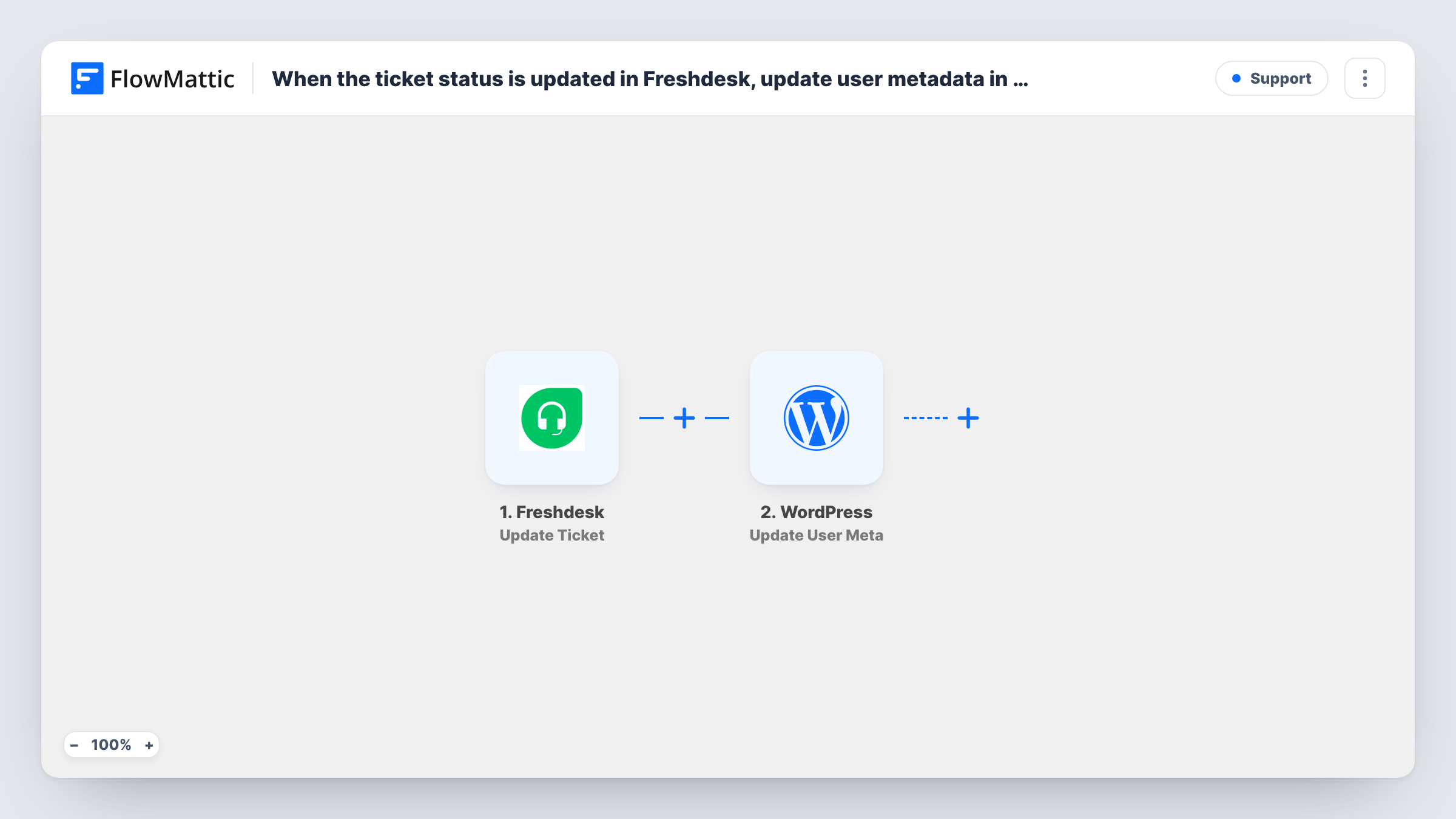
What this workflow does
Support activity often matters on your own site: a member area that shows open tickets, a customer profile staff check before a call, or a plugin that reacts to a support flag. That information lives in Freshdesk, not in WordPress. This workflow writes it onto the requester's WordPress user record every time the ticket changes.
The Freshdesk Update Ticket trigger fires when a ticket is updated. The first WordPress step gets the user profile by email, so map the requester's email from the ticket into it after import. The second step updates user metadata, and the template already passes it the user ID found by the lookup.
You decide what is stored. Set the meta key and the value, such as the ticket's current status or the date of the latest update, mapped from the trigger. Code or plugins on your site that read that key then see the new value.
Any update to a ticket starts a run, not only status changes, and each run overwrites the value with the latest one. Requesters who have no WordPress account with the same email have no user to update, and the run's entry in Task History shows how far it got. Test on a ticket raised by a known user first.
Ticket status in the customer portal
A software company shows logged-in customers the status of their latest support ticket, read from a user meta field this workflow keeps current.
Support flag for account managers
An agency stores the date of each client's latest ticket update on their WordPress profile, so account managers see recent support activity at a glance.
Plugin rules based on support state
A membership site's custom code reads a ticket-status meta key and shows a priority-help banner to members whose ticket is still open.
How this workflow runs
What happens at each step once the workflow is on, and what you need before you import it.
 Freshdesk Update Ticket
Fires when a ticket is updated in Freshdesk, for any kind of change. The ticket's details, including the requester information Freshdesk sends, are passed to the WordPress steps.
- WordPress Get User by Email
Looks up the WordPress user whose account email matches. The template leaves the email unmapped, so map the ticket requester's email from the Freshdesk trigger into it.
- WordPress Update User Meta
Writes metadata to the user the lookup found; the user ID is mapped from step 2 already. Choose the meta key and the value to store, for example the ticket status from the trigger.
What you need
- FlowMatticCore
- Freshdesk AccountAccount
After importing, map your own data. To keep the template universal, not every step is pre-filled. Open each step in the builder and connect your accounts and fields (channels, lists, sheets, recipients) before you switch the workflow on.
Make it yours
Changes worth making after you import it.
- Put a Filter between the Freshdesk trigger and the Get User by Email step that continues only when the ticket status is the one you track, if other ticket updates shouldn't rewrite the meta field.
- Put a Filter between the Get User by Email step and the Update User Meta step that continues only when a user ID was found, so requesters without an account stop before the update.
- Pick a meta key with a clear prefix, such as support_ticket_status, so it doesn't clash with keys other plugins already use.
Questions about this workflow
Which Freshdesk ticket updates run the workflow?
Any update. FlowMattic describes the Update Ticket trigger as firing when a ticket is updated, so changes such as a new priority or assignee can start a run, not only a status change. Check Task History after a few updates to see what reaches the workflow.
What if the Freshdesk requester has no WordPress account?
The lookup returns no user, so there is no user ID to update. You can see the empty lookup in that run's Task History entry. To stop those runs, put a Filter between the Get User by Email step and the Update User Meta step that checks the user ID is not empty.
Which WordPress user meta does the Freshdesk workflow write?
Only the key you set in the Update User Meta step. The template supplies the user ID and nothing else, so choose a key and map the ticket value you want, such as the status.
More Support workflows
Other ready-to-import templates from the same category.







Import this workflow into your WordPress site
Download the JSON, import it from the Workflows screen and connect your accounts. Every run stays on your server, with no per-task fees.
30-day money-back guarantee Unlimited workflows and runs Self-hosted