

When a new doc is created in Kitchen.co, create file in Google Drive
Every new doc in Kitchen.co gets a matching text file in Google Drive, built from the doc details you map. Your client docs then have a copy in Drive where the rest of the team already keeps its files.
 Kitchen.co
 Google Drive
2 steps Setup ~5 min Used on 913 sites Free to import
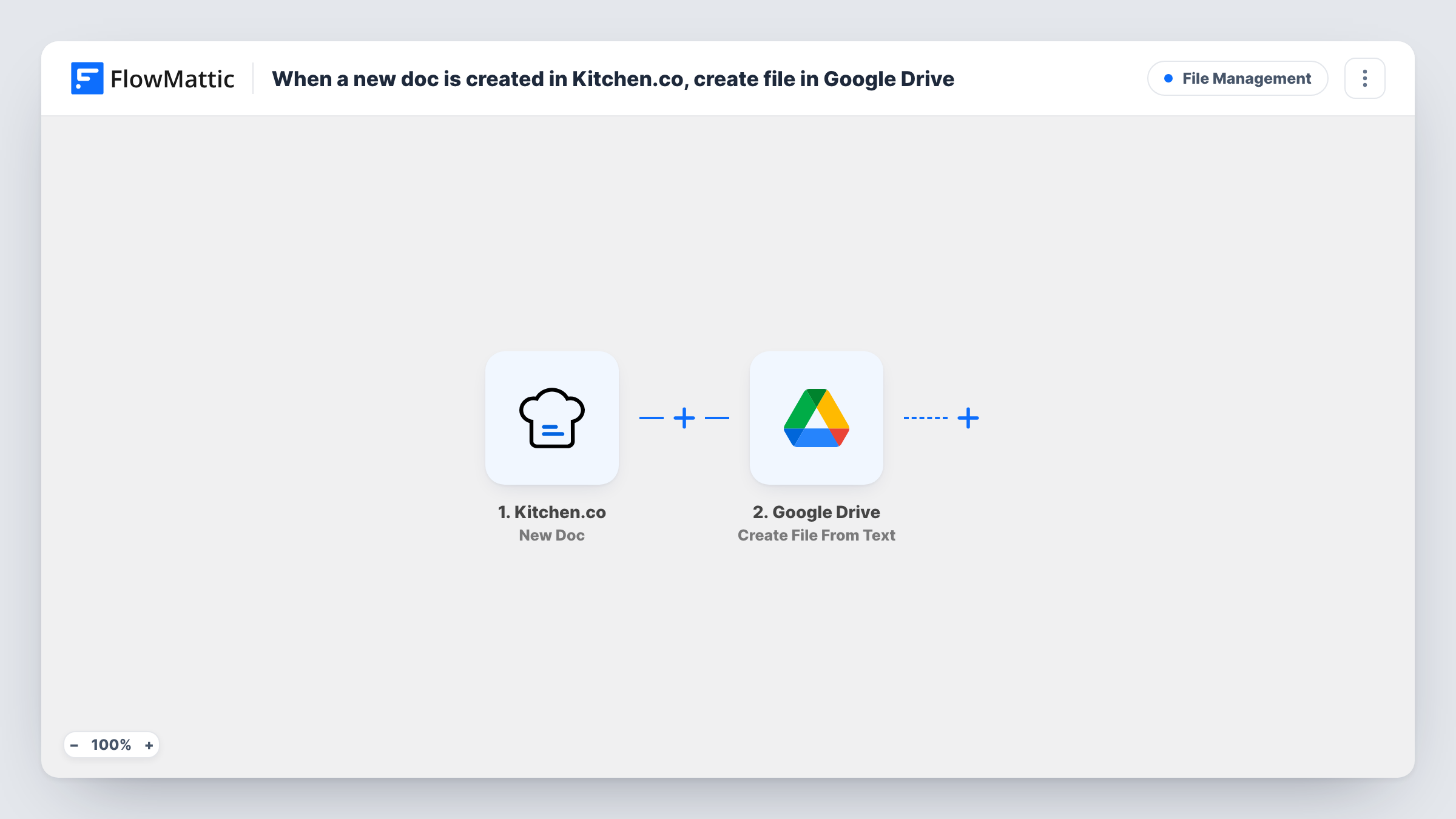
What this workflow does
Kitchen.co keeps docs next to the client projects they belong to, which suits the client. Your own team may keep reference material in Google Drive, and moving a copy across means opening the doc and pasting it into a new file. This workflow creates that Drive file for you each time a doc is added in Kitchen.co.
The Kitchen.co trigger runs when a new doc is created in your account and passes the doc data to FlowMattic. The Google Drive step uses Create File From Text, so the file is built from text you map in, such as the doc's title and whatever content Kitchen.co sends with it.
The Drive file is a snapshot taken when the doc is created. Edits made in Kitchen.co later are not copied over. Create a test doc after import and check Task History to see what text the trigger delivers, since that decides what the Drive file will hold.
Agency briefs kept in a team Drive
An account manager writes a project brief as a Kitchen.co doc for the client, and a text copy appears in Google Drive for designers who work from Drive folders.
Meeting notes archive
Notes written in Kitchen.co after client calls are copied into Drive, giving you a searchable archive of notes outside the client portal.
Handover when a project closes
Docs created during a project build up as Drive files, so you have copies on hand when the Kitchen.co project is archived.
How this workflow runs
What happens at each step once the workflow is on, and what you need before you import it.
 Kitchen.co New Doc
Runs when a new doc is created in your Kitchen.co account. The doc data Kitchen.co sends is passed on for mapping into the Google Drive step.
- Google Drive Create File From Text
Creates a new Google Drive file from the text you map. Connect your Google account and place Kitchen.co values such as the doc title and content into the step. A test run shows where the file is saved.
What you need
- FlowMatticCore
- Kitchen.co AccountAccount
- Google Drive AccountAccount
After importing, map your own data. To keep the template universal, not every step is pre-filled. Open each step in the builder and connect your accounts and fields (channels, lists, sheets, recipients) before you switch the workflow on.
Make it yours
Changes worth making after you import it.
- Add a Slack or Gmail step after Google Drive so the team hears when a new client doc has been copied over.
- Put the Kitchen.co doc title at the start of the text you map, so the Drive file is easy to recognise when you search for it later.
- Make a short test doc in Kitchen.co after import and read the run in Task History to check which fields carry the doc's text before you map them.
Questions about this workflow
Does the Google Drive file update when I edit the Kitchen.co doc?
No. The workflow runs once, when the doc is created. Later edits in Kitchen.co are not sent to Drive.
Will images or formatting from the Kitchen.co doc appear in Drive?
The action creates a file from text, so expect the text you map rather than a full copy of the doc's layout. A test run shows exactly what comes through.
Are docs created before I import the workflow copied to Drive?
No. Only docs created in Kitchen.co after you turn the workflow on start a run.
Which Google account does the Drive file belong to?
The one you connect in the Google Drive step. The file is created in that account's Drive.
More File Management workflows
Other ready-to-import templates from the same category.



Import this workflow into your WordPress site
Download the JSON, import it from the Workflows screen and connect your accounts. Every run stays on your server, with no per-task fees.
30-day money-back guarantee Unlimited workflows and runs Self-hosted