

When a new file is uploaded in Google Drive, remove background in BackgroundCut
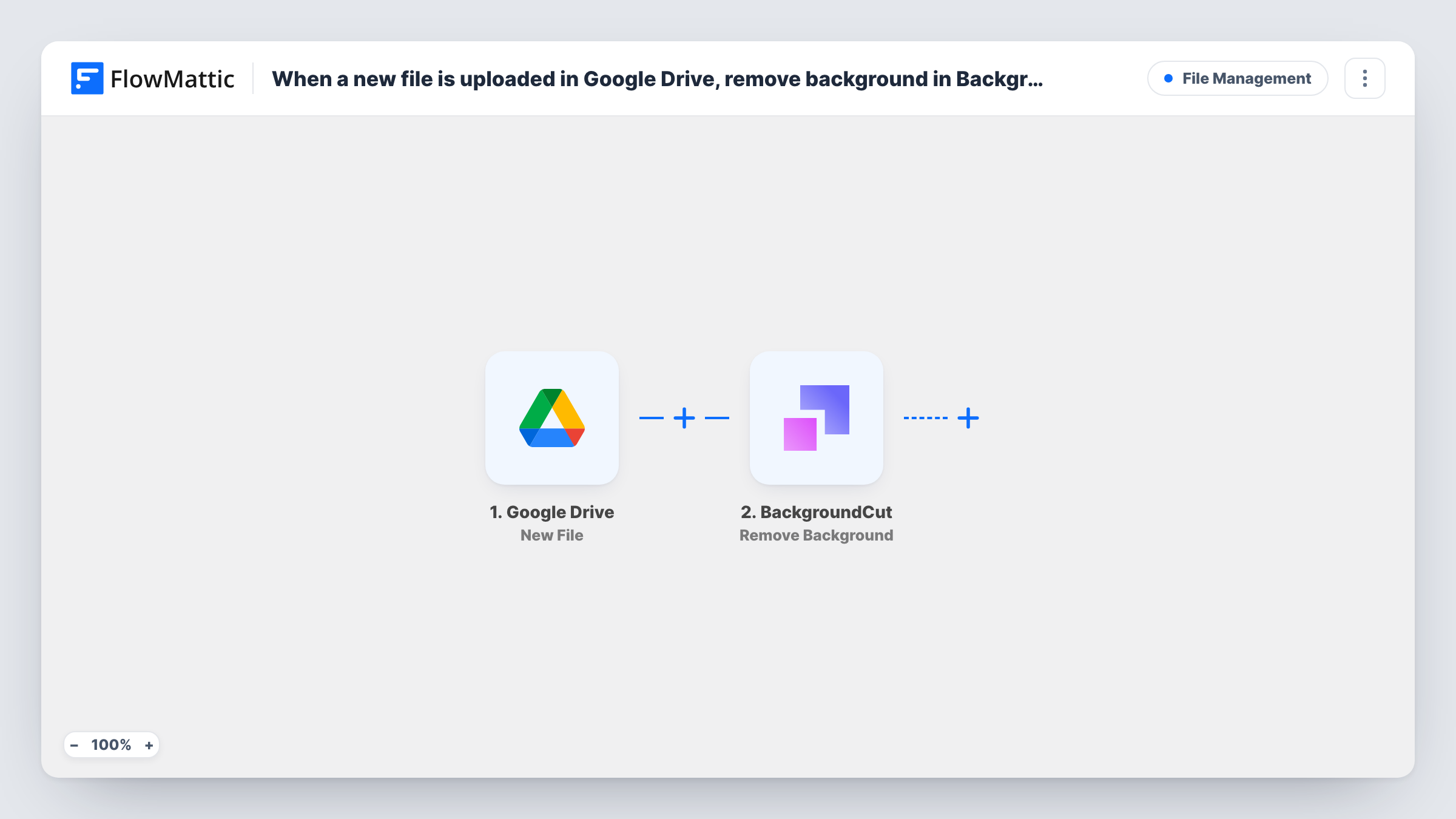
When a new file appears in Google Drive, FlowMattic sends it to BackgroundCut to remove the image background. Add a step after it to save or use the result wherever you need.
 Google Drive
 BackgroundCut
2 steps Setup ~5 min Used on 1.9k sites Free to import
What this workflow does
Product photos, headshots and catalogue images often need a clean background before they can be used. Opening each one in an editor takes time. This workflow hands new Google Drive files to BackgroundCut as they arrive.
The Google Drive trigger starts a run when a new file is added to your Drive. FlowMattic passes the file's details to BackgroundCut, which runs Remove Background on it. BackgroundCut's response is returned to FlowMattic.
That is where the template stops. It doesn't save the processed image anywhere, so on its own you'd only see the result in Task History. Add a step after BackgroundCut to put it to use, such as an upload back to Google Drive, mapping the output from BackgroundCut.
Nothing is mapped in the template. Upload a test image after import, see what Google Drive sends and what BackgroundCut needs, then map the file into the BackgroundCut step.
Product photos for an online shop
A store owner adds new product shots to Google Drive. Each one goes to BackgroundCut, and an upload step you add stores the cutouts for the catalogue.
Team headshots
HR collects staff photos in Google Drive. Removing the backgrounds gives the About page a matching look.
Marketplace listings
A seller who lists on several marketplaces needs plain-background images. Photos uploaded from a phone to Drive are processed without opening an editor.
How this workflow runs
What happens at each step once the workflow is on, and what you need before you import it.
 Google Drive New File
Starts a run when a new file is added in Google Drive. Connect your Google account on import, then upload a test file to see which files the trigger picks up.
- BackgroundCut Remove Background
Sends the new file to BackgroundCut to remove its background. Connect BackgroundCut and map the file from the Google Drive step after a test upload.
What you need
- FlowMatticCore
- Google Drive AccountAccount
- BackgroundCut AccountAccount
After importing, map your own data. To keep the template universal, not every step is pre-filled. Open each step in the builder and connect your accounts and fields (channels, lists, sheets, recipients) before you switch the workflow on.
Make it yours
Changes worth making after you import it.
- Every new file the trigger sees starts a run, so keep documents and spreadsheets out of the Drive area it watches. A test upload shows which files reach the workflow.
- Add a Filter after the trigger that continues only when the file name contains .jpg or .png, so other file types are skipped.
- Add a step after BackgroundCut that saves the result, for example to another Google Drive folder, so the processed image isn't left only in Task History.
Questions about this workflow
Where does the BackgroundCut image end up?
Nowhere, as imported. The response comes back to FlowMattic, but no step saves it. Add an upload or save step after BackgroundCut and map its output.
Does it replace my original Google Drive file?
No. The original file stays where it is. The workflow only reads it and sends it to BackgroundCut.
What happens if I upload a PDF or document to Google Drive?
The trigger fires for any new file, so it is still sent to BackgroundCut, which will likely return an error. Add a Filter on the file name or type to avoid that.
Do I need a BackgroundCut account?
Yes. Background removal runs through your BackgroundCut account, which you connect in the second step after import.
More File Management workflows
Other ready-to-import templates from the same category.



Import this workflow into your WordPress site
Download the JSON, import it from the Workflows screen and connect your accounts. Every run stays on your server, with no per-task fees.
30-day money-back guarantee Unlimited workflows and runs Self-hosted