

When a new user is created in WordPress, create a new folder with the username in Google Drive
When a new user registers on your WordPress site, this workflow creates a Google Drive folder named after their username, so each member or client has a folder of their own from day one.
 WordPress
 Google Drive
2 steps Setup ~5 min Used on 3.0k sites Free to import
What this workflow does
Membership sites, client portals and course sites often keep files per person, and making a folder by hand for each sign-up is easy to forget. This workflow makes the folder for you the moment a new user registers on WordPress.
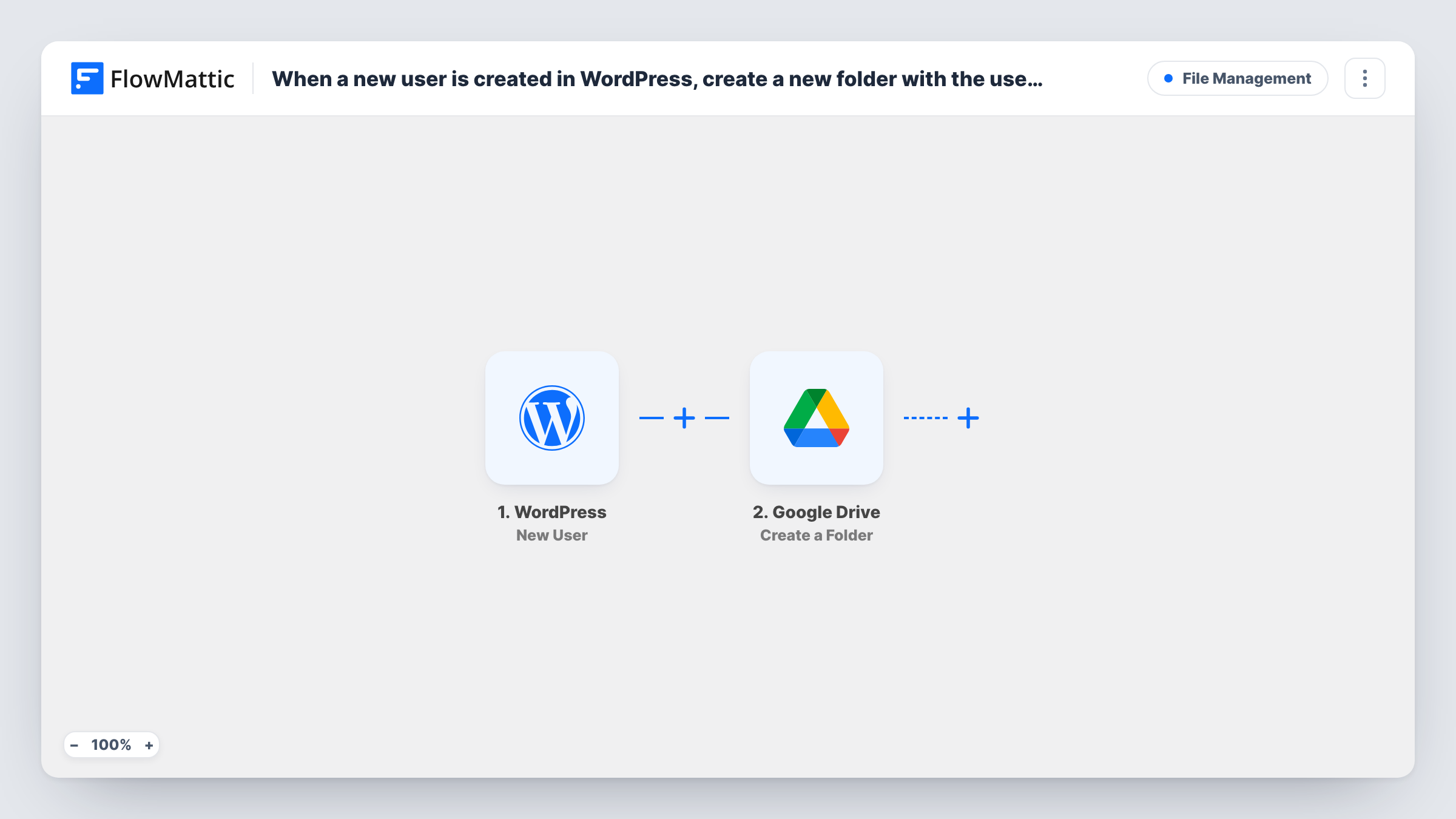
The WordPress trigger fires when a new user is registered. FlowMattic passes that user's details, including the username, to Google Drive. The Create a Folder step makes a new folder in your Drive and uses the username you map as the folder name.
Each new account gives you one folder. The workflow does not share the folder with the user or add files to it, so it starts out empty and visible only to whoever can already see that part of your Drive. Check Task History after a test registration to see the folder name that was sent.
Client portals for an agency
Each client gets a WordPress login. A matching Drive folder is created at sign-up, ready for your team to drop deliverables into.
Student work on a course site
New students register on your LMS site. A folder per username gives tutors one place to keep each student's marked work.
Contributor folders for a publication
Writers register as WordPress users. Their own Drive folder holds drafts and images before the editor builds the post.
How this workflow runs
What happens at each step once the workflow is on, and what you need before you import it.
 WordPress New User
Runs once for each account that registers on your WordPress site. The user's details, such as username and email, are passed on for mapping.
- Google Drive Create a Folder
Creates a new folder in your Google Drive. Connect your Google account and map the WordPress username as the folder name.
What you need
- FlowMatticCore
- Google Drive AccountAccount
After importing, map your own data. To keep the template universal, not every step is pre-filled. Open each step in the builder and connect your accounts and fields (channels, lists, sheets, recipients) before you switch the workflow on.
Make it yours
Changes worth making after you import it.
- Add a Filter after the trigger that checks the user's role, so folders are made only for, say, customers or students and not for staff accounts.
- Combine the username with a fixed word in the folder name, such as the username followed by Files, if your Drive already holds folders with similar names.
- Register a test user after import and look in Google Drive for the new folder before you open registration to everyone.
Questions about this workflow
Is the Google Drive folder shared with the new WordPress user?
No. The workflow only creates the folder. It stays in your Drive with your own access settings until you share it.
What if a Drive folder with that username already exists?
Nothing in this template checks Drive for an existing folder before creating one. Google Drive allows two folders with the same name, so you could end up with both.
Do existing WordPress users get a Drive folder?
No. Only users registered after the workflow is turned on start a run. Create folders for current users by hand.
Can the folder be named after the user's email instead of the WordPress username?
Yes. Map the email, or any other user detail the trigger provides, into the folder name in the Create a Folder step.
More File Management workflows
Other ready-to-import templates from the same category.




Import this workflow into your WordPress site
Download the JSON, import it from the Workflows screen and connect your accounts. Every run stays on your server, with no per-task fees.
30-day money-back guarantee Unlimited workflows and runs Self-hosted