

When a new form submission is received in Growform, add a new row in Google Sheets=
Every new Growform submission is written to a new row in Google Sheets, so the answers from your lead forms sit in one spreadsheet you can sort, share and hand to whoever follows up.
 Growform
 Google Sheets
2 steps Setup ~5 min Used on 2.4k sites Free to import
What this workflow does
Growform collects leads through your forms, but the answers still need to reach the people who act on them. A shared spreadsheet is often the simplest place: sales works down it, a client checks it, or you sort it to see which answers come up most. This workflow keeps that sheet filled.
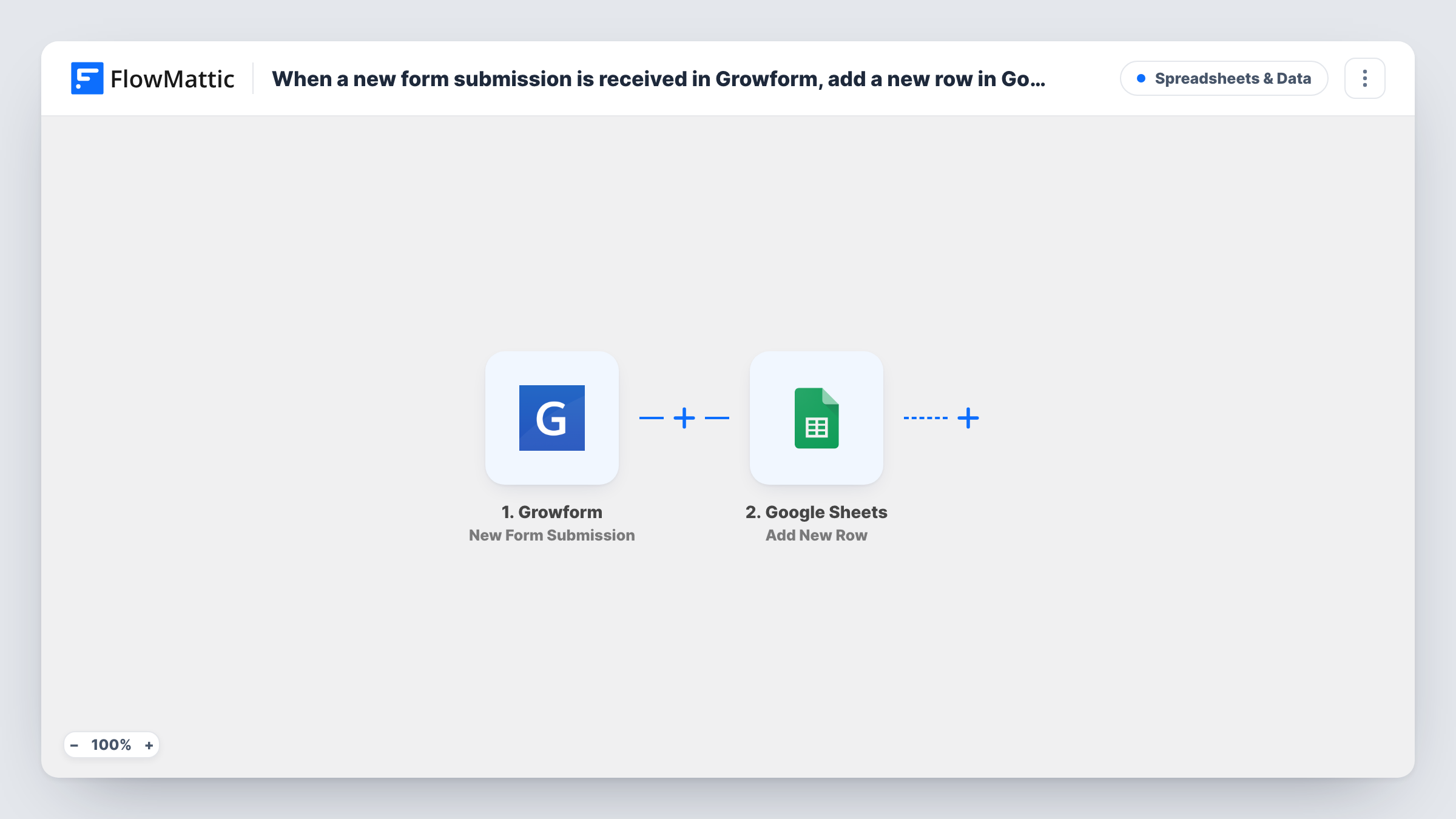
The Growform trigger fires when a new form submission is created. FlowMattic takes the answers and sends them to Google Sheets, which adds a new row to the spreadsheet you pick. You map each answer to a column, so the layout of the sheet is up to you.
One submission gives one row, in the order they arrive. If a row seems to be missing, Task History shows the run, what Growform sent and the response from Google Sheets.
Quote requests for a home services business
A roofer uses a Growform quiz to collect job details. Each request lands in a sheet the estimator works through each morning.
Client lead reporting for an agency
An agency builds Growform forms for clients and shares a Google Sheet per client, so they see every lead without logging in anywhere.
Comparing answers across leads
A course creator asks qualifying questions in Growform and sorts the spreadsheet by answer to see which kinds of people are signing up.
How this workflow runs
What happens at each step once the workflow is on, and what you need before you import it.
 Growform New Form Submission
Fires when a new submission is created on your Growform form. The submitted answers are passed on for mapping in the Google Sheets step.
- Google Sheets Add New Row
Places each Growform submission on a new row of the spreadsheet you pick. Connect your Google account and map every answer you want to keep to a column.
What you need
- FlowMatticCore
- Growform AccountAccount
- Google Sheets AccountAccount
After importing, map your own data. To keep the template universal, not every step is pre-filled. Open each step in the builder and connect your accounts and fields (channels, lists, sheets, recipients) before you switch the workflow on.
Make it yours
Changes worth making after you import it.
- Name your sheet's column headers to match the Growform questions before mapping, then send one test submission so the answers line up with the right columns.
- Add a Filter after the trigger if only some submissions belong in this sheet, for example those that picked a certain answer to a qualifying question.
- Need the leads in a CRM as well? Add a CRM step after Google Sheets and map the same answers, so both records come from one submission.
Questions about this workflow
Which Growform answers end up in the spreadsheet?
Just the answers you assign to a column in the Sheets step. Send a test submission after import to see every value Growform passes along, then decide what to keep.
Can several Growform forms share one Google Sheet?
Yes, if they all send submissions to this trigger. Add a column for a value that identifies the form, if Growform includes one, to tell rows apart.
Will past Growform submissions appear in the spreadsheet?
No. Only submissions created after you turn the workflow on are added.
More Spreadsheets & Data workflows
Other ready-to-import templates from the same category.



Import this workflow into your WordPress site
Download the JSON, import it from the Workflows screen and connect your accounts. Every run stays on your server, with no per-task fees.
30-day money-back guarantee Unlimited workflows and runs Self-hosted