

When a new form submission received in 123 Form Builder, create a new customer in Pabbly Subscription Billing, and add a new subscriber in Campaign Monitor
A new 123 Form Builder submission creates a customer in Pabbly Subscription Billing, then adds the same person to a Campaign Monitor list, so sign-ups reach your billing system and your email list from one form.
 123 Form Builder
 Pabbly Subscriptions
 Campaign Monitor
3 steps Setup ~5 min Used on 556 sites Free to import
What this workflow does
When people sign up through a form, two systems usually need to hear about it: the one that bills them and the one that emails them. Entering each person twice is tedious and the records drift apart. This workflow takes one 123 Form Builder submission and creates both records.
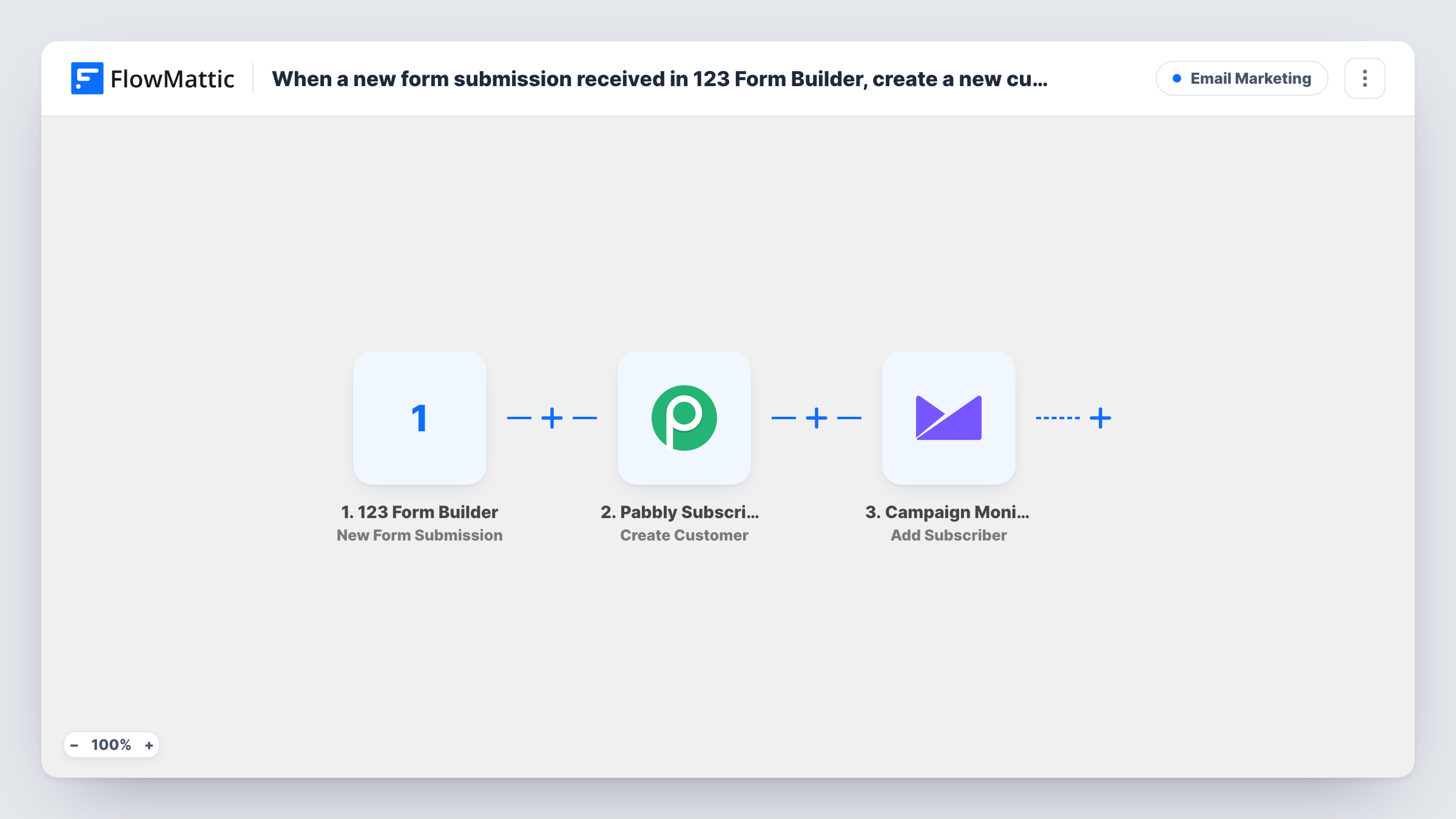
The 123 Form Builder trigger fires on each new form submission and passes the answers to FlowMattic. Next, Pabbly Subscription Billing creates a new customer from the answers you map, such as the person's name and email. Finally, Campaign Monitor adds the person as a subscriber to the list you choose.
Both action steps arrive without mapping. After import you connect both accounts, map the form fields into the Pabbly customer, then pick the Campaign Monitor list and map the email and name. You can map from the form directly into Campaign Monitor or reuse values the Pabbly step returns.
The workflow creates a customer record only. It doesn't start a subscription or charge anyone. Every submission runs both steps, so a person who fills in the form twice is sent to Pabbly twice; Task History shows how Pabbly answered each time.
Onboarding form for a membership service
A coaching programme collects new members on a 123 Form Builder form, sets them up as Pabbly customers ready for a plan, and adds them to a welcome list in Campaign Monitor.
Trial sign-ups for a software product
A SaaS team gathers trial requests in 123 Form Builder, creates the billing customer in Pabbly ahead of conversion, and sends product tips from Campaign Monitor.
Course enrolment requests
A training company takes enrolment details through a form, prepares the customer in Pabbly for invoicing, and adds the student to a course updates list.
How this workflow runs
What happens at each step once the workflow is on, and what you need before you import it.
 123 Form Builder New Form Submission
Fires each time someone submits your 123 Form Builder form. The answers from the submission are passed on so both action steps can use them.
- Pabbly Subscriptions Create Customer
Turns the submission into a Pabbly Subscription Billing customer record. The step ships unmapped: connect Pabbly and map the person's name, email and any other answers you need into it.
- Campaign Monitor Add Subscriber
Adds the person as a subscriber to a Campaign Monitor list. After import, connect Campaign Monitor, choose the list and map the email address and name from the form.
What you need
- FlowMatticCore
- 123 Form Builder AccountAccount
- Pabbly Subscriptions AccountAccount
- Campaign Monitor AccountAccount
After importing, map your own data. To keep the template universal, not every step is pre-filled. Open each step in the builder and connect your accounts and fields (channels, lists, sheets, recipients) before you switch the workflow on.
Make it yours
Changes worth making after you import it.
- Add a consent checkbox to the 123 Form Builder form and put a Filter on it between the Pabbly step and the Campaign Monitor step, so every person still becomes a Pabbly customer but only those who opted in join the list. Set the field to your own checkbox.
- Use a Campaign Monitor list made just for these sign-ups, so you can build a welcome sequence that starts when someone joins it.
- If the form also offers a plan choice, add Pabbly's Create Subscription action after the Create Customer step and map the plan from the form.
Questions about this workflow
Does this start a Pabbly subscription or take a payment?
No. All this step does in Pabbly is add the customer record. FlowMattic's Pabbly Subscriptions integration also has a Create Subscription action you can add after it if your form collects a plan.
What if the email is already a customer in Pabbly Subscription Billing?
The workflow still sends the request, and Pabbly decides how to handle it. Test with an existing customer's email and check Task History for the response.
Which 123 Form Builder fields reach Campaign Monitor?
The ones you map in the Add Subscriber step. At minimum map the email; the name and any custom fields are optional.
Can I skip Campaign Monitor for some submissions?
Yes. Put a Filter between the Pabbly step and the Campaign Monitor step with the condition you need. Submissions that fail it still create the Pabbly customer but aren't subscribed.
More Email Marketing workflows
Other ready-to-import templates from the same category.





Import this workflow into your WordPress site
Download the JSON, import it from the Workflows screen and connect your accounts. Every run stays on your server, with no per-task fees.
30-day money-back guarantee Unlimited workflows and runs Self-hosted