

When a new form submission received in Elementor Forms, send PDF to user's WhatsApp using WhatsApp Cloud API
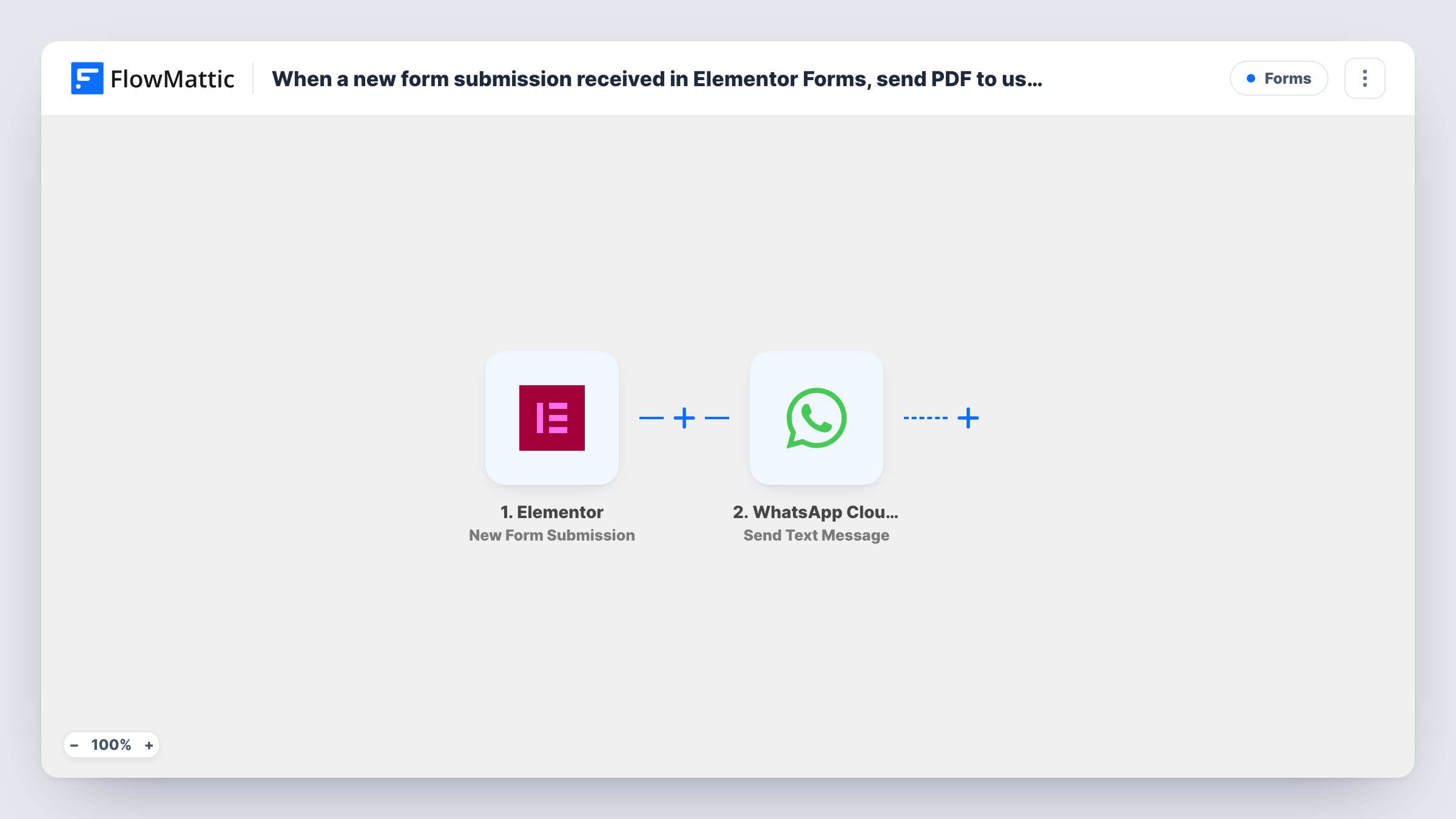
Each Elementor form submission fills one of your PDF Builder templates, and WhatsApp Cloud API sends the finished PDF to the person who submitted the form as a document.
 Elementor
 PDF Builder
 WhatsApp Cloud API
3 steps Setup ~5 min Used on 1.1k sites Free to import
What this workflow does
Some forms deserve a document in return: a quote request, a registration, a certificate claim. Rather than building each PDF by hand and sending it from your phone, this workflow turns the form answers into a PDF and delivers it on WhatsApp.
The Elementor trigger fires on each new submission of an Elementor form (forms are an Elementor Pro feature). The submitted fields, including the phone number if your form asks for it, are passed on.
The PDF Builder step renders a PDF from one of your saved templates and stores the file in the WordPress Media Library. It ships unmapped: after import you pick the template and map form fields into its placeholders. Delivery happens in the final WhatsApp Cloud API step, which posts the file to the submitter as a document. The PDF's URL from PDF Builder is already mapped as the document; you add the recipient by mapping the phone field from the form.
WhatsApp normally delivers messages outside an approved template only within 24 hours of the person writing to your business number, so people who have never messaged you may not receive the PDF. Test with your own number first and read the response in Task History.
Quotes sent back over WhatsApp
A renovation company's Elementor quote form produces a PDF estimate with the visitor's details, and the estimate lands in their WhatsApp chat with the business.
Event registration confirmations
A workshop organiser sends each registrant a PDF with their name, session and venue details after they fill in the sign-up form.
Certificates after a short course
A trainer asks learners to submit a completion form, and each one receives a personalised PDF certificate on WhatsApp.
How this workflow runs
What happens at each step once the workflow is on, and what you need before you import it.
 Elementor New Form Submission
Fires when an Elementor form receives a new submission. Every field the visitor filled in, such as name, phone and any answers, is available for the PDF and the WhatsApp message.
- PDF Builder Generate PDF from Template
Renders a PDF from a saved PDF Builder template and saves it to the Media Library. Choose the template after import and map the Elementor form fields into its dynamic data.
- WhatsApp Cloud API Send Document Message
Sends the PDF as a WhatsApp document message. The file link from PDF Builder is mapped already; map the submitter's phone number from the form, in full international format, as the recipient.
What you need
- FlowMatticCore
- Elementor PluginPlugin
- WhatsApp Cloud API AccountAccount
After importing, map your own data. To keep the template universal, not every step is pre-filled. Open each step in the builder and connect your accounts and fields (channels, lists, sheets, recipients) before you switch the workflow on.
Make it yours
Changes worth making after you import it.
- Make the phone field required in your Elementor form and ask for the country code, since WhatsApp needs the full international number.
- If you run several Elementor forms, put a Filter between the Elementor trigger and the PDF Builder step that checks the form name, so only the right form produces PDFs.
- PDF files are stored in the Media Library, so add a Gmail or Email step after the WhatsApp step if you also want a copy sent to your team.
Questions about this workflow
Do I need Elementor Pro for this Elementor to WhatsApp workflow?
Yes. Elementor's form widget is part of Elementor Pro, and the trigger listens for its submissions.
Where is the generated PDF kept?
PDF Builder saves each rendered file to your WordPress Media Library, and its link is what the WhatsApp step sends. Anyone with that link can open the file, so keep that in mind for private details.
Why didn't a submitter receive the PDF on WhatsApp?
Common causes are a phone number without the country code, or WhatsApp's rule that non-template messages only go to people who wrote to you in the last 24 hours. Task History shows the response WhatsApp gave.
More Forms workflows
Other ready-to-import templates from the same category.





Import this workflow into your WordPress site
Download the JSON, import it from the Workflows screen and connect your accounts. Every run stays on your server, with no per-task fees.
30-day money-back guarantee Unlimited workflows and runs Self-hosted