

When a new lead is captured in LeadCapture.io, send a personalized SMS via Twilio
Each new lead pushed into LeadCapture.io gets an SMS from your Twilio number, with their name or other lead details placed in the text you write.
 LeadCapture.io
 Twilio
2 steps Setup ~5 min Used on 1.9k sites Free to import
What this workflow does
A lead who fills in a LeadCapture.io form has just shown interest. A short text message right then is a direct way to say you got their details and what happens next. This workflow sends that SMS through Twilio for every new lead.
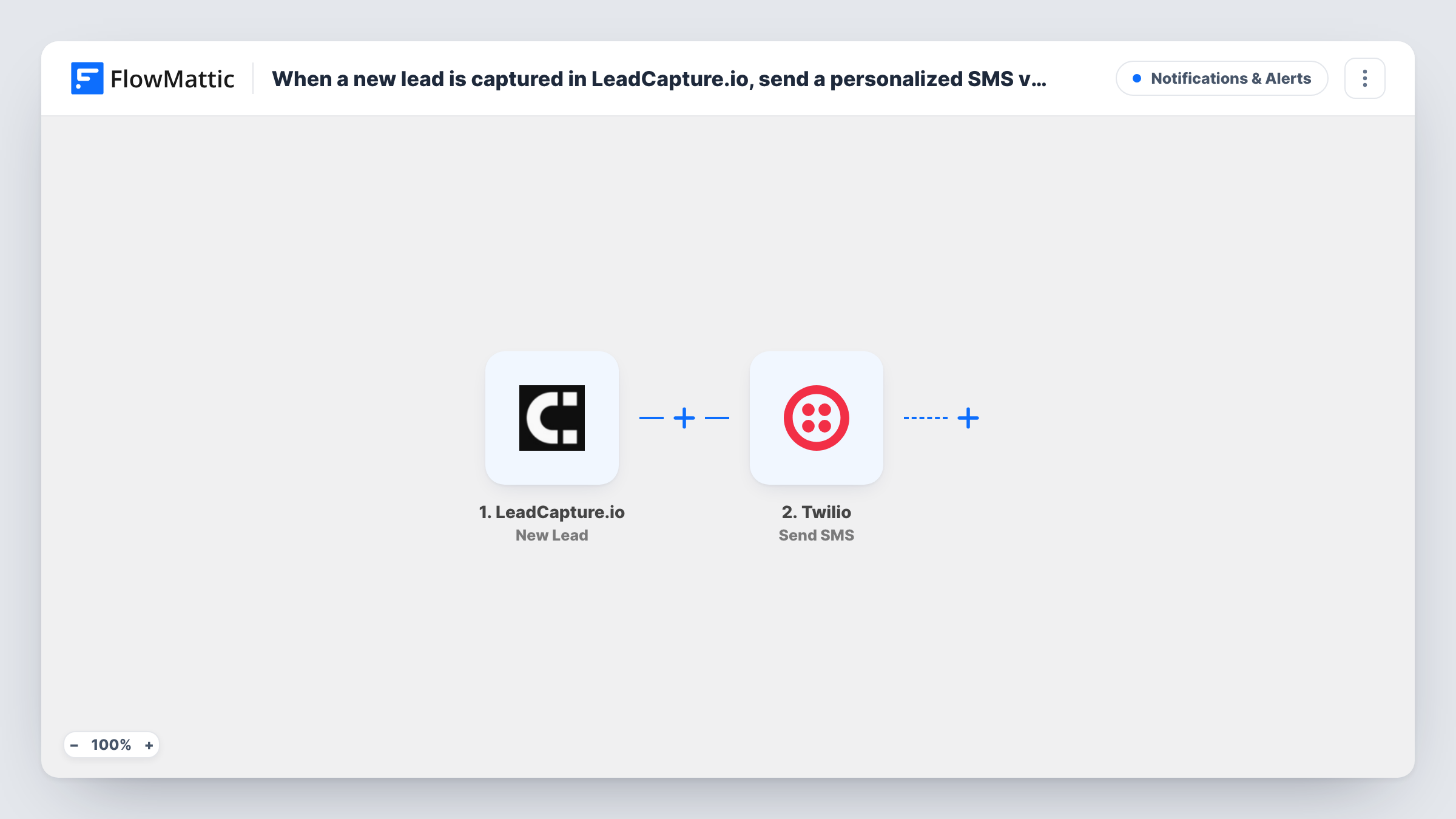
The LeadCapture.io trigger fires when a new lead is pushed to the system. FlowMattic receives the lead's answers and passes them to Twilio, where Send SMS sends a text to a number. You map the lead's phone number as the recipient and write the message, adding values such as their first name to personalise it.
The SMS can only go out when the lead gave a phone number, so your LeadCapture.io form needs to ask for one. Every lead runs the workflow, since nothing filters them. If Twilio rejects a number, Task History shows the error for that run.
Quote requests for a home services business
A homeowner asks for a quote through a LeadCapture.io form. They get a text from your Twilio number confirming the request and saying when you will call.
Lead magnet follow-up
Someone downloads a guide through LeadCapture.io. A text with their first name tells them where to find it and how to reply with questions.
Booking a first call
A consulting firm's LeadCapture.io funnel collects phone numbers. Each lead receives an SMS with a link to book their first call.
How this workflow runs
What happens at each step once the workflow is on, and what you need before you import it.
 LeadCapture.io New Lead
Starts a run for each lead LeadCapture.io records. That lead's answers, including a phone number if your form asks for one, are passed to Twilio.
- Twilio Send SMS
Texts the lead using the Twilio account you connect. Map the lead's phone number as the recipient and write the text with lead values mixed in, then send a test to your own phone.
What you need
- FlowMatticCore
- LeadCapture.io AccountAccount
- Twilio AccountAccount
After importing, map your own data. To keep the template universal, not every step is pre-filled. Open each step in the builder and connect your accounts and fields (channels, lists, sheets, recipients) before you switch the workflow on.
Make it yours
Changes worth making after you import it.
- Make the phone question required in your LeadCapture.io form. Leads without a number give Twilio nothing to send to, and that run's SMS fails.
- Ask for numbers with the country code, or add a Text Formatter step before Twilio to add it, since Twilio expects full international format.
- Add a Filter after the trigger that continues only when the lead ticked an SMS consent box, if your form has one, so texts go only to people who agreed.
Questions about this workflow
What happens if a LeadCapture.io lead has no phone number?
The Twilio step has no recipient, so it fails for that lead and Task History shows the error. Nothing else in the workflow changes.
Which number do LeadCapture.io leads receive the text from?
Yes. Twilio sends the SMS from a number on your Twilio account, which you connect to FlowMattic when you set up the step.
Can I personalise the Twilio text for each LeadCapture.io lead?
Yes. Any value the lead gave in the form can be placed in the message, for example their first name or the option they picked.
Do I need permission to text leads?
Rules on marketing texts vary by country. Collect consent in your LeadCapture.io form and check what applies to you before you turn the workflow on.
More Notifications & Alerts workflows
Other ready-to-import templates from the same category.






Import this workflow into your WordPress site
Download the JSON, import it from the Workflows screen and connect your accounts. Every run stays on your server, with no per-task fees.
30-day money-back guarantee Unlimited workflows and runs Self-hosted