

When a new lead is created in Outgrow, create a new record in Smartsheet
Every new lead from your Outgrow quizzes, calculators and other interactive content is added to a Smartsheet sheet as a new row, giving your team a shared list to work from.
 Outgrow
 Smartsheet
2 steps Setup ~5 min Used on 367 sites Free to import
What this workflow does
Outgrow captures leads through interactive content such as quizzes, calculators and assessments. Those leads are most useful in the place your team plans its follow-up. If that place is Smartsheet, this workflow writes each new lead into a sheet as it is created.
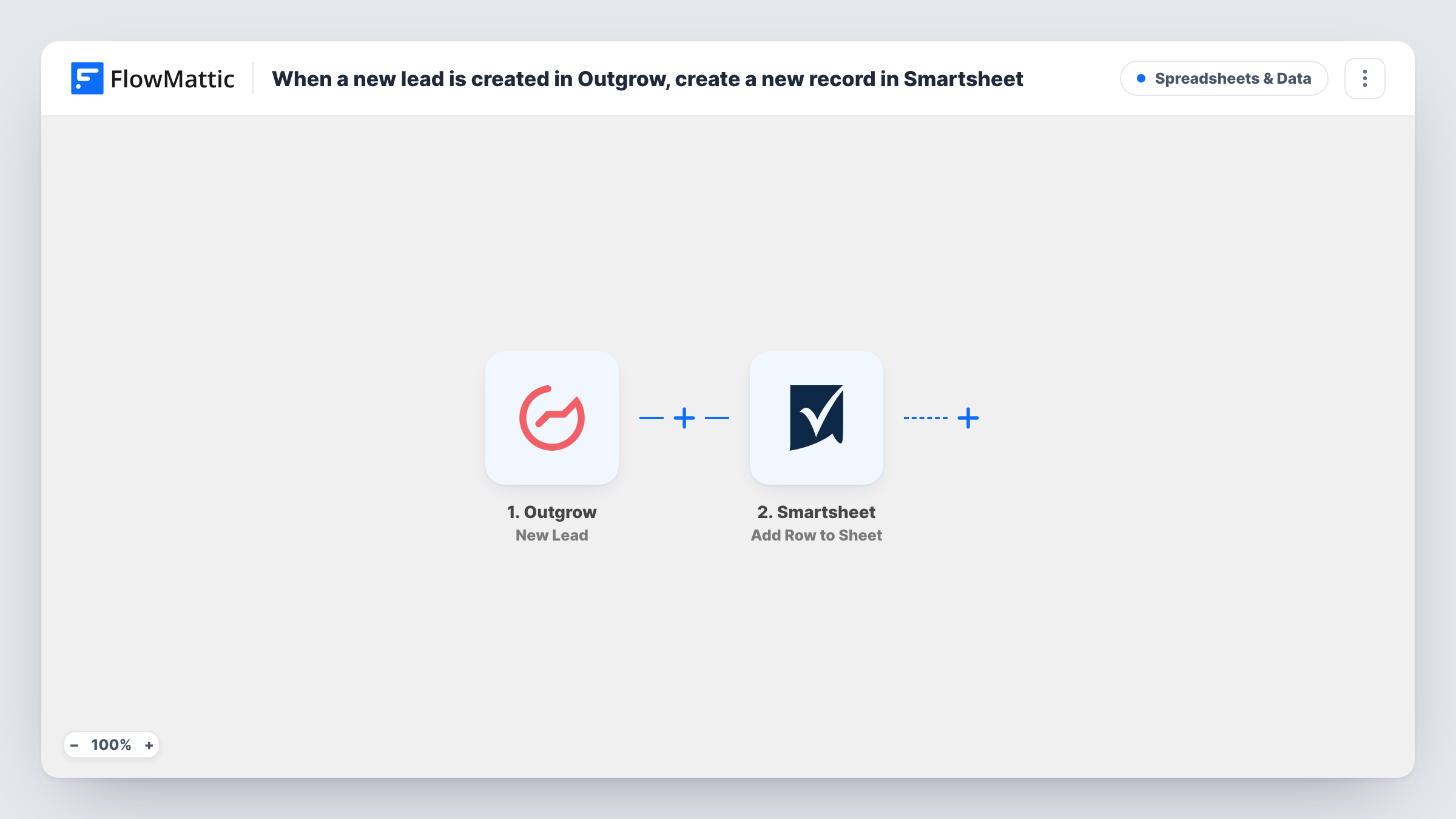
The Outgrow trigger is New Lead, which fires when a new lead is created. FlowMattic takes the lead data and hands it to Smartsheet, where Add Row to Sheet writes a row to the sheet you choose. You map each Outgrow field, such as the name, email and the answers your content collects, to a column.
Every lead gets its own row, even if the same person takes your quiz twice. Nothing here edits or removes rows already in Smartsheet. You can follow each run in Task History.
Quiz leads for a sales team
A product-fit quiz in Outgrow collects contact details, and each lead appears in the Smartsheet sheet your sales reps work through.
Calculator enquiries for a service business
Visitors use an Outgrow cost calculator, and the estimate inputs plus their email are added to a Smartsheet tracker for quoting.
Event pre-registration
An Outgrow assessment doubles as a sign-up for a workshop, and Smartsheet holds the growing list of registrants.
How this workflow runs
What happens at each step once the workflow is on, and what you need before you import it.
 Outgrow New Lead
Starts each time Outgrow creates a lead. The lead's details and answers become available to map into Smartsheet. Connect your Outgrow account on import.
- Smartsheet Add Row to Sheet
Adds a row to the Smartsheet sheet you select. Map each Outgrow field to a column so the lead's details land in the right place, then connect your Smartsheet account.
What you need
- FlowMatticCore
- Outgrow AccountAccount
- Smartsheet AccountAccount
After importing, map your own data. To keep the template universal, not every step is pre-filled. Open each step in the builder and connect your accounts and fields (channels, lists, sheets, recipients) before you switch the workflow on.
Make it yours
Changes worth making after you import it.
- Add a Filter after the trigger that continues only when the email field is not empty, if some of your Outgrow content lets people finish without giving one.
- Use a Router to send leads from different Outgrow content to different Smartsheet sheets, giving each route its own Add Row to Sheet step and a condition on a field that tells them apart.
- Complete your own Outgrow content once after import so FlowMattic captures the lead fields, then map them to your sheet's columns.
Questions about this workflow
Does a repeat Outgrow lead create a second Smartsheet row?
Yes. Each new lead Outgrow creates starts a run and adds a row. The workflow does not check the sheet for an existing entry.
Which Outgrow answers can I map into Smartsheet?
The fields Outgrow sends with the lead. Submit one test lead after import, then map the captured fields to your columns.
Do I need to create the Smartsheet columns first?
Yes. Set up the sheet with a column for each value you want to keep, then choose it in the Smartsheet step and map the fields.
Are Outgrow leads from before the import added?
No. Only leads created after the workflow is turned on reach Smartsheet.
More Spreadsheets & Data workflows
Other ready-to-import templates from the same category.




Import this workflow into your WordPress site
Download the JSON, import it from the Workflows screen and connect your accounts. Every run stays on your server, with no per-task fees.
30-day money-back guarantee Unlimited workflows and runs Self-hosted