

When a new Linear issue is created, log it in Google Sheets and notify the team in Slack
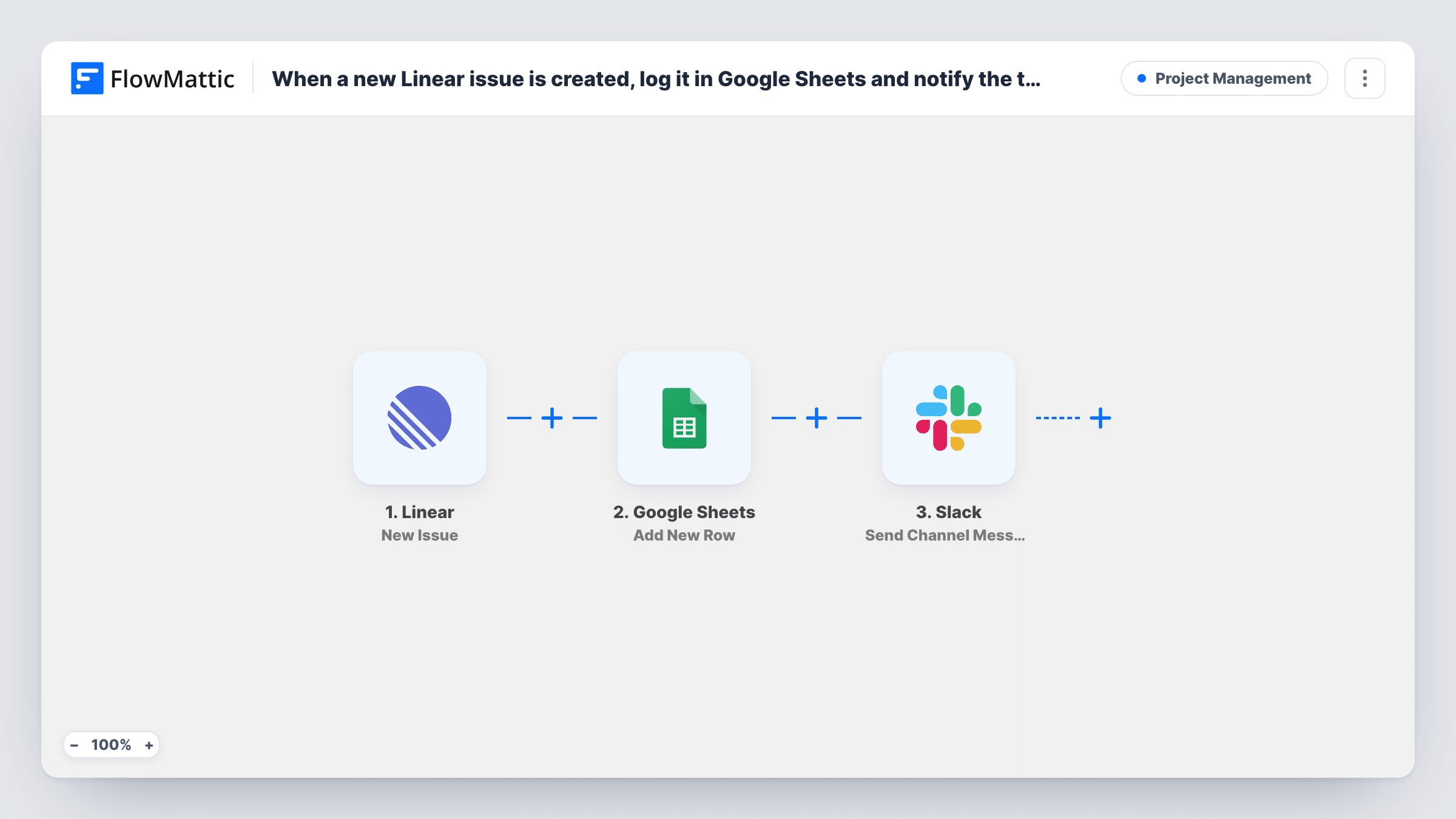
Each new Linear issue is written to a row in Google Sheets and then announced in a Slack channel, so you keep a running log of issues and your team hears about each one as soon as it is filed.
 Linear
 Google Sheets
 Slack
Slack3 steps Setup ~5 min Used on 463 sites Productivity Free to import
What this workflow does
New issues in Linear need two things: someone has to notice them, and someone usually wants a record of them outside Linear. This workflow covers both from one event, logging the issue in a spreadsheet and posting it to Slack.
The Linear trigger fires when an issue is created. FlowMattic receives what Linear sends about it, for example the title, identifier and team. First, the Google Sheets step runs Add New Row and records the mapped fields in your spreadsheet. Then the Slack step runs Send Channel Message and posts to the channel you pick, with whatever issue details you put in the text.
Both steps run for every new issue, from every team the trigger receives. Later edits in Linear don't change the sheet row or the Slack post. Task History lists each run with the reply from Google Sheets and from Slack.
Bug triage channel
Each new bug posts to #triage so the on-call engineer sees it, while the sheet gives the team lead a record for the weekly review.
Customer-facing issue log
A customer success team keeps the sheet as a list of reported problems and follows new ones as they appear in Slack.
Small startup without Linear seats for everyone
Founders and sales staff who don't use Linear see each issue in Slack and can search the history in the spreadsheet.
How this workflow runs
What happens at each step once the workflow is on, and what you need before you import it.
 Linear New Issue
Fires when an issue is created in Linear. Linear's issue data, for example its title and identifier, is passed to the sheet and the Slack message.
- Google Sheets Add New Row
Records the issue as a new row in the spreadsheet you choose. Map the Linear fields you want to keep, such as title, identifier and team, to matching columns.
- Slack Send Channel Message
Posts a message about the issue to the Slack channel you pick. Write the text and add the issue's title and link, when Linear sends one, so readers can open it.
What you need
- FlowMatticCore
- Linear AccountAccount
- Google Sheets AccountAccount
- Slack AccountAccount
After importing, map your own data. To keep the template universal, not every step is pre-filled. Open each step in the builder and connect your accounts and fields (channels, lists, sheets, recipients) before you switch the workflow on.
Make it yours
Changes worth making after you import it.
- Create a test issue in Linear right after import, so FlowMattic captures the issue fields you need for both the sheet columns and the Slack text.
- If the trigger data names the team or label, add a Filter between the Linear trigger and the Google Sheets step that continues only for one of them, so other teams' issues stay out of the sheet and the channel.
- Use a public Slack channel for the alerts. For a private channel, swap in Slack's Send Private Channel Message action instead.
Questions about this workflow
Which Linear issue details can go into the sheet?
Whatever Linear sends with the New Issue event, such as the title, identifier and team. Create a test issue after import and map the fields you see to your column headings.
Do Linear issue updates post to Slack again?
No. Only newly created issues run this workflow. Changes to an existing issue don't trigger it.
Can urgent Linear issues go to a different Slack channel?
Add a Router between the Google Sheets step and the Slack step, with one exactly-matches route per priority value and its own Slack step on each. Distinct priority values keep an issue on one route.
Can I use a FlowMattic Table instead of Google Sheets for the Linear log?
Yes. Swap the Google Sheets step for the New Record action from Tables by FlowMattic, then map the same issue fields to your table's columns.
More Project Management workflows
Other ready-to-import templates from the same category.





Import this workflow into your WordPress site
Download the JSON, import it from the Workflows screen and connect your accounts. Every run stays on your server, with no per-task fees.
30-day money-back guarantee Unlimited workflows and runs Self-hosted