

When a new message is sent in a conversation in Chatra, send email using Gmail
Every new message in a Chatra conversation, from a visitor or an agent, triggers an email sent from your Gmail account with the message details you map, so chat activity reaches an inbox.
 Chatra
 Gmail
2 steps Setup ~5 min Used on 1.6k sites Free to import
What this workflow does
Chatra is handy while someone is watching the dashboard, but messages can sit unseen when the team is away from it. Email reaches people on any device and leaves a searchable record. This workflow turns chat messages into Gmail emails, addressed to whoever you choose.
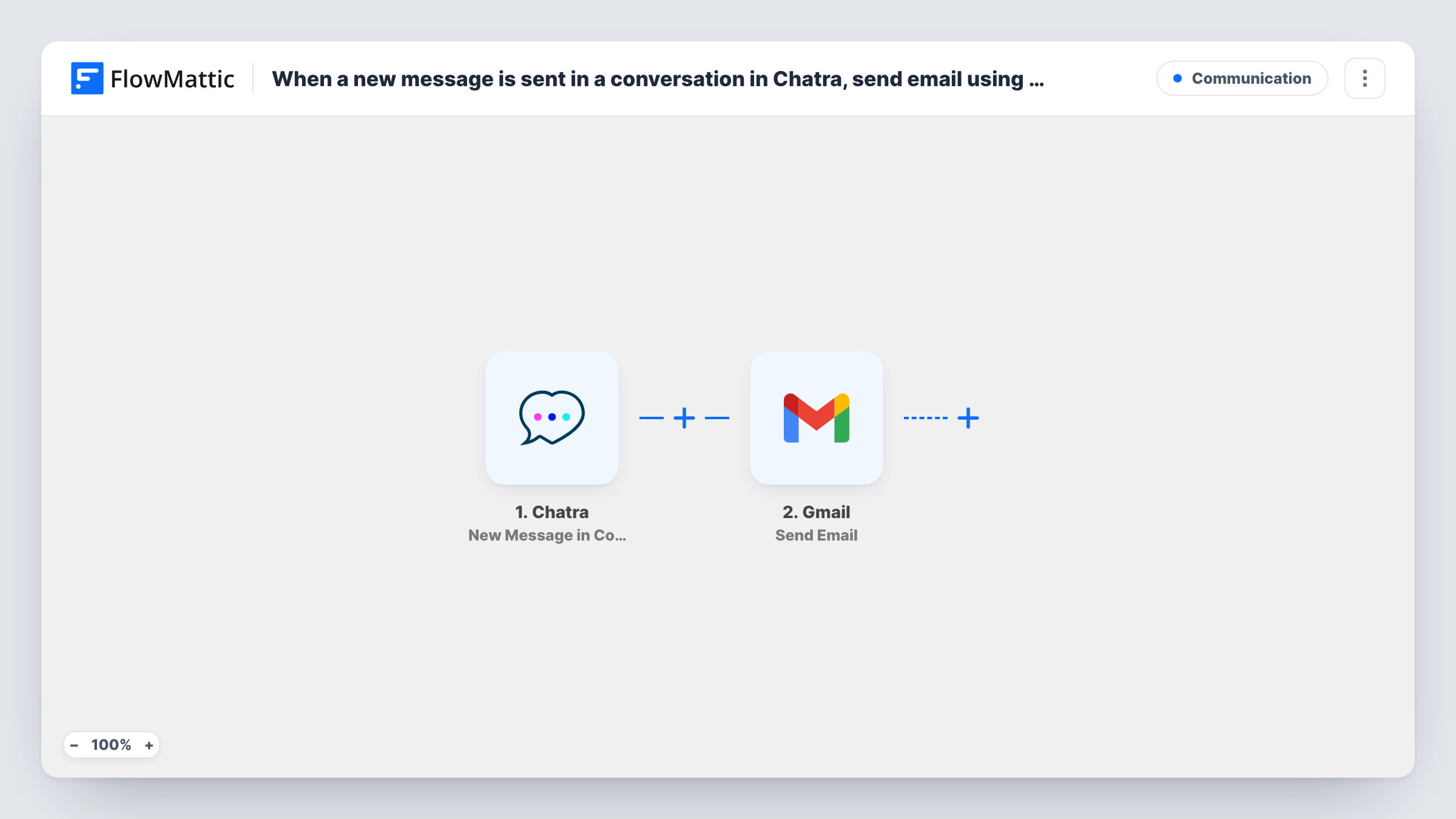
The Chatra trigger fires when a new message is sent in a conversation. Chatra counts messages from both visitors and agents, so replies your team types also start a run. FlowMattic passes the message data to Gmail, and the Send Email action sends an email from your connected account. You set the recipient, subject and body, filling them with values from the chat.
Because every message counts, a busy conversation sends many emails. If you only want visitor messages, add a Filter between the steps on a value that tells visitor and agent apart. A test chat after import shows what the trigger provides. Each email sent appears as a run in Task History.
Out-of-hours chat alerts for a small shop
Nobody keeps Chatra open overnight. Each visitor message lands in the owner's Gmail inbox, so it can be answered first thing in the morning.
Copying chats to a shared support inbox
Send each message to a team address, so the people who handle email support see what was said in chat and can search it later.
Keeping a manager in the loop
A sales manager receives each chat message by email during a launch week to see what prospects ask, without logging into Chatra.
How this workflow runs
What happens at each step once the workflow is on, and what you need before you import it.
 Chatra New Message in Conversation
Fires each time a new message is sent in a Chatra conversation, whether a visitor or an agent wrote it. The message data is passed on for mapping into the email.
- Gmail Send Email
Emails the chat message out through the Gmail account you connect. Set the recipient address, then build the subject and body from the Chatra message values.
What you need
- FlowMatticCore
- Chatra AccountAccount
- Gmail AccountAccount
After importing, map your own data. To keep the template universal, not every step is pre-filled. Open each step in the builder and connect your accounts and fields (channels, lists, sheets, recipients) before you switch the workflow on.
Make it yours
Changes worth making after you import it.
- Add a Filter after the trigger so only visitor messages continue. Send a test message as a visitor and one as an agent, then compare the trigger data to find the value that separates them.
- Put the visitor's name or the first words of the message in the email subject, so your inbox shows which chat each email belongs to.
- If a single email per chat is enough, swap the trigger for Chatra's New Finished Conversation event, which fires once when the conversation ends.
Questions about this workflow
Will I get an email when my own agents reply in Chatra?
Yes, as imported. Chatra's trigger covers messages from visitors and agents. Add a Filter after the trigger if you only want visitor messages emailed.
Which Gmail address sends the chat alert?
The Gmail account you connect to the Send Email step. The recipient can be any address you type or map, including your own.
Can I reply to the visitor from the Gmail email?
No, the email is one-way. It only notifies you about the message. Answer the visitor in Chatra, where the conversation lives.
Does a long Chatra conversation send lots of emails?
Yes. Each new message runs the workflow once, so ten messages in a chat mean ten emails. A Filter, or the finished-conversation trigger, cuts that down.
More Communication workflows
Other ready-to-import templates from the same category.




Import this workflow into your WordPress site
Download the JSON, import it from the Workflows screen and connect your accounts. Every run stays on your server, with no per-task fees.
30-day money-back guarantee Unlimited workflows and runs Self-hosted