

When a new notification occurs in Robotalp, send an email via Gmail to the support team
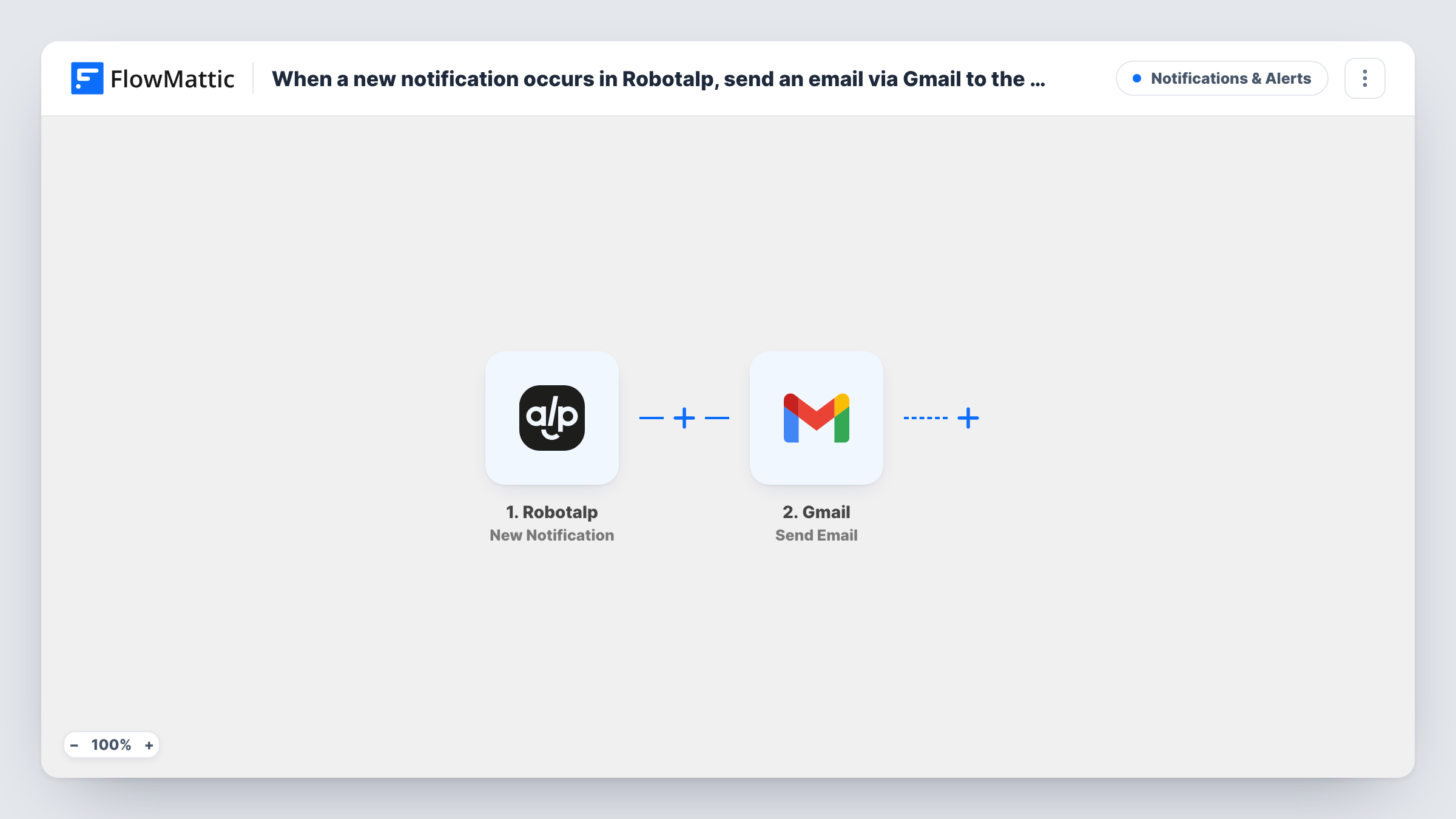
When Robotalp raises a new notification, this workflow sends an email from your Gmail account to your support team with the details you map, so alerts from your monitoring reach the people who handle them.
 Robotalp
 Gmail
2 steps Setup ~5 min Used on 708 sites Free to import
What this workflow does
Robotalp watches your websites and raises notifications when something needs attention. Those alerts help only if the right people see them. If your support team works from a shared inbox, sending each notification there keeps alerts in the same place as the rest of their work.
The Robotalp trigger starts a run each time Robotalp raises an alert. FlowMattic passes the notification data to Gmail, and the Send Email step sends a message from your connected Google account to the recipient you set, such as a support team address. You write the subject and body yourself and drop in fields from the notification, so the email says which check raised it.
Every Robotalp notification sends an email, because the template has no Filter. If Robotalp raises notifications your team doesn't need, a Filter after the trigger can narrow them down. Each sent email shows up as a run in Task History.
Agency watching client websites
An agency monitors client sites with Robotalp, and every notification is emailed to the support desk so a technician can look into it.
Store owner with a small team
An online shop sends Robotalp notifications through Gmail to a shared team inbox, so whoever is on duty sees them.
Hosting support queue
A hosting provider routes Robotalp alerts into the inbox its help desk reads, keeping monitoring alerts alongside customer emails.
How this workflow runs
What happens at each step once the workflow is on, and what you need before you import it.
 Robotalp New Notification
Picks up each new alert that your Robotalp account raises. The notification data is passed on, so run a test to see which details you can put in the email.
- Gmail Send Email
Emails the alert from the Google account linked to this Gmail step. Enter your support team's address as the recipient, write the subject, and map the Robotalp notification details into the message.
What you need
- FlowMatticCore
- Robotalp AccountAccount
- Gmail AccountAccount
After importing, map your own data. To keep the template universal, not every step is pre-filled. Open each step in the builder and connect your accounts and fields (channels, lists, sheets, recipients) before you switch the workflow on.
Make it yours
Changes worth making after you import it.
- Put a Robotalp detail in the subject line, such as the site name if the notification includes it, so the team can sort and search alerts in their inbox.
- Add a Filter after the trigger on a value from the Robotalp notification if only some kinds of alerts should be emailed.
- Add a Slack Send Channel Message step after Gmail if your team also wants alerts in a chat channel.
Questions about this workflow
Can the Robotalp alert go to several people?
Send it to a group address or shared inbox that reaches the whole support team, or check the Gmail step after import to see how it handles more than one recipient.
Which Gmail address sends the Robotalp alert?
Whichever Google account you link when you set up the Send Email step. The email is sent from that account to the recipient you set.
Does every Robotalp notification send an email?
Yes, as imported. There is no condition between the trigger and Gmail. Add a Filter if some notifications shouldn't be emailed.
Do I need a Robotalp account?
Yes. The trigger listens to notifications from your Robotalp account, which you connect when you import the workflow.
More Notifications & Alerts workflows
Other ready-to-import templates from the same category.






Import this workflow into your WordPress site
Download the JSON, import it from the Workflows screen and connect your accounts. Every run stays on your server, with no per-task fees.
30-day money-back guarantee Unlimited workflows and runs Self-hosted