

When a new notification occurs in Robotalp, send an SMS alert via Twilio
Each new Robotalp notification triggers a Twilio text message to the phone number you choose, so you hear about monitoring alerts on your phone instead of waiting to open a dashboard or an inbox.
 Robotalp
 Twilio
2 steps Setup ~5 min Used on 2.7k sites Free to import
What this workflow does
An uptime alert is only useful if someone sees it in time. Email notices get buried, and you may not be at a desk when a site goes down. This workflow turns each Robotalp notification into a text message, which reaches a phone wherever you are.
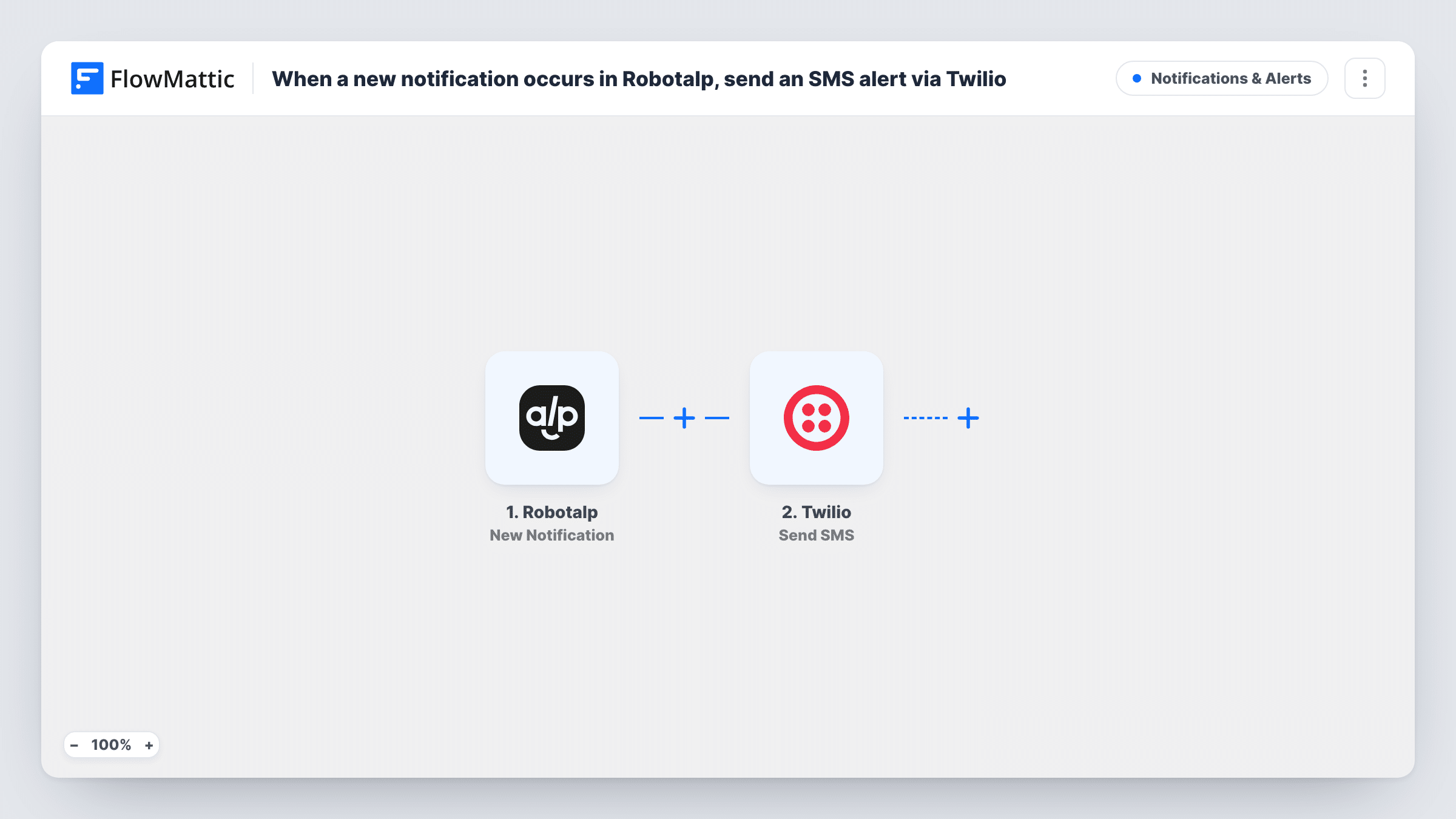
Every time Robotalp raises a new notification, the Robotalp trigger hands its details to FlowMattic. The Twilio step then uses Send SMS to text a number from your Twilio account. You write the message and drop in values from the notification, so the text says what happened; a test run shows which values Robotalp sends.
Without a Filter, every notification sends a message, whatever kind it is. If Robotalp notifies you both when a check fails and when it recovers, you get a text for each. Task History keeps a record of each run and the reply from Twilio.
On-call alerts for a freelance developer
You look after a handful of client sites with Robotalp. A text lands on your phone when a notification comes in, even while you're away from your laptop.
Out-of-hours notice for a small team
Point the Twilio step at the phone of whoever is on call this week, so night and weekend notifications reach a person who can act.
Shop owner watching a store site
An online shop owner gets a text when Robotalp raises a notification about the store, without having to check the monitoring dashboard.
How this workflow runs
What happens at each step once the workflow is on, and what you need before you import it.
 Robotalp New Notification
Starts the workflow whenever a new notification occurs in your Robotalp account. The notification's details are passed on for the SMS text.
- Twilio Send SMS
Texts the alert from your Twilio number. Set the receiving phone number and write the message, mapping values from the Robotalp notification into it. Connect Twilio with your account details on import.
What you need
- FlowMatticCore
- Robotalp AccountAccount
- Twilio AccountAccount
After importing, map your own data. To keep the template universal, not every step is pre-filled. Open each step in the builder and connect your accounts and fields (channels, lists, sheets, recipients) before you switch the workflow on.
Make it yours
Changes worth making after you import it.
- Add a Filter after the trigger so only some notifications send a text, for example ones that report a site as down. Check a test run first to see which values Robotalp sends.
- When a second person should hear about Robotalp alerts, put another Send SMS step after this one and give it their number.
- Keep the SMS short and put the most telling notification value first, so it shows in the phone's notification preview.
Questions about this workflow
Do I need a Twilio phone number to get Robotalp alerts by SMS?
Yes. The Send SMS step sends from your Twilio account, so you need an account and a number in it that can send texts to the country of the receiving phone.
Will a Robotalp recovery notice also send a text?
If Robotalp creates a notification for it, yes. The workflow has no Filter, so every new notification sends one SMS. Add a Filter on the notification's values to limit it.
Can the Twilio step call me instead of texting?
Twilio in FlowMattic also has a Call Phone action. Replace or add to the Send SMS step with it if you want a phone call for urgent notifications.
How do I see whether a text was sent for a Robotalp notification?
Look in FlowMattic's Task History. Each run shows the notification data and Twilio's reply, including any error such as an invalid phone number.
More Notifications & Alerts workflows
Other ready-to-import templates from the same category.







Import this workflow into your WordPress site
Download the JSON, import it from the Workflows screen and connect your accounts. Every run stays on your server, with no per-task fees.
30-day money-back guarantee Unlimited workflows and runs Self-hosted