

When a new order received in WooCommerce, search array for product id using PHP Array, check the response using Filters, and send an email to user with a discount Coupon for next order
On each new WooCommerce order, this workflow searches the order for a product ID with PHP Array, checks the result with a Filter you set up, and emails the customer a discount coupon for their next order.
 WooCommerce
 PHP Array by FlowMattic
 Filter
 Email
Email4 steps Setup ~8 min Used on 3.1k sites Free to import
What this workflow does
A thank-you coupon works best when it fits what someone bought. You might want to reward buyers of one product, or nudge people who bought a starter kit toward a refill. This workflow looks for a chosen product in each WooCommerce order and emails a coupon only when the Filter says to continue.
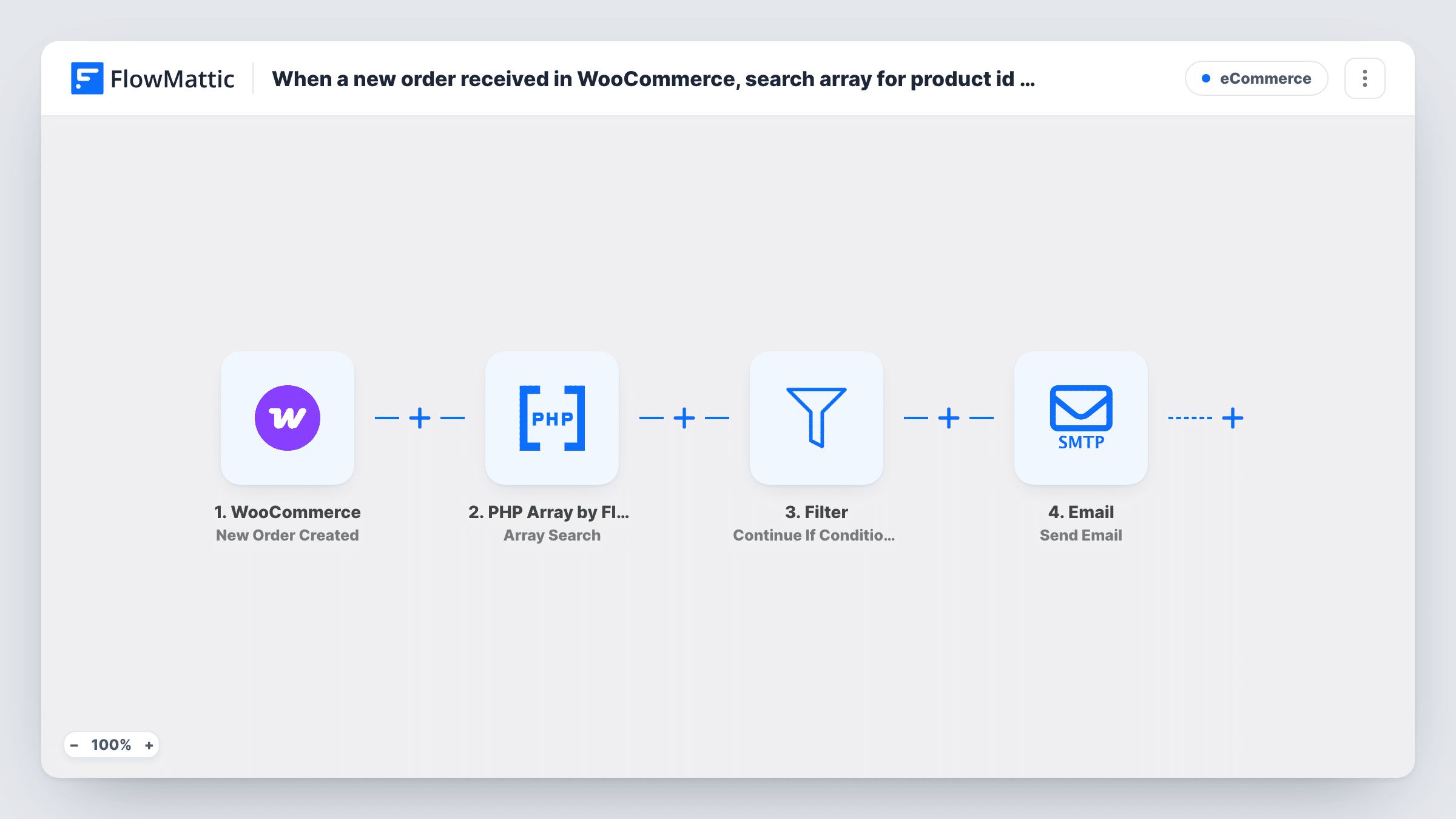
The WooCommerce trigger starts a run for each order your WooCommerce store creates. PHP Array by FlowMattic then runs Array Search, which looks for a given value in an array and returns its key. You map the order's product IDs as the array and your product's ID as the value. Next comes a Filter that decides whether to continue, based on that result. The last step sends an email through FlowMattic's Email module to the address you map, usually the billing email.
Two things need your attention. The Filter ships without a condition, so set one before you switch the workflow on; with no condition it won't separate orders with and without the product. The template also has no coupon-creating step, so the email carries a coupon code you write yourself.
Refill offer for a starter kit
Customers who order your coffee starter kit get a coupon for their first bag of beans, while other orders send nothing.
Reward for a launch product
Buyers of a newly launched item receive a code toward their next order as thanks for trying it early.
Cross-sell after an accessory purchase
Orders that include a phone case trigger a coupon for screen protectors, written into the email by you.
How this workflow runs
What happens at each step once the workflow is on, and what you need before you import it.
 WooCommerce New Order Created
Starts a run for every WooCommerce order placed on your store. The order's details, including its line items and the customer's email, are available to later steps.
- PHP Array by FlowMattic Array Search
Searches an array for the value you give it and returns the matching key. Map the order's product IDs as the array and the product ID you care about as the search value.
- Filter Continue If
Stops or continues the run based on conditions you add after import, such as checking what Array Search returned. If the condition isn't met, no email is sent.
 Email Send Email
Sends the coupon email through WordPress mail or your SMTP account. Map the customer's email as the recipient and write the subject and body, including your coupon code.
What you need
- FlowMatticCore
- WooCommerce PluginPlugin
After importing, map your own data. To keep the template universal, not every step is pre-filled. Open each step in the builder and connect your accounts and fields (channels, lists, sheets, recipients) before you switch the workflow on.
Make it yours
Changes worth making after you import it.
- Place test orders both with and without the product, including one where it is the first item, and check in Task History what Array Search returns so your Filter condition handles every case.
- Create the coupon in WooCommerce first and paste its code into the email body. Set usage limits on the coupon itself in WooCommerce.
- Add a Delay before the Email step if you'd rather the coupon arrive a few days after the order instead of with the order confirmation.
Questions about this workflow
Does this workflow create a WooCommerce coupon for each order?
No. There is no step that creates a coupon. The email carries the code you write in it, so create that coupon in WooCommerce beforehand.
Will every WooCommerce order get the coupon email?
No. The Filter ships empty, and an empty Filter stops every run, so no coupon email goes out until you set the condition after import. After that, only orders that pass it get the email.
Why use PHP Array instead of checking the product in the Filter?
An order can hold several products. Array Search looks through the list of product IDs for the one you choose, and the Filter then only has to check that result.
Does the coupon email replace WooCommerce's order emails?
No. WooCommerce sends its own order emails as usual. This workflow sends one extra email through FlowMattic's Email module.
More E-Commerce workflows
Other ready-to-import templates from the same category.








Import this workflow into your WordPress site
Download the JSON, import it from the Workflows screen and connect your accounts. Every run stays on your server, with no per-task fees.
30-day money-back guarantee Unlimited workflows and runs Self-hosted