

When a new Pimcore object is added, create an Airtable record and post a Slack notification
When Pimcore raises its Post Add event for a newly added object, this workflow creates a matching record in Airtable and posts a note to Slack, so your table and your team keep up with new items.
 Pimcore
 Airtable
 Slack
Slack3 steps Setup ~5 min Used on 2.9k sites Free to import
What this workflow does
Pimcore holds your product and data objects, but not everyone who needs to see new items works in Pimcore. A merchandiser may track launches in Airtable, and the rest of the team may only follow a Slack channel. This workflow copies each new object to Airtable and tells Slack about it.
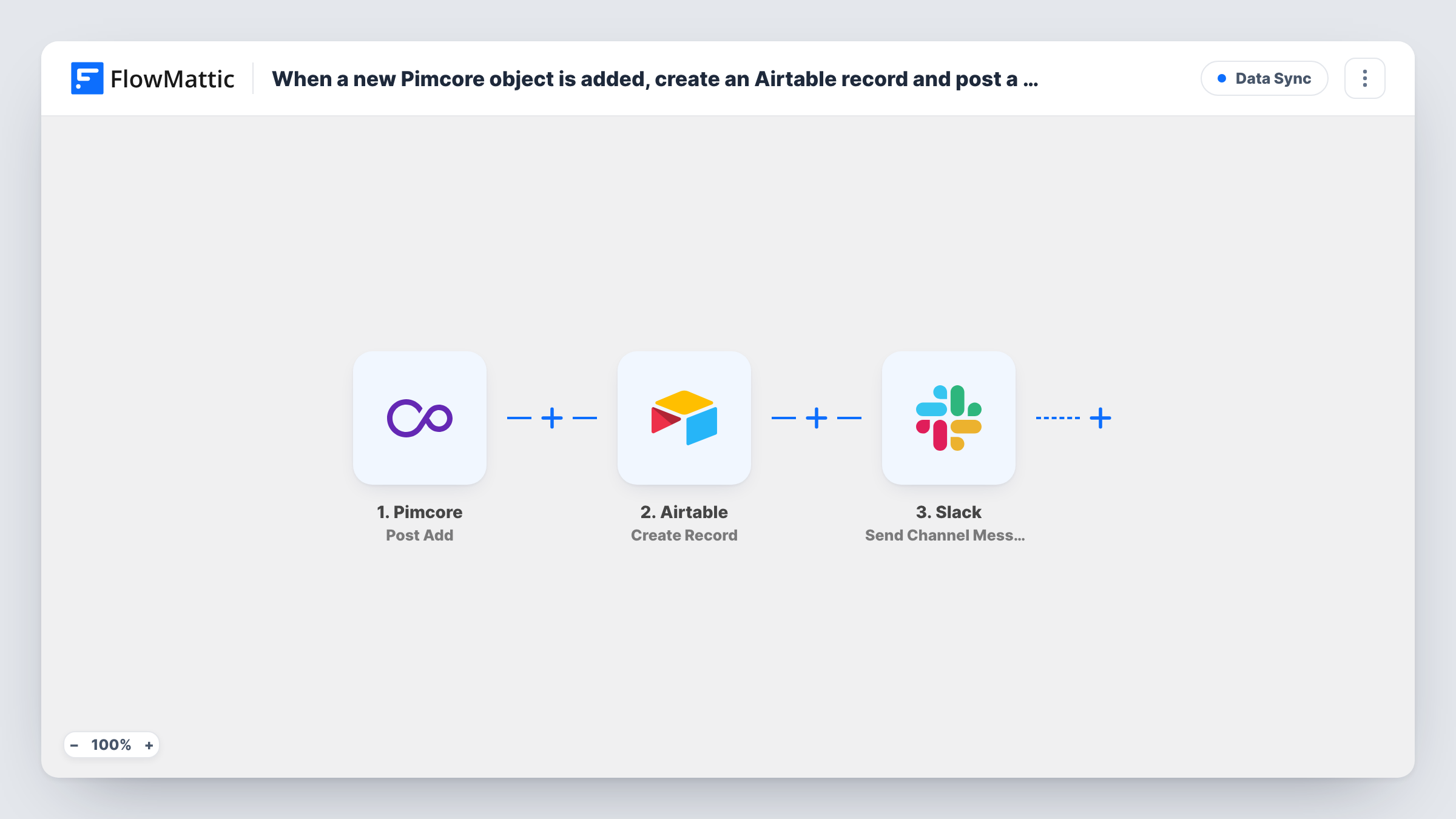
The Pimcore trigger listens for the postAdd event, which Pimcore raises after an item has been added. The data Pimcore sends with that event is passed to Airtable, where the Create Record action adds a record to the base and table you pick. The Slack step then posts a message to a channel, built from the same Pimcore data.
Only additions start the workflow. Edits and deletions are separate Pimcore events in FlowMattic, so they don't touch Airtable or Slack here. Send a test addition after import to see exactly which fields Pimcore passes before you map them.
Product launch tracking
A new product object in Pimcore appears as an Airtable record the marketing team uses to plan copy and images, and Slack lets them know it is there.
Catalogue review queue
Each object added by a supplier or data team becomes an Airtable record for review, and the review channel in Slack gets a note with its name.
Reporting outside Pimcore
An Airtable table built from new objects gives managers without Pimcore access a running list they can filter and share.
How this workflow runs
What happens at each step once the workflow is on, and what you need before you import it.
 Pimcore Post Add
Fires on the postAdd event in Pimcore, after a new item has been added. The data Pimcore sends for that item becomes available to map in the next steps.
- Airtable Create Record
Turns the new Pimcore item into an Airtable record in whichever base and table you set. Connect your Airtable account and map Pimcore data to the record's fields.
- Slack Send Channel Message
Announces the new Pimcore item in a Slack channel of your choice. Write the message and add details about the new Pimcore item from the trigger data.
What you need
- FlowMatticCore
- Pimcore AccountAccount
- Airtable AccountAccount
- Slack AccountAccount
After importing, map your own data. To keep the template universal, not every step is pre-filled. Open each step in the builder and connect your accounts and fields (channels, lists, sheets, recipients) before you switch the workflow on.
Make it yours
Changes worth making after you import it.
- Add a Filter after the trigger if only some object classes should reach Airtable, using whatever type or class value appears in Pimcore's test data.
- Clone the workflow and switch the trigger to Post Update if you also want a Slack message when an existing object changes.
- Put the object's Pimcore ID in its own Airtable field, so you can match records back to Pimcore later.
Questions about this workflow
Does editing a Pimcore object create another Airtable record?
No. This workflow listens only for Post Add. Updates fire Pimcore's separate Post Update event, which this template does not use.
Which Pimcore fields can I map into Airtable?
Whatever data Pimcore sends with the postAdd event. Add a test object after import, then look at the captured data in the trigger step to see what is available.
What happens if Pimcore fails to add the object?
A failed addition is a different Pimcore event, Post Add Failure, so it does not start this workflow. Nothing reaches Airtable or Slack for it.
More Data Sync workflows
Other ready-to-import templates from the same category.




Import this workflow into your WordPress site
Download the JSON, import it from the Workflows screen and connect your accounts. Every run stays on your server, with no per-task fees.
30-day money-back guarantee Unlimited workflows and runs Self-hosted