

When a new Pipe video is recorded, log it in Google Sheets and back it up to Google Drive
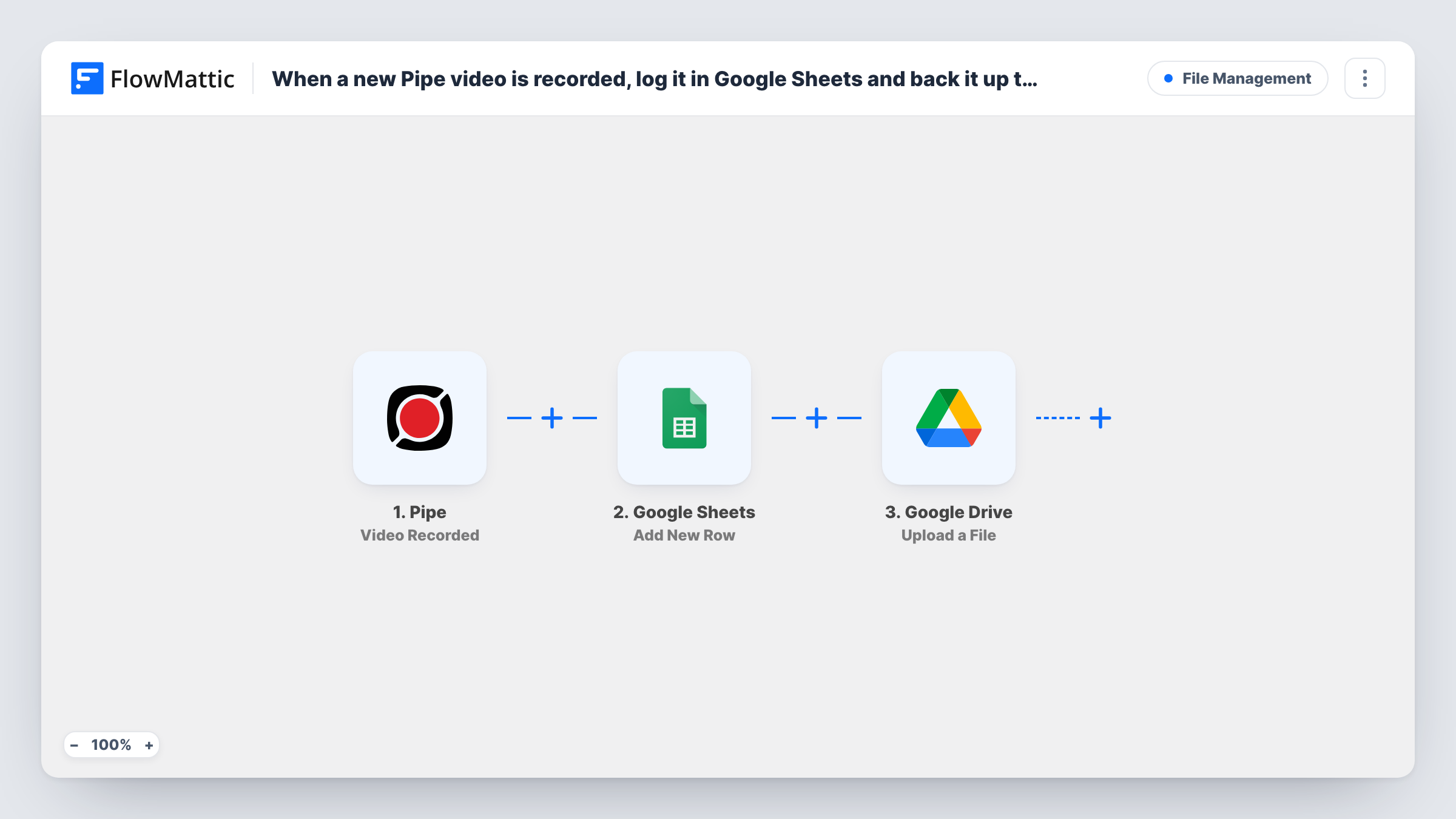
When a new Pipe recording finishes, this workflow adds a row about it to Google Sheets and then uploads the video file to a Google Drive folder, giving you a log and a copy you control.
 Pipe
 Google Sheets
 Google Drive
3 steps Setup ~5 min Used on 3.4k sites Free to import
What this workflow does
Pipe collects video from your visitors, customers or applicants, but a list of recordings inside one service is hard to share and easy to lose track of. This workflow keeps two records of every new recording outside Pipe: a line in a spreadsheet and a file in your own Drive.
The Pipe trigger fires as soon as a recording is finished and saved, before Pipe's processing is done. FlowMattic passes the recording's data first to Google Sheets, which adds a new row with the values you map. The run then moves on to Google Drive, where Upload a File places the video in the folder you select.
The steps run in that order for every recording, with no conditions. Each run is logged in Task History, so if the upload reports an error you can see it on the Drive step while the sheet row is still there.
Video testimonials from customers
Customers record a short testimonial with Pipe. Your marketing team browses the sheet for new entries and finds each video file waiting in a shared Drive folder.
Recorded answers for job applicants
Applicants answer screening questions on video. The sheet works as a review list for the hiring team, and Drive keeps the files alongside your other hiring documents.
Support issues shown on screen
Customers record the problem they are seeing. The support team logs each recording in the sheet and opens the video from Drive while working the case.
How this workflow runs
What happens at each step once the workflow is on, and what you need before you import it.
 Pipe Video Recorded
Fires when a new Pipe recording is finished, saved and handed to Pipe for processing. The recording's data becomes available to the Google Sheets and Google Drive steps.
- Google Sheets Add New Row
Adds a row for the recording to the spreadsheet you connect. Map whichever Pipe values you want to keep to your sheet's columns; a test recording shows what the trigger provides.
- Google Drive Upload a File
Uploads the recording to the Google Drive folder you select. Map the video file from the Pipe data into this step, then run a test recording to confirm a file arrives in Drive.
What you need
- FlowMatticCore
- Pipe AccountAccount
- Google Sheets AccountAccount
- Google Drive AccountAccount
After importing, map your own data. To keep the template universal, not every step is pre-filled. Open each step in the builder and connect your accounts and fields (channels, lists, sheets, recipients) before you switch the workflow on.
Make it yours
Changes worth making after you import it.
- Video Recorded fires before Pipe converts the file to mp4. If the Drive step has no finished file to fetch, switch the trigger to Pipe's Video Converted event, which fires once the mp4 is ready.
- If the Drive step's test output includes a link to the uploaded file, move the Google Sheets step after the upload and map that link, so each row points to the backed-up video.
- Make a test recording after import so FlowMattic captures real Pipe data. You then see exactly which values exist to map in both later steps.
Questions about this workflow
Do I need my own storage set up in Pipe for this?
Not for the workflow itself. It starts from Pipe's Video Recorded event and uploads to your Google Drive. Pipe also has separate triggers for when a recording is copied to S3, FTP or Dropbox if you use those.
What happens if the Google Drive upload fails?
The sheet row is added first, so it stays even when the upload fails. Task History shows the error on the Drive step, and you can upload that recording by hand.
Will older Pipe recordings be backed up to Google Drive?
No. The trigger only fires for recordings finished after you turn the workflow on. Earlier videos stay where they are in Pipe.
Can the Pipe videos go into different Drive folders?
As imported, every file goes to the one folder you select. Add a Router with conditions on the Pipe data and a Drive step per route to sort videos into separate folders.
More File Management workflows
Other ready-to-import templates from the same category.





Import this workflow into your WordPress site
Download the JSON, import it from the Workflows screen and connect your accounts. Every run stays on your server, with no per-task fees.
30-day money-back guarantee Unlimited workflows and runs Self-hosted