

Save a Whereby recording note to Google Drive when a recording finishes
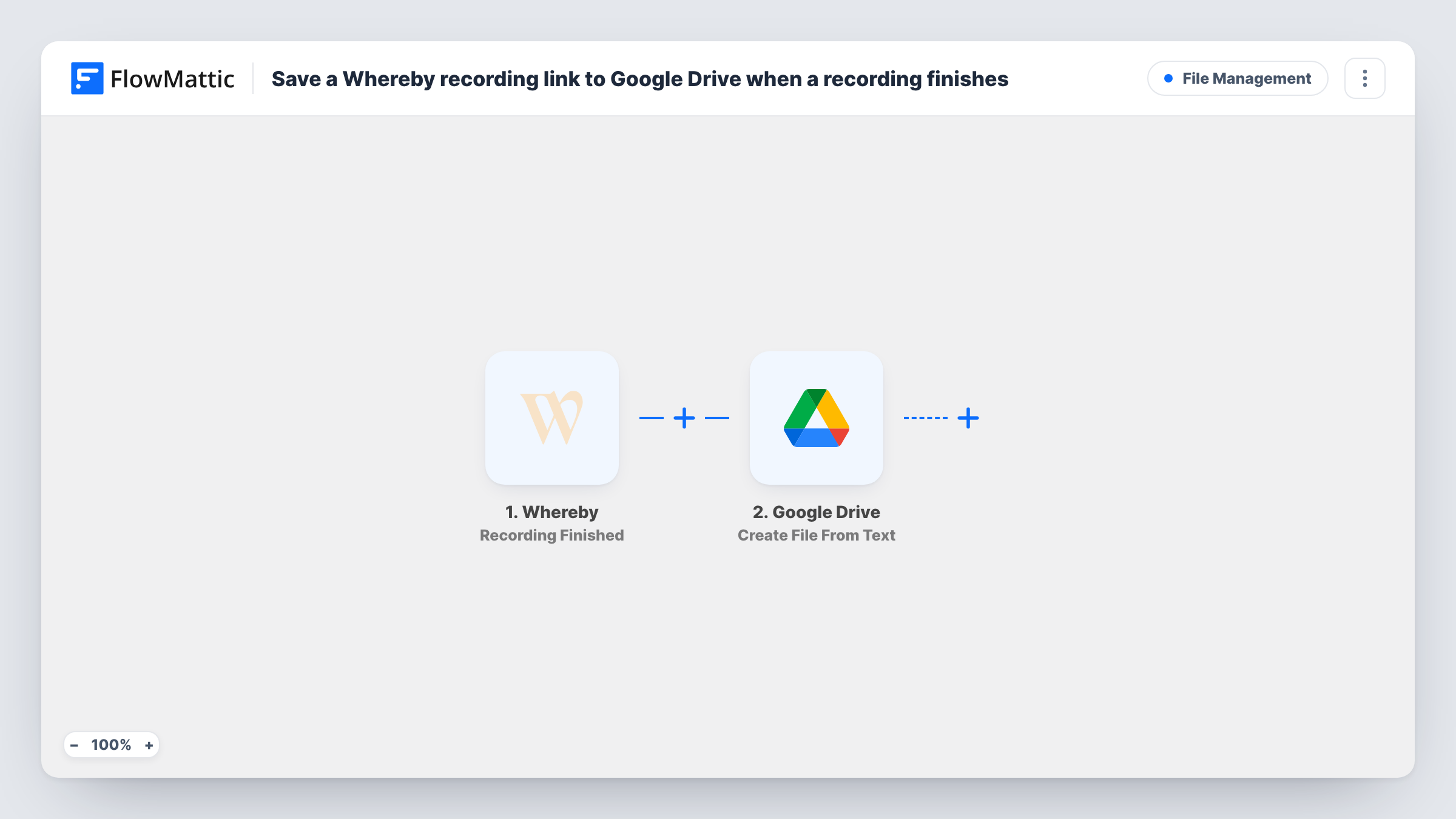
When a Whereby cloud recording finishes uploading, FlowMattic creates a plain-text note in Google Drive holding the recording details Whereby sends, such as the room and time.
 Whereby
 Google Drive
2 steps Setup ~5 min Used on 1.7k sites Free to import
What this workflow does
Cloud recordings from Whereby meetings pile up quickly, and it's easy to lose track of which session was recorded when. This workflow writes a short text note to Google Drive for every finished recording, giving you a dated trail in a folder your team already uses.
The Whereby Recording Finished trigger fires when a cloud recording has finished and uploaded successfully. Whereby's details about that recording are passed on; run a test recording to see exactly what's included, for example the room name, start and end times or a reference to the file.
The Google Drive step then creates a new file from plain text. It ships unmapped, so after import you connect Google Drive, choose a file name and write the text, mapping the recording details into it. A name built from the room and date keeps the notes easy to sort.
The note holds text only. The workflow doesn't copy the video into Drive, so the recording itself stays where Whereby stores it. Check Task History after your first recording to see what Whereby sent and the file Drive created.
Recording log for client calls
A consultant records client sessions in Whereby and keeps a text note per recording in each client's Drive folder, so they know which calls exist.
Class recordings for a tutor
A language tutor gets a dated Drive note each time a lesson recording finishes, and uses the notes to tell students which sessions are available.
Audit trail for recorded interviews
A research team logs every recorded Whereby interview as a text file in a shared Drive folder for its records.
How this workflow runs
What happens at each step once the workflow is on, and what you need before you import it.
 Whereby Recording Finished
Fires when a Whereby cloud recording has finished and uploaded successfully. The recording details Whereby sends are passed to the Google Drive step.
- Google Drive Create File From Text
Creates a plain-text file in Google Drive. After import, connect Drive, set a file name and write the note's text, mapping in the recording details from the trigger.
What you need
- FlowMatticCore
- Whereby AccountAccount
- Google Drive AccountAccount
After importing, map your own data. To keep the template universal, not every step is pre-filled. Open each step in the builder and connect your accounts and fields (channels, lists, sheets, recipients) before you switch the workflow on.
Make it yours
Changes worth making after you import it.
- Name each note with the room name and the recording's date, so the files sort in order in the folder.
- Put a Filter between the Whereby trigger and the Drive step on the room name, if only some rooms should get a note. The room you check is an example to change.
- Add a Slack or email step after the Drive step to tell the meeting host that the recording has finished.
Questions about this workflow
Does this copy the Whereby video into Google Drive?
No. The workflow creates a text file with the recording details. The video stays where Whereby keeps it. Google Drive's Upload a File action could save a file instead, if Whereby's data gives you one to upload.
When does the Whereby trigger fire?
After a cloud recording has finished and uploaded successfully. Recordings stored locally on someone's computer don't start a run.
What goes into the Google Drive note?
Whatever text you write in the Create File From Text step, with Whereby's recording details mapped in. Check a test run to see which details are available.
Can I choose which Drive folder the notes go into?
Check the Create File From Text step after import for a folder option. If it doesn't offer one, move the files in Drive or use a naming pattern that groups them.
More File Management workflows
Other ready-to-import templates from the same category.




Import this workflow into your WordPress site
Download the JSON, import it from the Workflows screen and connect your accounts. Every run stays on your server, with no per-task fees.
30-day money-back guarantee Unlimited workflows and runs Self-hosted