

When a new response is received, send an SMS via Twilio
When a visitor finishes a conversation with your Quriobot chatbot, FlowMattic sends an SMS through Twilio, so you or the visitor get a text message with details from the response.
 Quriobot
 Twilio
2 steps Setup ~5 min Used on 740 sites Free to import
What this workflow does
A chatbot lead loses value if nobody notices it for hours. A text message gets attention faster than a dashboard you have to remember to check. This workflow sends an SMS through Twilio each time Quriobot records a new response.
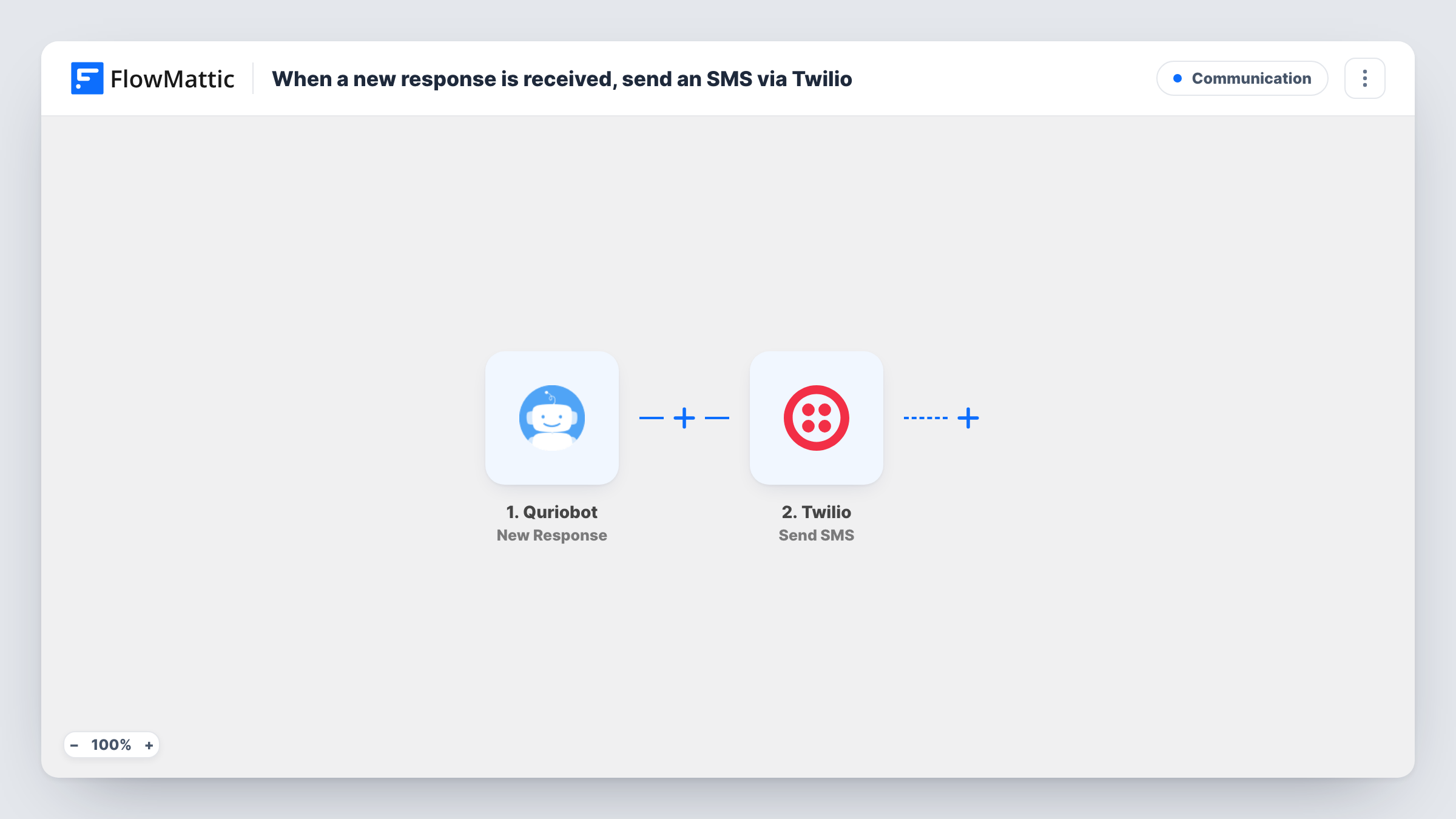
The Quriobot trigger runs on New Response. FlowMattic receives the answers the visitor gave and passes them to Twilio, where Send SMS sends a text from your Twilio number. You decide who receives it: a fixed number, such as your own phone, or a phone number the visitor typed into the bot. The message body can include any of the visitor's answers.
Every response sends one SMS, so a busy bot means a lot of texts. Task History shows each run and the reply Twilio returned.
Instant lead alerts for a sales rep
A rep gets a text with the visitor's name and question each time Quriobot captures a response, and can call back while the visitor is still interested.
Confirmation text to the visitor
If your bot asks for a mobile number, send the visitor an SMS confirming you got their request and when to expect contact.
Out-of-hours enquiries for a local business
A plumber's website bot collects job details at night, and the owner gets the summary by SMS.
How this workflow runs
What happens at each step once the workflow is on, and what you need before you import it.
 Quriobot New Response
Runs when Quriobot records a new response from your chatbot. The visitor's answers are available to map into the SMS.
- Twilio Send SMS
Sends a text message through your Twilio account. Map the recipient's number, either fixed or from the bot's answers, and write the message with response values.
What you need
- FlowMatticCore
- Quriobot AccountAccount
- Twilio AccountAccount
After importing, map your own data. To keep the template universal, not every step is pre-filled. Open each step in the builder and connect your accounts and fields (channels, lists, sheets, recipients) before you switch the workflow on.
Make it yours
Changes worth making after you import it.
- Add a Filter after the trigger so a text goes out only when the visitor left a phone number, if you're texting visitors rather than yourself.
- Add a second Send SMS step if two people on your team should each get the alert.
- Complete a chat with your own bot after import, so FlowMattic captures a real Quriobot response before you map the SMS.
Questions about this workflow
Do I need a Twilio phone number to send the SMS?
Yes. Twilio sends messages from a number on your Twilio account, which you connect in FlowMattic.
Can the Twilio text go to the visitor instead of me?
Yes, if your Quriobot bot asks for a phone number. Map that answer as the recipient in the Send SMS step.
Does every Quriobot response send a text?
Yes, as imported. Add a Filter after the trigger to limit which responses lead to an SMS.
More Communication workflows
Other ready-to-import templates from the same category.




Import this workflow into your WordPress site
Download the JSON, import it from the Workflows screen and connect your accounts. Every run stays on your server, with no per-task fees.
30-day money-back guarantee Unlimited workflows and runs Self-hosted