

When a new row is added in Google Sheets, create board list in Kitchen.co
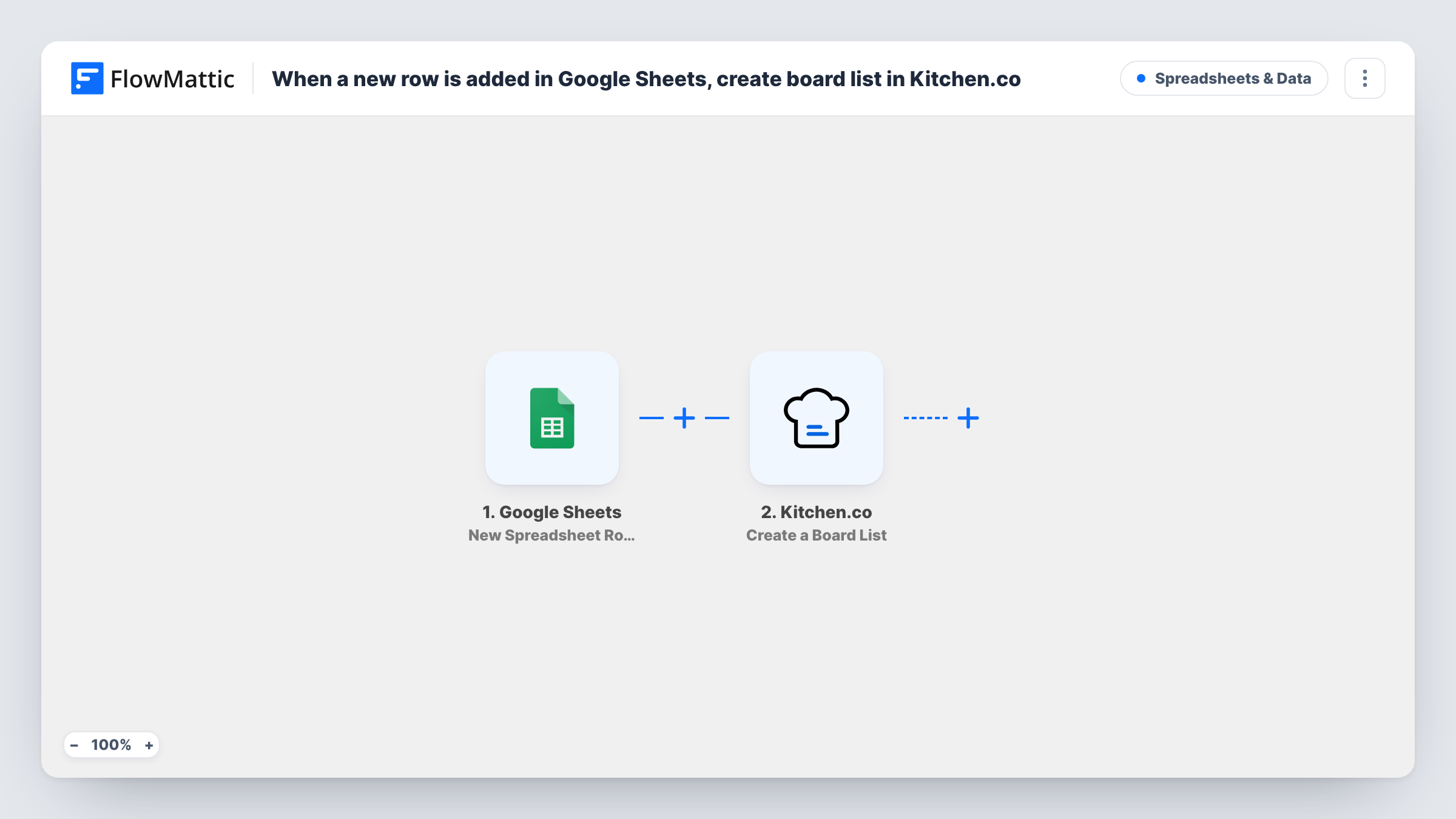
Each new row added to a Google Sheets spreadsheet creates a list on a Kitchen.co board, so you can plan project phases or client workstreams in a sheet and have them set up in Kitchen.co.
 Google Sheets
 Kitchen.co
2 steps Setup ~5 min Used on 1.3k sites Free to import
What this workflow does
Planning often starts in a spreadsheet: a column of project phases, a list of deliverables per client. Rebuilding that structure in Kitchen.co by hand means typing every list name again. This workflow creates a Kitchen.co board list from each new row.
The Google Sheets trigger runs on New Spreadsheet Row for the sheet you choose. FlowMattic passes the row's values to Kitchen.co, where Create a Board List adds a list. You map a column to the list name and choose or map where the list goes. A test run shows the list Kitchen.co created.
Only new rows start the workflow, so editing an existing row does not rename the list in Kitchen.co. Task History records every run, including any error Kitchen.co returns.
Agency onboarding a new client
Add rows for Discovery, Design, Build and Launch, and each becomes a list on the client's Kitchen.co board.
Content calendars
Each new month you add to the sheet creates a matching list in Kitchen.co, ready for that month's content cards.
Planning sprints from a spreadsheet
A project manager adds sprint names in Google Sheets, and Kitchen.co gets a list for each sprint.
How this workflow runs
What happens at each step once the workflow is on, and what you need before you import it.
 Google Sheets New Spreadsheet Row
Fires for each row newly appended to the sheet picked in this trigger. Every column value from that row can be mapped into the Kitchen.co step.
- Kitchen.co Create a Board List
Creates a list on a Kitchen.co board from the row data. Map the column that holds the list name, set where the list goes, and connect your Kitchen.co account.
What you need
- FlowMatticCore
- Google Sheets AccountAccount
- Kitchen.co AccountAccount
After importing, map your own data. To keep the template universal, not every step is pre-filled. Open each step in the builder and connect your accounts and fields (channels, lists, sheets, recipients) before you switch the workflow on.
Make it yours
Changes worth making after you import it.
- Add a Filter after the trigger that continues only when the list name column is filled, so blank rows don't create empty lists.
- Keep a board column in the sheet if lists belong on different Kitchen.co boards, and map it in the Create a Board List step if the step accepts a mapped board.
- Add a row to the sheet after import to capture real data before mapping the Kitchen.co step.
Questions about this workflow
Does editing a Google Sheets row change the Kitchen.co list?
No. The trigger is New Spreadsheet Row, so only new rows start a run. Rename existing lists in Kitchen.co directly.
Are rows already in the sheet turned into Kitchen.co lists?
No. Rows that exist before the workflow is turned on are not processed.
Can a row also create cards inside the new Kitchen.co list?
Not as imported. You would add another Kitchen.co step after Create a Board List, if FlowMattic offers one for cards, and map the new list into it.
More Spreadsheets & Data workflows
Other ready-to-import templates from the same category.



Import this workflow into your WordPress site
Download the JSON, import it from the Workflows screen and connect your accounts. Every run stays on your server, with no per-task fees.
30-day money-back guarantee Unlimited workflows and runs Self-hosted