

When a new row is added in Google Sheets, generate image alt text in AltTextify
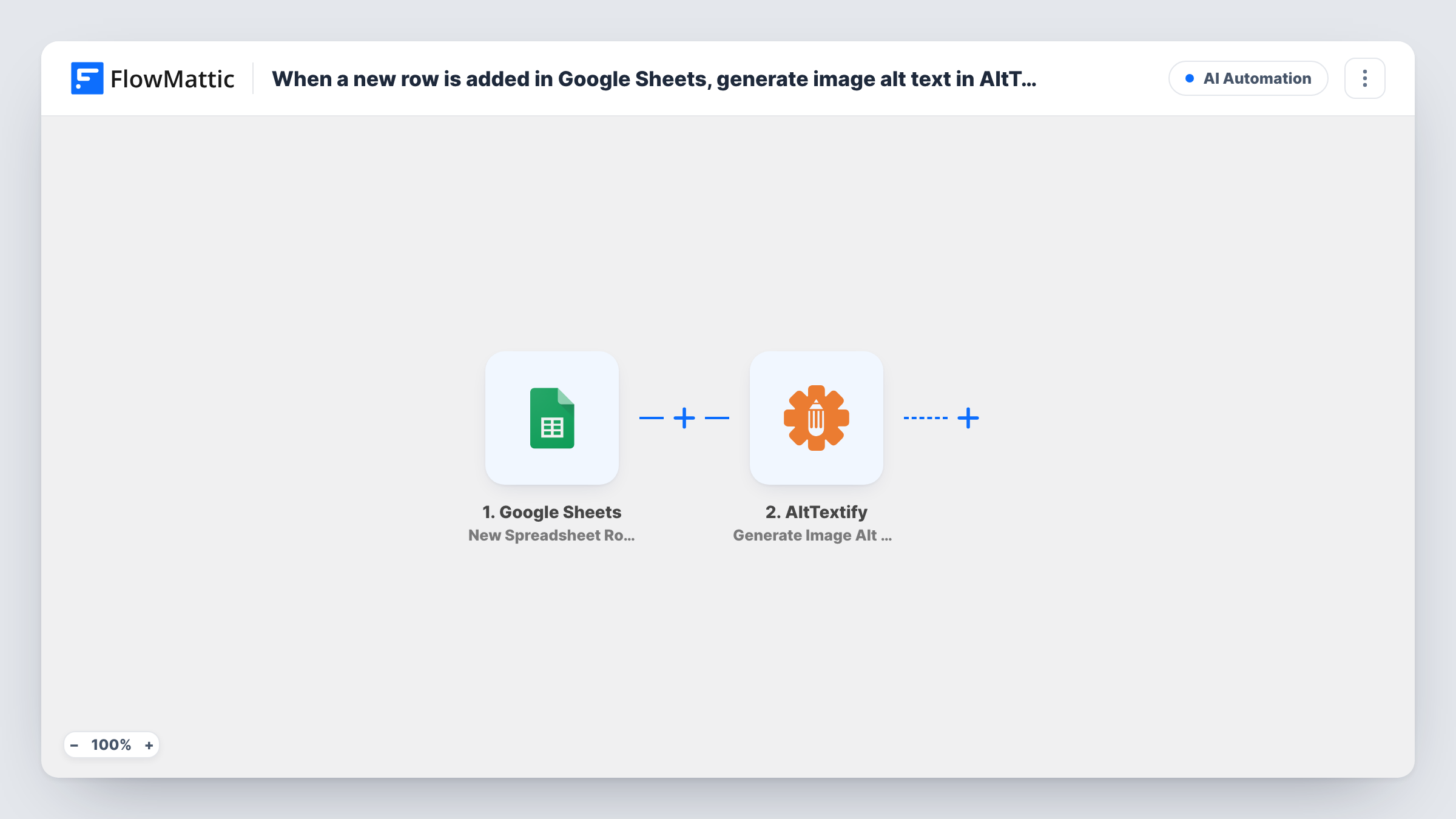
Add an image link to a new row in your Google Sheet and FlowMattic sends it to AltTextify, which writes alt text for that image so you don’t have to describe each one by hand.
 Google Sheets
 AltTextify
2 steps Setup ~5 min Used on 1.0k sites Free to import
What this workflow does
Writing alt text for a large batch of product photos or blog images is slow work. If your image links already live in a spreadsheet, this workflow hands each one to AltTextify as soon as its row is added, so descriptions are generated one image at a time without anyone copying links into another tool.
The Google Sheets trigger starts a run when a new row is added to the spreadsheet you pick. The row's cells are passed on, including the column that holds the image URL.
The AltTextify step generates alt text for the image you point it to. It ships unmapped, so after import you connect AltTextify and map the image URL column from the row into the step. The link has to be one AltTextify can open, such as a public image address.
As imported, the generated text stays in the step's output and in your AltTextify account; the workflow doesn't write it back anywhere. To use it, add a step after the AltTextify step that stores or sends the result, for example a row in a separate results spreadsheet. A test row shows you the output fields AltTextify returns.
Product photo catalogue
A store manager pastes the image links for a new product range into a sheet, one per row, and AltTextify generates a description for each photo.
Blog image backlog
A content editor lists older blog images that never had alt text in a spreadsheet and works through them row by row.
Agency handover sheet
An agency collects a client's image URLs in a shared sheet during a site rebuild, so each one gets alt text as it is added.
How this workflow runs
What happens at each step once the workflow is on, and what you need before you import it.
 Google Sheets New Spreadsheet Row
Starts the workflow when a new row is added to the Google Sheets spreadsheet you choose. Each cell of the new row is passed on, ready to map into AltTextify.
- AltTextify Generate Image Alt Text
Sends the image you map to AltTextify, which generates alt text for it. The step is unmapped in the template: connect your account and map the row's image URL column into it.
What you need
- FlowMatticCore
- Google Sheets AccountAccount
- AltTextify AccountAccount
After importing, map your own data. To keep the template universal, not every step is pre-filled. Open each step in the builder and connect your accounts and fields (channels, lists, sheets, recipients) before you switch the workflow on.
Make it yours
Changes worth making after you import it.
- Keep the image URL in a fixed column with a header, such as Image URL, so the mapping in the AltTextify step stays correct as rows are added.
- Put a Filter between the Google Sheets trigger and the AltTextify step that continues only when the image URL column is not empty. Which column you check depends on your sheet.
- Add a Google Sheets Add New Row step after AltTextify that writes the image URL and the returned alt text to a separate results spreadsheet, not the one the trigger watches.
- Test with a single row first and open Task History to see the alt text and other fields AltTextify returned.
Questions about this workflow
Does the alt text get written back into my Google Sheet?
Not as imported. The template has no step after AltTextify. Add one that stores the result, such as a row in a second spreadsheet, and map the alt text from the AltTextify step's output.
Which image links can AltTextify read?
Use a direct link to the image that AltTextify can open without logging in. Links behind a password or a private folder may return an error, and Task History shows what came back.
Will rows already in the sheet be processed?
No. The trigger runs for rows added after the workflow is switched on. Add older image links as new rows if you want alt text for them too.
Does one row with several image links create several descriptions?
No. Each new row starts one run, and the step uses the single value you map. Put one image link per row.
More AI Automation workflows
Other ready-to-import templates from the same category.








Import this workflow into your WordPress site
Download the JSON, import it from the Workflows screen and connect your accounts. Every run stays on your server, with no per-task fees.
30-day money-back guarantee Unlimited workflows and runs Self-hosted