

Predict age in Agify for new form submissions in Typeform to route leads to age-specific offers
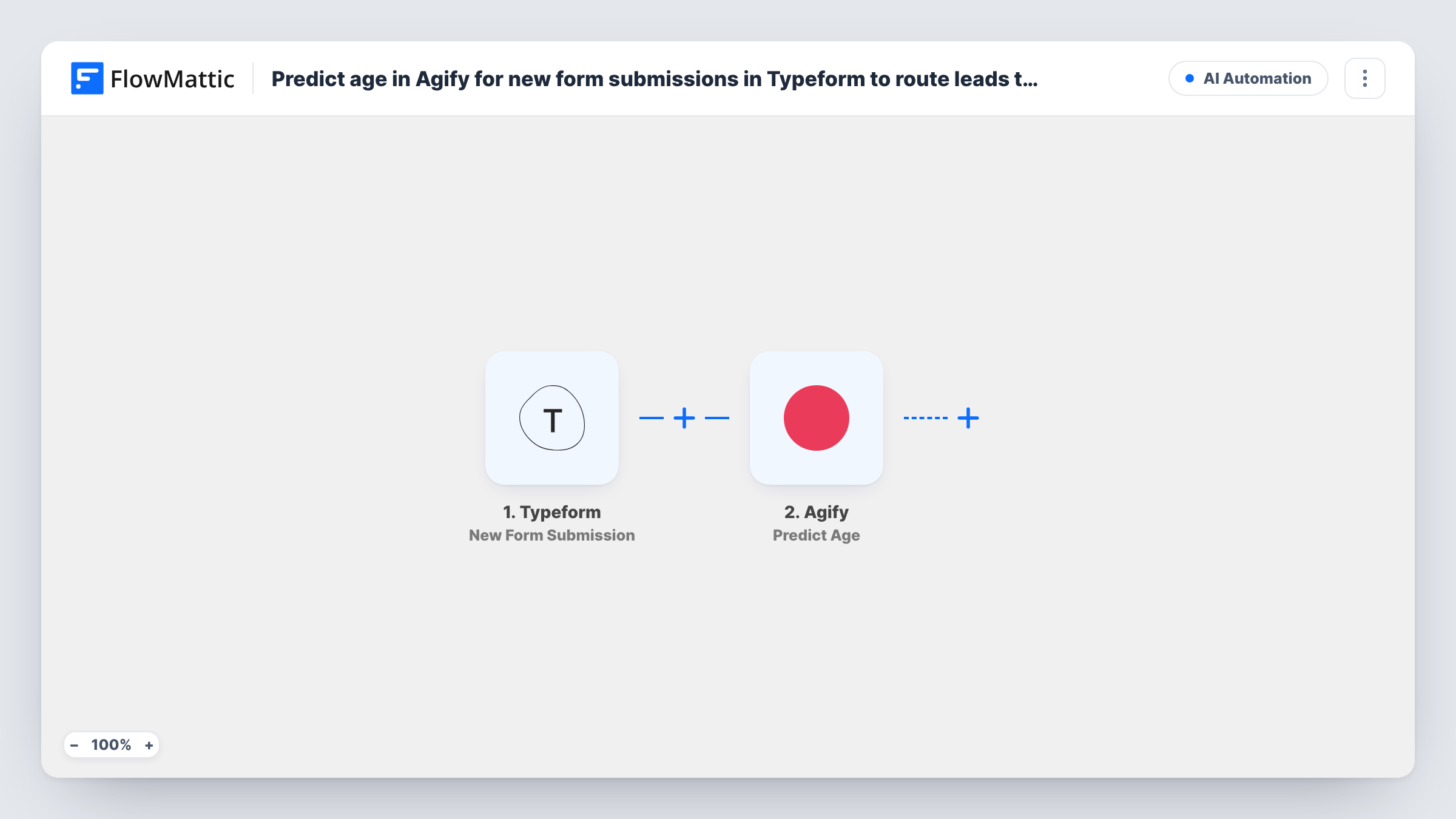
For each Typeform response, Agify predicts the respondent’s age from their name and a Router sends one of two offer emails: one for under 30, one for 30 and over.
 Typeform
 Agify
 Router
 Email
5 steps Setup ~8 min Used on 3.3k sites Free to import
What this workflow does
An offer that suits a student may not suit someone planning retirement. If your Typeform asks for a name but not an age, this workflow adds an age estimate and uses it to choose which of two offer emails a lead gets, without adding a question to the form.
The Typeform trigger starts a run when a response is submitted. The Agify step predicts an age from a first or full name. It ships unmapped, so after import you map the name answer from your form into it. The prediction is an estimate from the name only.
A Router then splits on that age. The under 30 route continues when the age is less than 30, and the 30 and over route when it is greater than 29, so each response follows one route. Router number checks treat a blank age as 0, so a response Agify can't estimate goes to the under 30 email.
Each route ends in FlowMattic's Email step. Both emails ship with the same placeholder subject and text and no recipient. Before going live, map the respondent's email answer into each one and write the two offers yourself; otherwise every lead receives the same generic message.
Gym membership offers
A gym's trial sign-up form on Typeform sends younger leads a flexible monthly offer and older leads a pass that includes personal training sessions.
Course recommendations
An online school routes quiz takers to an email about its early-career course or its leadership programme, based on the estimated age band.
Travel packages
A travel agency that collects trip enquiries through Typeform follows up with backpacking deals for one band and guided tours for the other.
How this workflow runs
What happens at each step once the workflow is on, and what you need before you import it.
 Typeform New Form Submission
Starts the workflow when someone submits your Typeform form. Their answers, including the name and email questions you ask, become available to the following steps.
- Agify Predict Age
Predicts an age from a first or full name with Agify. The step ships unmapped: connect Agify and map the name answer from the Typeform response, then check the age it returns in a test run.
- Router 2 paths
Splits on the predicted age: the under 30 route continues when it is less than 30, the 30 and over route when it is greater than 29. The ranges can't both match, and a blank age counts as 0.
 Email Send Email
On the under 30 route, sends the first offer email through WordPress mail or your SMTP account. It ships with a placeholder subject and body and no recipient: map the respondent's email and write this offer.
- Email Send Email
On the 30 and over route, sends the second offer email. Its placeholder text matches the first route's, so replace it with your offer for this group and map the respondent's email answer as the recipient.
What you need
- FlowMatticCore
- Typeform AccountAccount
- Agify AccountAccount
After importing, map your own data. To keep the template universal, not every step is pre-filled. Open each step in the builder and connect your accounts and fields (channels, lists, sheets, recipients) before you switch the workflow on.
Make it yours
Changes worth making after you import it.
- Put a Filter between the Agify step and the Router that continues only when the predicted age is not empty, so respondents Agify can't estimate don't get the under 30 offer by default.
- Make the Typeform name and email questions required, so Agify always has a name to work with and both offer emails have an address to go to.
- To send through Gmail, enter Gmail's SMTP details in the Email steps, or swap each one for the Gmail app's Send Email action with the same mapping.
Questions about this workflow
Are the two Typeform offer emails different as imported?
No. Both routes ship with the same placeholder subject and body. Write a separate offer in each Send Email step before you turn the workflow on.
What happens if Agify can't predict an age for the respondent?
If Agify returns no age, the Router reads the blank value as 0 and the response follows the under 30 route. A Filter on the age between Agify and the Router stops those runs instead.
Who receives the offer email?
Nobody until you set it. Neither Send Email step has a recipient, so map the respondent's email answer from the Typeform response into both.
How reliable is an age estimated from a name?
It is a statistical guess from the name alone and can be wrong for any individual. Use it to choose between general offers, not for anything that depends on a confirmed age.
More AI Automation workflows
Other ready-to-import templates from the same category.







Import this workflow into your WordPress site
Download the JSON, import it from the Workflows screen and connect your accounts. Every run stays on your server, with no per-task fees.
30-day money-back guarantee Unlimited workflows and runs Self-hosted