

When a new subscriber is added in Mailchimp, list workspaces in DynaPictures
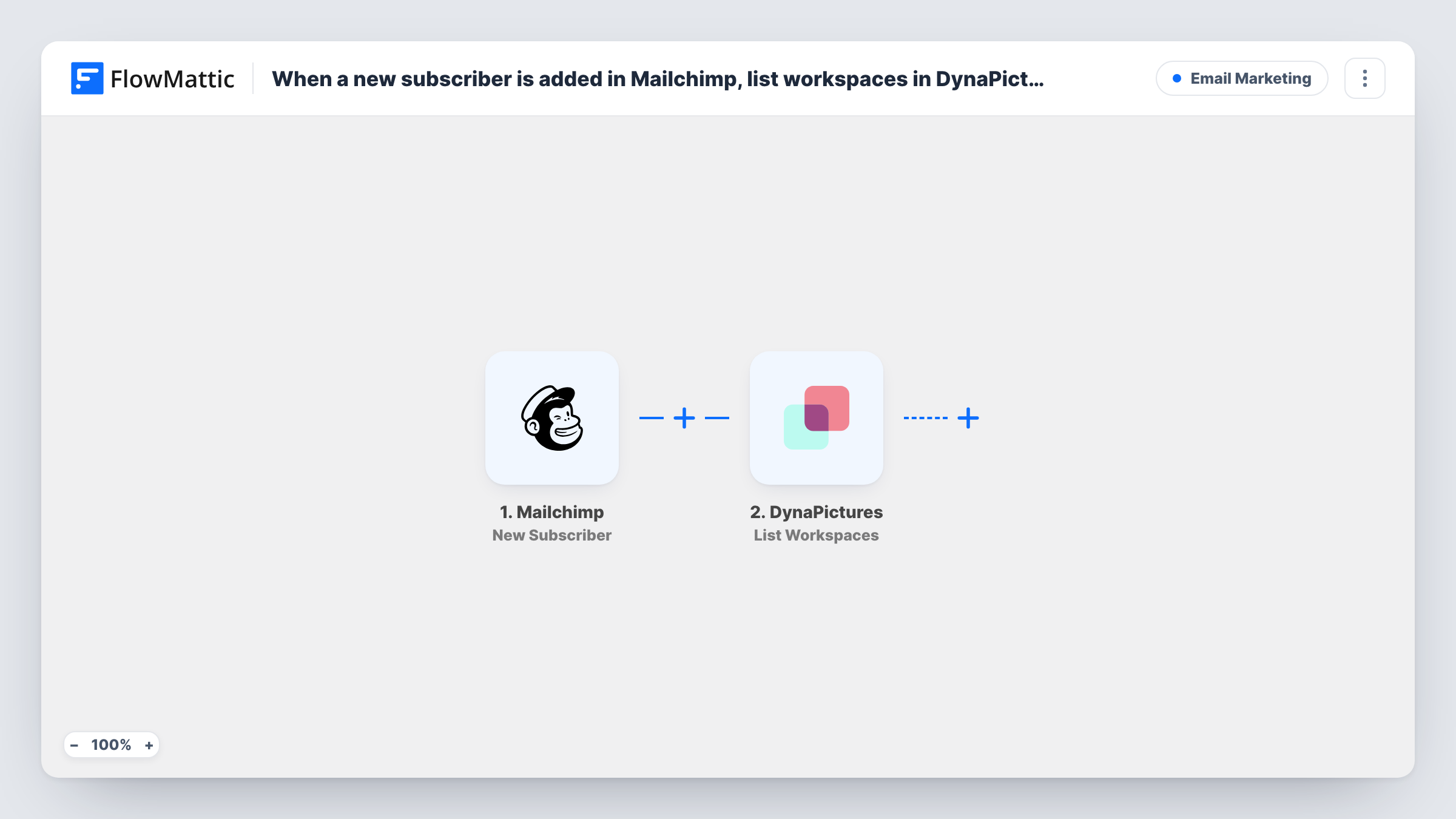
Each new Mailchimp subscriber triggers a call to DynaPictures that retrieves the workspaces your account belongs to. It is a starting point for building subscriber images; as imported it creates no image.
 Mailchimp
 DynaPictures
2 steps Setup ~5 min Used on 1.1k sites Free to import
What this workflow does
This is a small building block, not a finished image flow. If you plan to make personalised graphics for new subscribers with DynaPictures, you first need the workflow to reach the right DynaPictures workspace. This template connects the two apps and returns that information on every new sign-up.
The Mailchimp trigger fires when a new subscriber is added to your audience and passes the subscriber's details to FlowMattic. The second step runs List Workspaces in DynaPictures. It retrieves every workspace your connected DynaPictures user is a member of. The subscriber data is not sent to DynaPictures in this step.
The run ends after the list comes back. Nothing is generated, saved or sent. Use Task History to read the response, then add the DynaPictures and delivery steps that do the real work, mapping the subscriber's details into them.
Testing your DynaPictures connection
Subscribe with a test address and check Task History. If the workspace list comes back, your Mailchimp trigger and DynaPictures account are both working inside FlowMattic.
Base for a welcome image flow
Import this template, then add DynaPictures steps that produce a welcome graphic with the new subscriber's name, plus a step that sends it.
Agencies with several workspaces
If your DynaPictures user belongs to client workspaces, the response shows them all, so you can see which one to work in before building further steps.
How this workflow runs
What happens at each step once the workflow is on, and what you need before you import it.
 Mailchimp New Subscriber
Starts the run each time someone joins your Mailchimp audience as a subscriber. Their details, such as email and name, are passed on for later steps you add.
- DynaPictures List Workspaces
Retrieves a list of all workspaces your connected DynaPictures user is a member of. No subscriber data is used here; the response appears in Task History for you to read.
What you need
- FlowMatticCore
- Mailchimp AccountAccount
- DynaPictures AccountAccount
After importing, map your own data. To keep the template universal, not every step is pre-filled. Open each step in the builder and connect your accounts and fields (channels, lists, sheets, recipients) before you switch the workflow on.
Make it yours
Changes worth making after you import it.
- Add a DynaPictures step after List Workspaces that works with your image templates, and map the Mailchimp subscriber's name into it.
- Add an email or messaging step at the end so the image you generate actually reaches someone; the imported template sends nothing.
- Run a test subscription once after import, then open Task History to see which workspaces DynaPictures returned before you build the next step.
Questions about this workflow
Does this template create an image for each Mailchimp subscriber?
No. It only retrieves your DynaPictures workspaces. To make an image you need to add further DynaPictures steps after it.
Is the new subscriber's data sent to DynaPictures?
Not by List Workspaces. That action reads your account's workspaces only. Subscriber details stay available to map into any step you add later.
Will older Mailchimp subscribers start a run?
No. The trigger fires when a new subscriber is added, so only sign-ups after you switch the workflow on start it.
More Email Marketing workflows
Other ready-to-import templates from the same category.




Import this workflow into your WordPress site
Download the JSON, import it from the Workflows screen and connect your accounts. Every run stays on your server, with no per-task fees.
30-day money-back guarantee Unlimited workflows and runs Self-hosted