

When a new subscriber is added in MailerLite, create attendee in Eventin
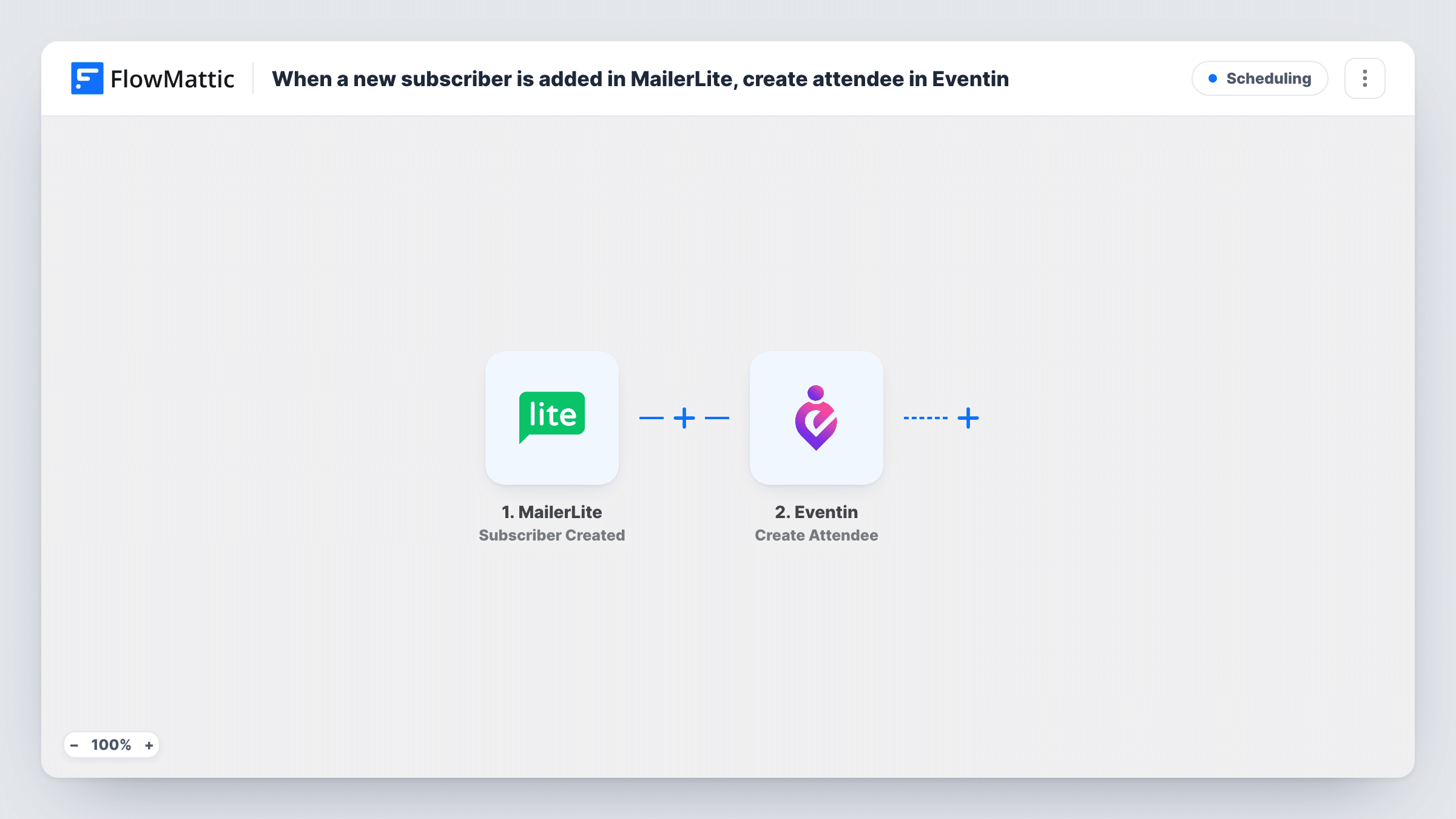
When a subscriber is created in MailerLite, this workflow registers that person as an attendee in Eventin on your WordPress site, so people who join your email list also appear on your event roster.
 MailerLite
 Eventin
2 steps Setup ~5 min Used on 2.8k sites Free to import
What this workflow does
If your mailing list sign-up doubles as event registration, you end up copying names from your email tool into your event plugin by hand. This workflow does that step for you. Each new MailerLite subscriber becomes an Eventin attendee without anyone retyping the details.
The MailerLite trigger fires when a subscriber is created in your MailerLite account. The subscriber's data, including their email address, is passed to the next step. The Eventin step then uses Create Attendee to add that person to Eventin, using the subscriber fields you map into it.
As imported, the workflow runs for every new subscriber in the account, not only those who joined through an event form. If you collect sign-ups for several purposes, add a condition so only the right people are registered. Run a test after import to confirm which event the new attendee is attached to in Eventin.
List built only for one event
You run a MailerLite account just for an annual conference. Every new subscriber is someone planning to attend, so each one is added to the Eventin roster as they sign up.
Webinar sign-ups through a MailerLite form
A MailerLite form on a landing page collects webinar registrations. Each sign-up lands in Eventin too, so the attendee list on your site matches the people you email reminders to.
Local meetup group
A meetup organiser grows a small email list for monthly sessions. New subscribers are registered in Eventin, so the organiser can see who is coming from inside WordPress.
How this workflow runs
What happens at each step once the workflow is on, and what you need before you import it.
 MailerLite Subscriber Created
Runs when a new subscriber is created in your MailerLite account. The subscriber's details are passed on for mapping, once you link the MailerLite account that holds your list.
- Eventin Create Attendee
Creates an attendee in Eventin on your WordPress site from the MailerLite subscriber. Map the subscriber's details into the step, then run a test to check the attendee appears under the event you expect.
What you need
- FlowMatticCore
- MailerLite AccountAccount
- Eventin PluginPlugin
After importing, map your own data. To keep the template universal, not every step is pre-filled. Open each step in the builder and connect your accounts and fields (channels, lists, sheets, recipients) before you switch the workflow on.
Make it yours
Changes worth making after you import it.
- Add a Filter after the trigger that checks a subscriber field you can tell event sign-ups apart by, so other subscribers are not registered. Run a test first to see which fields MailerLite sends.
- Subscribe a test address in MailerLite after import. FlowMattic then captures the subscriber fields, which you can map into the Eventin step.
- If you run more than one event from the same list, swap the single Eventin step for a Router with a route per event and a Create Attendee step in each. Give the routes conditions that can't both match the same subscriber.
Questions about this workflow
Does every MailerLite subscriber become an Eventin attendee?
Yes, as imported. The trigger fires for each subscriber created in the account. Add a Filter after the trigger if only some subscribers should be registered.
Do I need Eventin installed on the same site as FlowMattic?
Yes. Eventin is a WordPress plugin, and the Create Attendee step adds the attendee on the site where FlowMattic runs.
Are subscribers I already have in MailerLite added to Eventin?
No. Only subscribers created after you turn the workflow on start a run. Existing subscribers are left as they are.
How do I check which Eventin event an attendee is added to?
Subscribe a test address, then open Task History to see the data the Eventin step sent, and look at the attendee in Eventin to confirm the event.
More Scheduling workflows
Other ready-to-import templates from the same category.






Import this workflow into your WordPress site
Download the JSON, import it from the Workflows screen and connect your accounts. Every run stays on your server, with no per-task fees.
30-day money-back guarantee Unlimited workflows and runs Self-hosted