

When a new survey is completed in Survicate, send a message to a Slack channel
Whenever a respondent finishes a whole Survicate survey, FlowMattic posts a message to the Slack channel you pick, carrying the answers you choose to include so your team reads them in Slack.
 Survicate
 Slack
2 steps Setup ~5 min Used on 3.2k sites Free to import
What this workflow does
Survey feedback is only useful if someone reads it. When responses sit in the Survicate dashboard, a complaint or a feature request can wait days before anyone looks. This workflow puts each finished response in front of your team in a Slack channel they already watch.
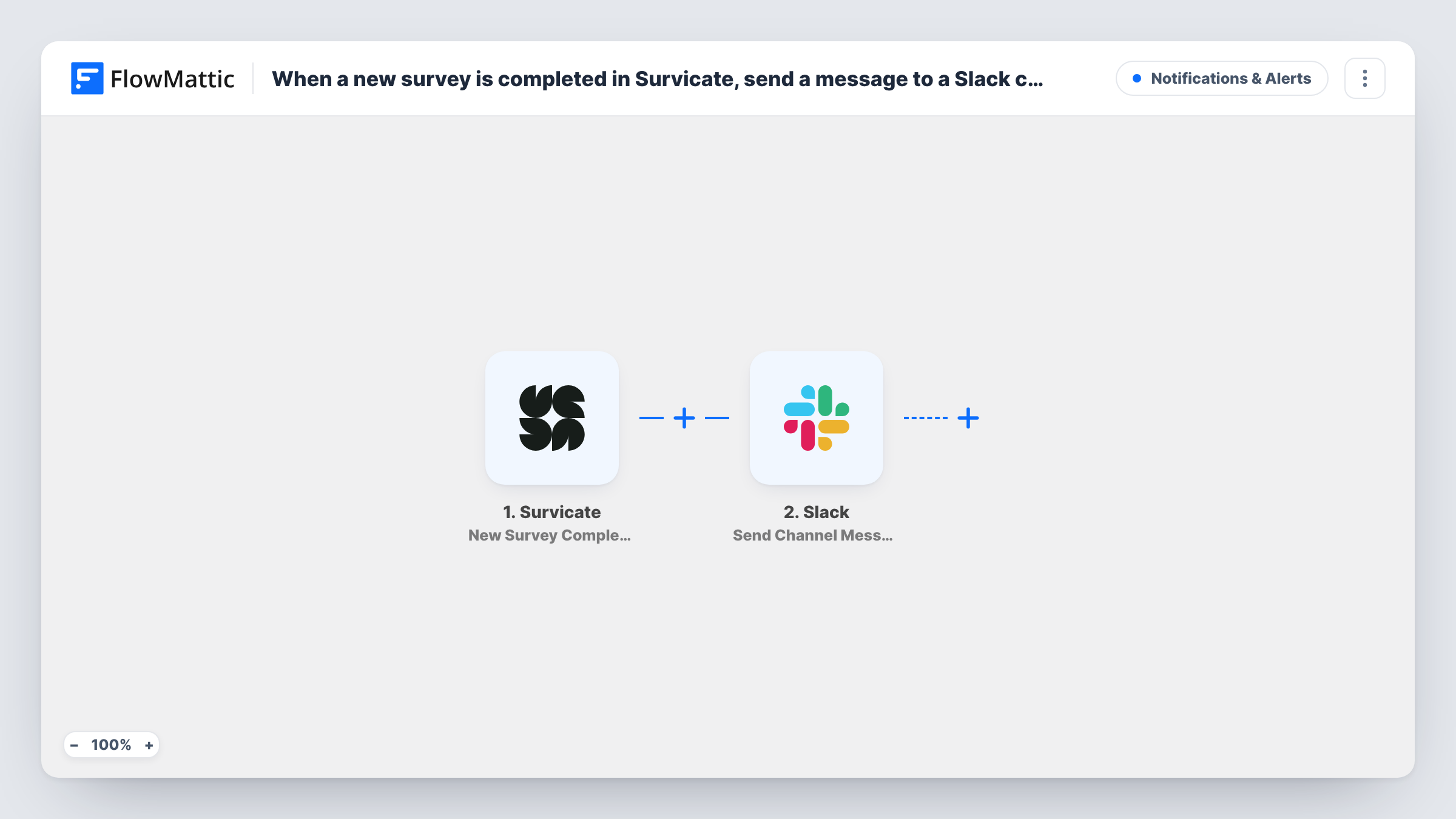
The Survicate trigger, New Survey Completion, fires when a respondent completes the entire survey. Partly answered surveys don't start it. The response data comes into FlowMattic, and the Slack step uses Send Channel Message to post into the channel you select. You write the message and drop in the answers you want people to see, such as a score or a comment.
Every completed survey produces one post, with no filtering in between. If you run several surveys, all of them post to the same channel unless you change that. Task History keeps a record of each run and the reply Slack gave.
NPS responses for the customer team
Each finished NPS survey posts its score and comment to a customer success channel, so the team can reach out to an unhappy customer the same day.
Product feedback for designers
A short in-app Survicate survey about a new feature posts each completed response to the design team's channel while the feature is still being tuned.
Post-support satisfaction checks
When a customer completes the survey sent after a support case, the support channel sees the rating next to the comments the customer left.
How this workflow runs
What happens at each step once the workflow is on, and what you need before you import it.
 Survicate New Survey Completion
Fires when a respondent completes an entire Survicate survey. The answers from that response are passed on for mapping in the Slack message.
- Slack Send Channel Message
Sends one post per completed survey into a Slack channel you select. Write the text and map in the Survicate answers you want shown, then connect your Slack workspace on import.
What you need
- FlowMatticCore
- Survicate AccountAccount
- Slack AccountAccount
After importing, map your own data. To keep the template universal, not every step is pre-filled. Open each step in the builder and connect your accounts and fields (channels, lists, sheets, recipients) before you switch the workflow on.
Make it yours
Changes worth making after you import it.
- Add a Filter after the trigger to post only low scores, for example a rating less than 7. Note that a blank rating counts as 0 and passes that check, so add a second condition that the rating is not empty.
- Running more than one survey? Use a Router with one route per survey, each with its own Slack step and channel, if the response data includes a value that names the survey.
- Submit a test response yourself after import so FlowMattic records the Survicate answer fields, then build the Slack message from them.
Questions about this workflow
Does a partly finished Survicate survey post to Slack?
No. New Survey Completion fires only when the respondent completes the whole survey. Survicate also has a New Question Answer trigger if you want a post for each answered question.
Can the Survicate message go to a private Slack channel?
Send Channel Message is for a regular channel. For a private channel, swap in Slack's Send Private Channel Message action, and for one person use Send Direct Message.
Will every completed Survicate survey post a message?
Yes, as imported. Each completion runs the Slack step once. Add a Filter after the trigger if you want only some responses posted.
Are older Survicate responses posted?
No. Only surveys completed after you turn the workflow on reach Slack.
More Notifications & Alerts workflows
Other ready-to-import templates from the same category.





Import this workflow into your WordPress site
Download the JSON, import it from the Workflows screen and connect your accounts. Every run stays on your server, with no per-task fees.
30-day money-back guarantee Unlimited workflows and runs Self-hosted