

Notify the team in Discord whenever an 8x8 conversation is transferred to another queue
Whenever an 8×8 agent transfers a conversation to another queue, FlowMattic posts a message in the Discord channel you pick, so the team receiving it hears about the handover.
 8x8
 Discord
2 steps Setup ~5 min Used on 2.0k sites Free to import
What this workflow does
A transfer is the moment a customer is most likely to repeat themselves. The first agent has moved the conversation on, and the next team may not know it is coming. If your support or sales staff already talk in Discord, this workflow tells them about each transfer in the channel they watch.
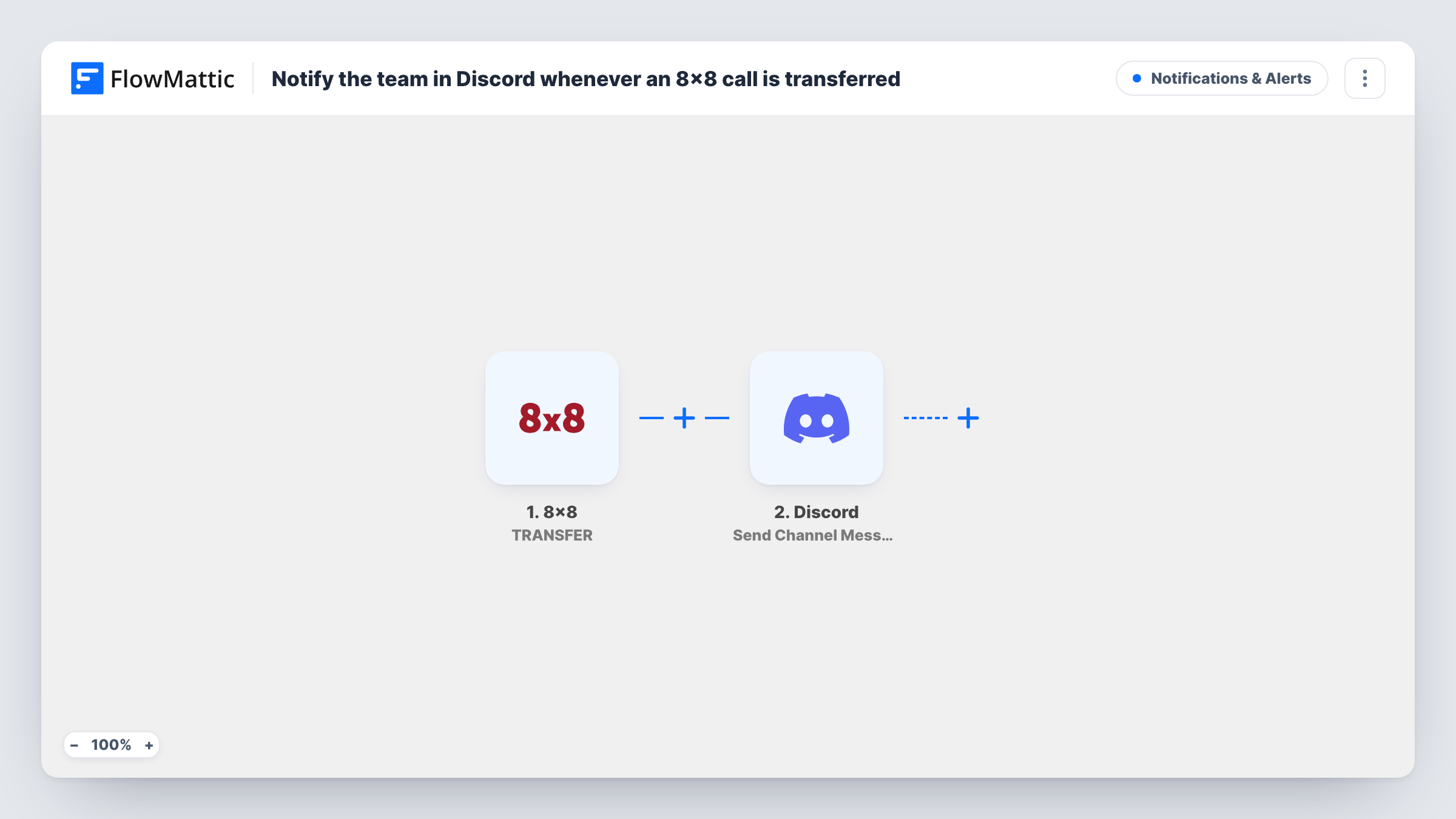
The 8x8 TRANSFER trigger fires whenever the handling agent transfers a conversation to another queue, and passes that interaction's data on. The Discord step, Send Channel Message, then posts a message to the channel you choose.
The Discord step ships without a message or channel set. After import you connect Discord, pick the channel, and write the text, mapping in whichever 8x8 details matter to your team, such as the queue, the agent and the customer. Run a real transfer first and look at the trigger's output, so you know which values 8x8 includes before you write the message.
Every transfer posts one message, whichever queue it goes to. A Filter on the queue lets you limit that, as the tips explain. Task History lists each run and Discord's response.
Escalations to a second-line team
A contact centre moves hard cases to a technical queue, and the engineers who handle them see each transfer in their Discord channel.
Sales handovers from support
Support agents transfer buying questions to the sales queue, and the sales team's Discord channel shows who is waiting.
Supervisor view of transfer volume
A team lead keeps a quiet Discord channel just for transfer notices and scrolls back at the end of a shift to spot patterns.
How this workflow runs
What happens at each step once the workflow is on, and what you need before you import it.
 8x8 TRANSFER
Fires whenever the 8x8 agent handling an interaction transfers the conversation to another queue. The interaction's details are passed on; a test transfer shows which values arrive.
- Discord Send Channel Message
Sends the transfer notice to a Discord channel. The template leaves the channel and text empty: connect Discord, choose the channel and write the message with the 8x8 details mapped in.
What you need
- FlowMatticCore
- 8x8 AccountAccount
- Discord AccountAccount
After importing, map your own data. To keep the template universal, not every step is pre-filled. Open each step in the builder and connect your accounts and fields (channels, lists, sheets, recipients) before you switch the workflow on.
Make it yours
Changes worth making after you import it.
- If only one team should hear about transfers, add a Filter between the 8x8 trigger and the Discord step that checks the destination queue. Set the queue value yourself after a test run.
- Put a Router between the 8x8 trigger and the Discord step to send transfers for different queues to different Discord channels, giving each route its own Send Channel Message step, with conditions that can't both match.
- Keep the message short and put the customer and queue first, so it reads well in Discord's notification preview.
Questions about this workflow
Does every 8x8 transfer post to Discord?
Yes, as imported. There is no Filter, so each TRANSFER event posts one message. Add a Filter on the queue between the trigger and the Discord step to narrow it.
Which 8x8 details can appear in the Discord message?
Whatever the TRANSFER event includes for that interaction. The message is empty in the template, so make a test transfer and map from the trigger's output.
Can I be told when an agent joins or leaves an 8x8 conversation too?
Yes, with another workflow. FlowMattic's 8x8 integration also has QUEUED, AGENT JOINED, AGENT LEFT and TEXT triggers. Copy this workflow and swap the trigger.
Can the alert go to one person instead of a Discord channel?
Yes. Replace the step with Discord's Send Direct Message action and pick the user, or keep the channel message and mention the person in the text.
More Notifications & Alerts workflows
Other ready-to-import templates from the same category.






Import this workflow into your WordPress site
Download the JSON, import it from the Workflows screen and connect your accounts. Every run stays on your server, with no per-task fees.
30-day money-back guarantee Unlimited workflows and runs Self-hosted