

When a new ticket is created in Freshdesk, create a new voice in Hume AI
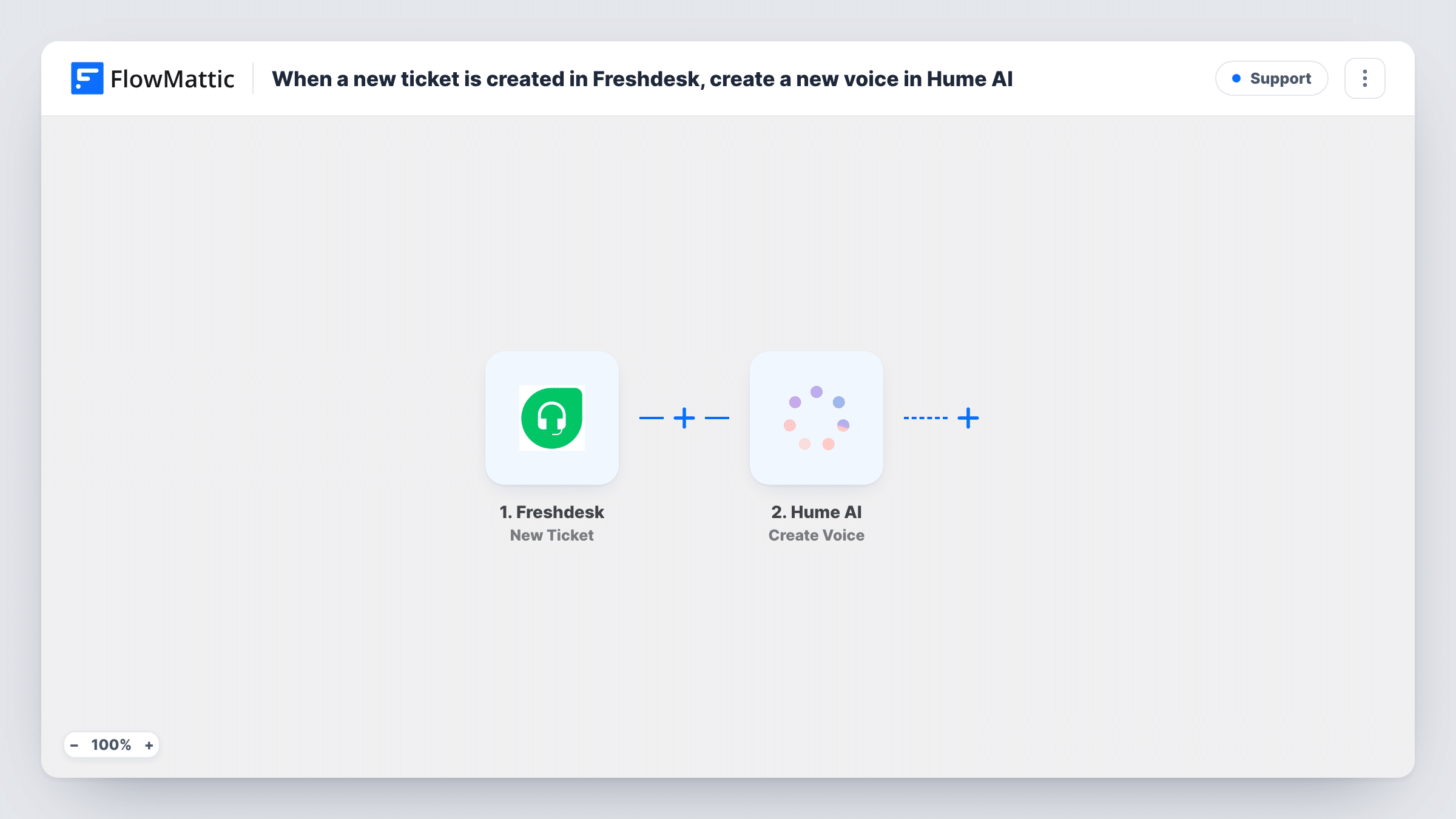
Each new Freshdesk ticket starts a Hume AI text-to-speech generation from the text you map, and the voice from that generation is then saved as a new voice in your Hume AI account.
 Freshdesk
 Hume AI
3 steps Setup ~5 min Used on 3.1k sites Free to import
What this workflow does
This is a specialised workflow for teams experimenting with Hume AI voices in support. Every new Freshdesk ticket produces a speech generation in Hume AI, and that generation's voice is kept as a named voice in your account, so you can listen back and reuse the ones that fit your brand.
The Freshdesk New Ticket trigger fires when a ticket is created and passes the ticket details on, such as its subject and description. The Hume AI Text to Speech (File) step converts text to speech. It ships unmapped, so after import connect Hume AI and choose the text to speak, for example the ticket subject or a short acknowledgement that includes it.
The Create Voice step then saves a voice in Hume AI from that generation. Its generation ID is already mapped from the previous step; open the step to check its other settings, such as how the voice is named, before going live.
Every new ticket creates another voice, so your Hume AI voice library grows with your ticket volume. Neither step sends audio to the customer or adds it to the ticket. To use the audio, add a step after the Hume AI steps.
Voice trials for a support line
A support team testing spoken ticket acknowledgements builds a set of Hume AI voices from real ticket text, then picks the best one for its phone system.
Audio summaries for a busy queue
A team lead has each new ticket subject read aloud by Hume AI, keeping the generated voices to compare tone across ticket types.
Prototype for voice replies
A developer uses the workflow as a first step towards spoken replies, checking how Hume AI handles real customer wording before building more.
How this workflow runs
What happens at each step once the workflow is on, and what you need before you import it.
 Freshdesk New Ticket
Starts a run for every ticket opened in your Freshdesk helpdesk. The ticket's details, such as the subject and description, are passed on for the text-to-speech step.
- Hume AI Text to Speech (File)
Converts the text you map into speech with Hume AI and returns a generation ID. The step ships unmapped: connect Hume AI and choose the ticket text or message to speak.
- Hume AI Create Voice
Saves a voice in your Hume AI account from the generation made in the previous step, using its generation ID. Check the step's other settings, such as the voice name, after import.
What you need
- FlowMatticCore
- Freshdesk AccountAccount
- Hume AI AccountAccount
After importing, map your own data. To keep the template universal, not every step is pre-filled. Open each step in the builder and connect your accounts and fields (channels, lists, sheets, recipients) before you switch the workflow on.
Make it yours
Changes worth making after you import it.
- Map the ticket ID into the voice name in the Create Voice step if it offers a name field, so you can tell which ticket each saved voice came from.
- Put a Filter between the Freshdesk trigger and the Text to Speech step that continues only for a ticket type or tag you are testing with, so your Hume AI library doesn't fill up with a voice per ticket.
- Keep the spoken text short, such as the subject line, so each generation is quick to review.
- Use Hume AI's List Voices action in a separate workflow to review the voices this one has created.
Questions about this workflow
Does the customer hear the Hume AI audio?
No. The workflow generates speech and saves a voice in your Hume AI account. Nothing is sent to the customer or attached to the Freshdesk ticket.
Why does every Freshdesk ticket create a new Hume AI voice?
Each ticket starts a run, and the Create Voice step saves the voice from that run's generation. If you only need some voices, put a Filter on the ticket between the Freshdesk trigger and the Text to Speech step.
Which ticket text does Hume AI speak?
Whatever you map. The Text to Speech (File) step ships empty, so pick the subject, description or a message of your own that includes ticket details.
Do I need anything set up in Hume AI first?
A Hume AI account connected to FlowMattic. Both Hume AI steps use that connection.
More Support workflows
Other ready-to-import templates from the same category.








Import this workflow into your WordPress site
Download the JSON, import it from the Workflows screen and connect your accounts. Every run stays on your server, with no per-task fees.
30-day money-back guarantee Unlimited workflows and runs Self-hosted