

Create a Todoist task when a SupportCandy ticket is assigned to an agent
Whenever the assignee of a SupportCandy ticket changes, FlowMattic creates a task in Todoist with the ticket details you map, so the agent’s ticket work sits in the same list as the rest of their day.
 SupportCandy
 Todoist
2 steps Setup ~5 min Used on 787 sites Free to import
What this workflow does
Many agents plan their day in Todoist, not in the helpdesk queue. When a ticket is handed to them in SupportCandy, it is easy for it to stay out of sight until someone chases it. This workflow puts a task in Todoist each time a ticket's assignee changes.
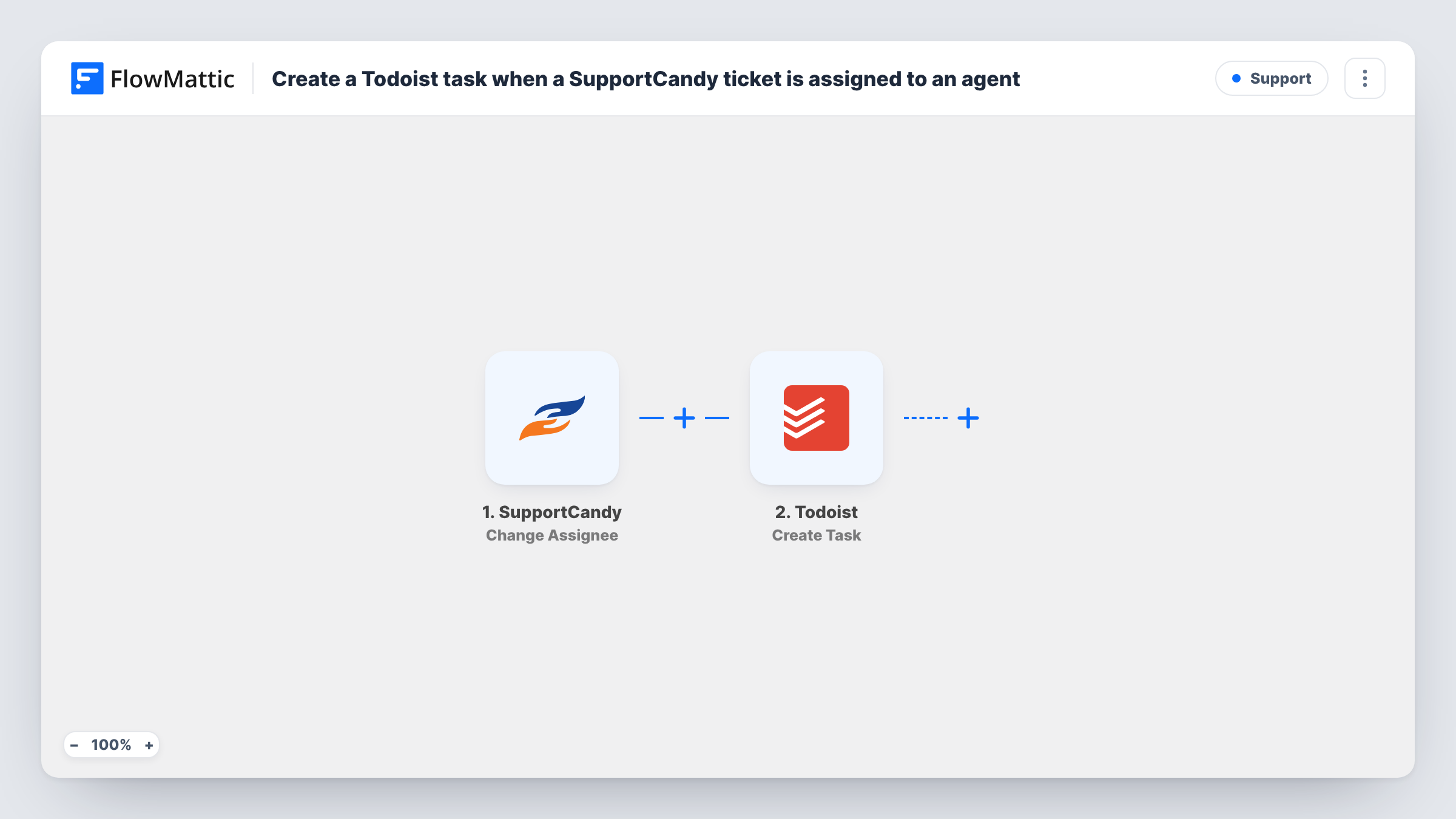
The SupportCandy trigger fires when the assignee of a support ticket is changed, and passes along the ticket data it receives. FlowMattic then runs Create Task in Todoist. You build the task from the ticket, for example its subject and ID in the task name, and anything else useful in the description.
The task is created in the Todoist account you connect. If several agents use their own Todoist accounts, decide where tasks should land before you turn it on: one shared project, or a copy of the workflow for each agent with a Filter on the assignee. Every assignee change creates a task, including reassignments of the same ticket.
Solo support lead who lives in Todoist
Each ticket handed to you in SupportCandy shows up as a Todoist task, so tickets and your other work share one list.
Shared support project for a small team
All assignments land in a team Todoist project, and the task name shows the ticket subject so anyone can see what is being worked on.
Agency handling client tickets
Ticket assignments become Todoist tasks next to client project work, which helps account managers see support load beside other tasks.
How this workflow runs
What happens at each step once the workflow is on, and what you need before you import it.
 SupportCandy Change Assignee
Fires when the assignee of a SupportCandy ticket is changed. The ticket data the event carries is passed on so you can use it in the Todoist task.
- Todoist Create Task
Creates a new task in your Todoist account. Connect Todoist on import and map ticket data such as the subject and ticket ID into the task, so the task points back to the right ticket.
What you need
- FlowMatticCore
- SupportCandy AccountAccount
- Todoist AccountAccount
After importing, map your own data. To keep the template universal, not every step is pre-filled. Open each step in the builder and connect your accounts and fields (channels, lists, sheets, recipients) before you switch the workflow on.
Make it yours
Changes worth making after you import it.
- Add a Filter after the trigger that continues only when the assignee matches one agent, so only that person's assignments become tasks in their Todoist.
- Put the ticket ID in the task name. It makes the task easy to match with the ticket when you search either app.
- Change a test ticket's assignee after import, then open Task History to see which ticket fields SupportCandy sends before you map them.
Questions about this workflow
Does a SupportCandy reassignment create a second Todoist task?
Yes. The trigger fires on every assignee change, so moving a ticket to another agent creates another task. Add a Filter if you only want certain changes to count.
Is the Todoist task completed when the SupportCandy ticket closes?
No. This workflow only creates tasks. Closing the ticket does not touch Todoist, so you tick the task off yourself.
Can each agent get tasks in their own Todoist account?
As imported, tasks go to the one Todoist account you connect. For separate accounts, copy the workflow per agent, connect each agent's Todoist, and add a Filter on the assignee.
Does SupportCandy need to run on the same site as FlowMattic?
SupportCandy is a WordPress helpdesk plugin, so install it on the WordPress site where FlowMattic runs to use this trigger.
More Support workflows
Other ready-to-import templates from the same category.








Import this workflow into your WordPress site
Download the JSON, import it from the Workflows screen and connect your accounts. Every run stays on your server, with no per-task fees.
30-day money-back guarantee Unlimited workflows and runs Self-hosted