

When a payment is received in Pabbly Subscription Billing, create a contact in Brevo (Sendinblue)
Each successful payment in Pabbly Subscription Billing creates a contact in Brevo (Sendinblue) from the customer’s details, so paying customers are in your email tool for receipts, onboarding and updates.
 Pabbly Subscriptions
 Brevo ( Sendinblue )
2 steps Setup ~5 min Used on 1.6k sites Free to import
What this workflow does
Billing and email marketing tend to live in separate tools. When payments run through Pabbly Subscription Billing and newsletters go out from Brevo, paying customers don't reach your email lists unless someone exports them. This workflow creates a Brevo contact whenever Pabbly records a payment.
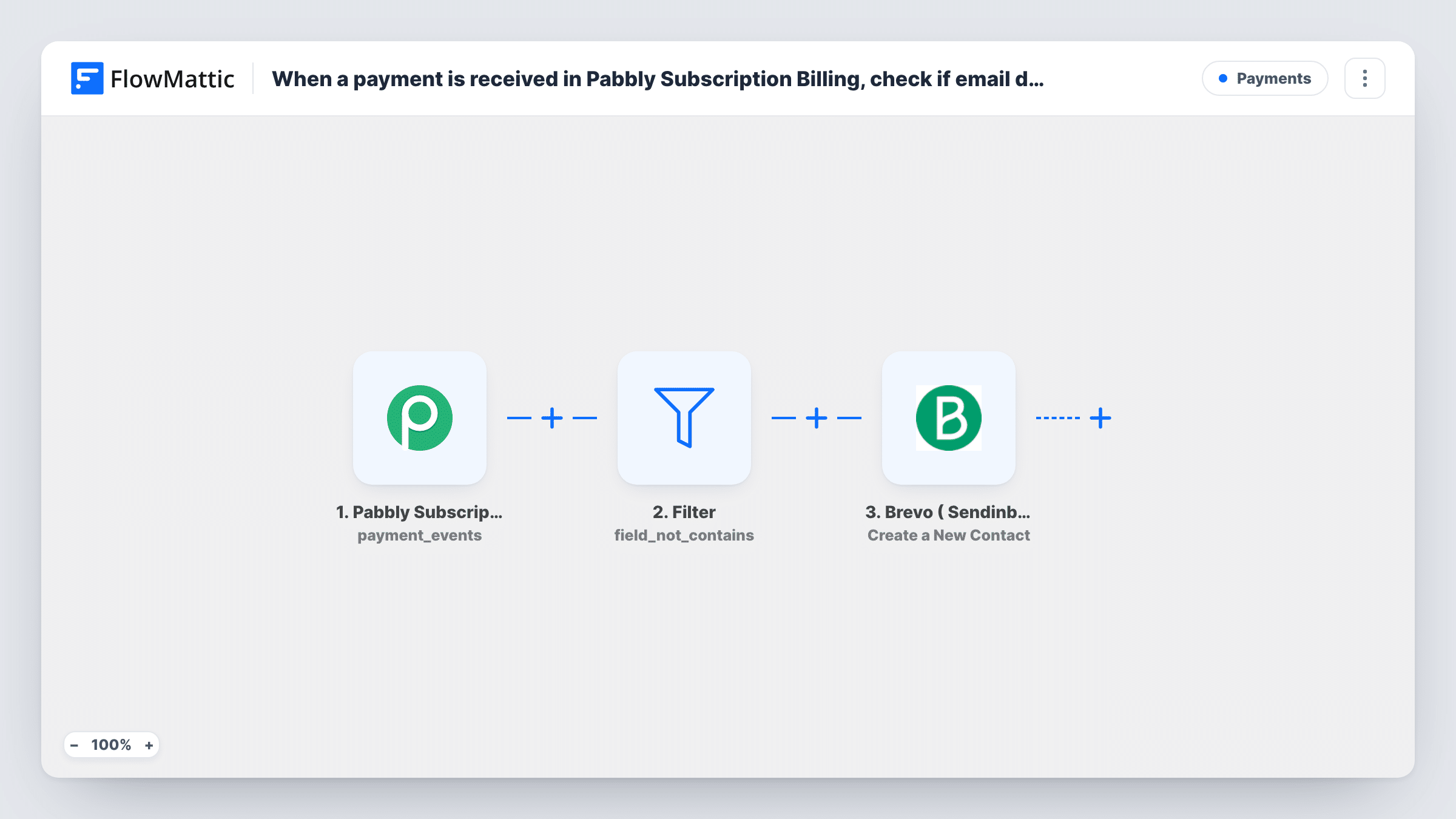
The Pabbly Subscriptions Successful Payments trigger fires when a payment is received. The payment data, including the customer's details, is passed on; check a test run to see which fields carry the email and name.
The Brevo ( Sendinblue ) Create a New Contact step then adds the customer as a contact. It ships unmapped: after import you connect Brevo and map the customer's email from the payment, plus the name and any list you want them on.
The trigger runs on every successful payment, not only the first. A subscriber who renews monthly starts a run each month, and Brevo may return an error when asked to create a contact whose email it already has. No second contact is made in that case, and Brevo's reply is visible in Task History.
Onboarding emails for new paying customers
A membership site adds each paying customer to a Brevo list that starts a welcome series explaining how to get the most from their plan.
Customer-only newsletter
A software company keeps a Brevo list of everyone who has paid, so product updates go to customers rather than to every free sign-up.
Win-back lists later on
A coaching business builds its Brevo audience of past payers over time, ready for an offer when a new programme starts.
How this workflow runs
What happens at each step once the workflow is on, and what you need before you import it.
 Pabbly Subscriptions Successful Payments
Fires each time Pabbly Subscription Billing receives a payment, including renewals. The payment and customer details are passed on to Brevo; a test payment shows the field names.
- Brevo ( Sendinblue ) Create a New Contact
Adds the customer to Brevo as a contact. The step is unmapped in the template, so connect Brevo and map the email from the payment, and the name and list if you use them.
What you need
- FlowMatticCore
- Pabbly Subscriptions AccountAccount
- Brevo ( Sendinblue ) AccountAccount
After importing, map your own data. To keep the template universal, not every step is pre-filled. Open each step in the builder and connect your accounts and fields (channels, lists, sheets, recipients) before you switch the workflow on.
Make it yours
Changes worth making after you import it.
- If the Pabbly payment data includes a value that tells a first payment from a renewal, put a Filter between the Pabbly trigger and the Brevo step on it, so only first payments reach Brevo. Look through one test payment's data to find such a value.
- If your Brevo account has a contact attribute for the plan or product, map the plan name from the payment into it, so you can segment customers by what they pay for.
- Add paying customers to a dedicated Brevo list, so you can send customer-only emails without touching your free subscribers.
Questions about this workflow
Does every Pabbly renewal create a new Brevo contact?
Every successful payment starts a run, but Brevo keeps one contact per email. For a returning customer, the create step may return an error saying the contact exists. You can read Brevo's answer for each renewal in Task History.
Which Pabbly payment details reach Brevo?
Only what you map. The Create a New Contact step is empty on import, so map at least the customer's email, plus first and last name if Pabbly sends them.
Are customers who paid before I import this added to Brevo?
No. Only payments received after the workflow is turned on start a run. Export your existing Pabbly customers and import them into Brevo once.
More Payments workflows
Other ready-to-import templates from the same category.






Import this workflow into your WordPress site
Download the JSON, import it from the Workflows screen and connect your accounts. Every run stays on your server, with no per-task fees.
30-day money-back guarantee Unlimited workflows and runs Self-hosted