

When a post of any post type is imported in WP All Import, add custom fields to the post in WordPress
Each time WP All Import imports a post, of any post type, this workflow adds a custom field to it in WordPress with the meta key and value you set, so extra data lands on the post without editing the import template.
 WP All Import
 WordPress
2 steps Setup ~5 min Used on 2.2k sites Free to import
What this workflow does
WP All Import can map plenty of fields, but some data only makes sense after a post exists: a source label, a batch marker, or a value built from other imported fields. Adding that by hand to hundreds of imported posts is slow. This workflow writes it as each post comes in.
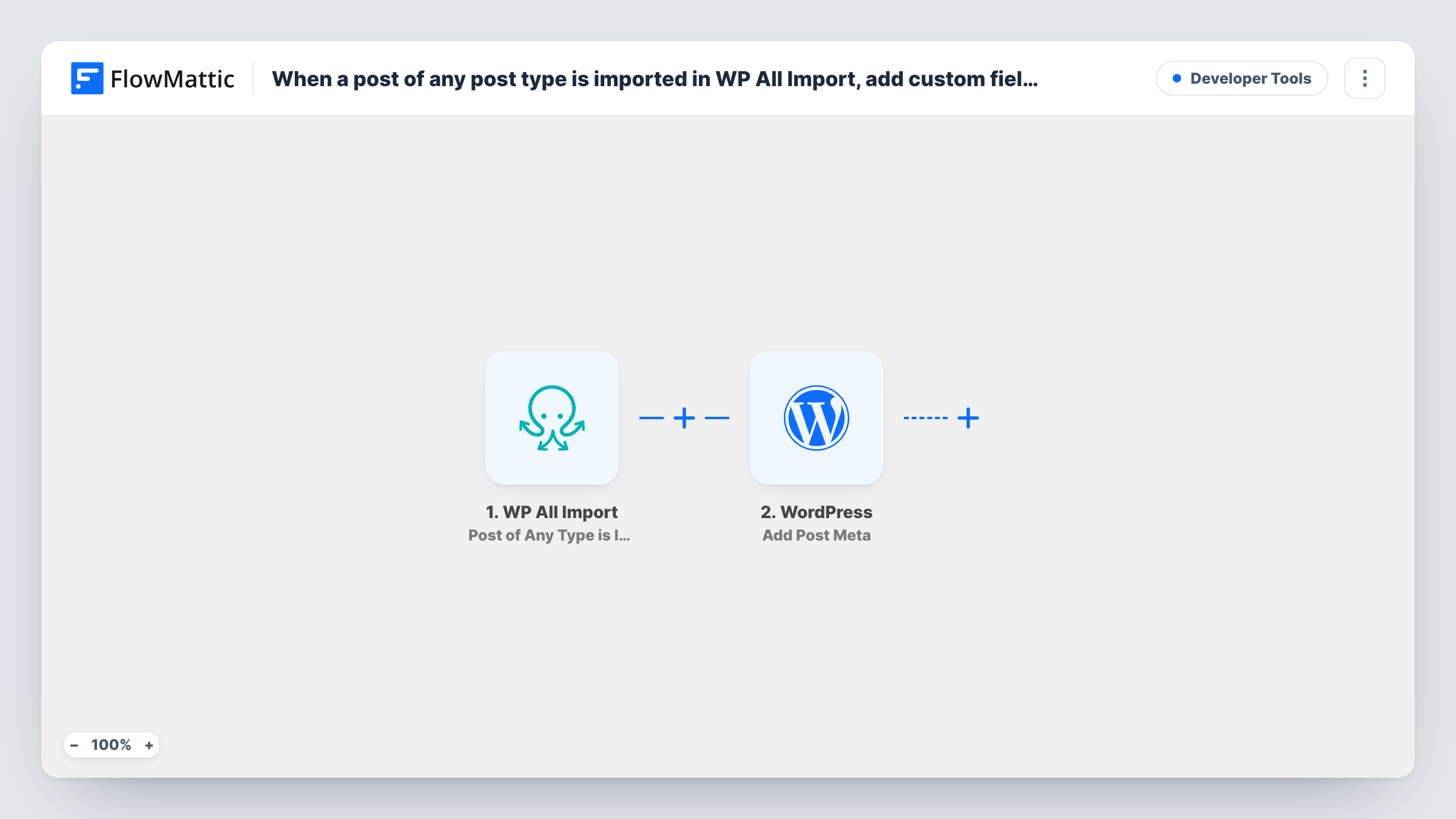
The WP All Import trigger fires when a post of any post type is imported, so posts, pages, products and custom types all start a run. FlowMattic receives the imported post's data. The WordPress step, Add Post Meta, then adds a new meta key and value to that post. You map the post ID from the trigger and set the key and value, either fixed text or data from the import.
Everything happens on your own WordPress site, so no data leaves it. One import of many records runs the workflow once per post. Task History shows each run, which helps you confirm the field was added to the right post.
Tag imported posts with their source
You import listings from two supplier feeds. Adding a meta value such as the feed name lets you tell later which supplier each post came from.
Mark an import batch
Each monthly product import gets a batch label stored as post meta, so you can find or clean up that month's posts later.
Set a flag your theme reads
Your theme shows a badge when a custom field is set. The workflow adds that field to every imported post so the badge appears straight away.
How this workflow runs
What happens at each step once the workflow is on, and what you need before you import it.
 WP All Import Post of Any Type is Imported
Fires each time WP All Import imports a post of any post type. The imported post's data, including its ID, comes into FlowMattic for the next step.
- WordPress Add Post Meta
Adds a new meta key and value to a WordPress post. Map the post ID from the trigger so the field lands on the post that was just imported, then set the key and the value you want stored.
What you need
- FlowMatticCore
- WP All Import PluginPlugin
After importing, map your own data. To keep the template universal, not every step is pre-filled. Open each step in the builder and connect your accounts and fields (channels, lists, sheets, recipients) before you switch the workflow on.
Make it yours
Changes worth making after you import it.
- If only one post type should get the field, add a Filter after the trigger that continues when the post type matches. Check a test import first to see how the type is sent.
- Run a small test import of one or two records before a full run, then open a post and confirm the custom field holds the value you expect.
- Add Post Meta adds a value rather than replacing one. If you run the same import again over existing posts, check whether the post now holds the key twice.
Questions about this workflow
Does this fire for WooCommerce products imported by WP All Import?
The trigger fires for a post of any post type, and WooCommerce products are a post type, so imported products start a run too unless you add a Filter.
Why not map the field in WP All Import itself?
You can for many fields. The workflow helps when the value is fixed for a whole import, comes from another step you add later, or should be added to every import without editing each template.
Will it change posts I imported before turning it on?
No. Only posts imported while the workflow is active start a run. Earlier imports are left as they are.
Can I add more than one custom field per post?
Yes. Add another WordPress Add Post Meta step after the first, map the same post ID and give it a different key and value.
More Developer Tools workflows
Other ready-to-import templates from the same category.




Import this workflow into your WordPress site
Download the JSON, import it from the Workflows screen and connect your accounts. Every run stays on your server, with no per-task fees.
30-day money-back guarantee Unlimited workflows and runs Self-hosted