

When a quiz is finished in ScoreApp, post a message in Slack
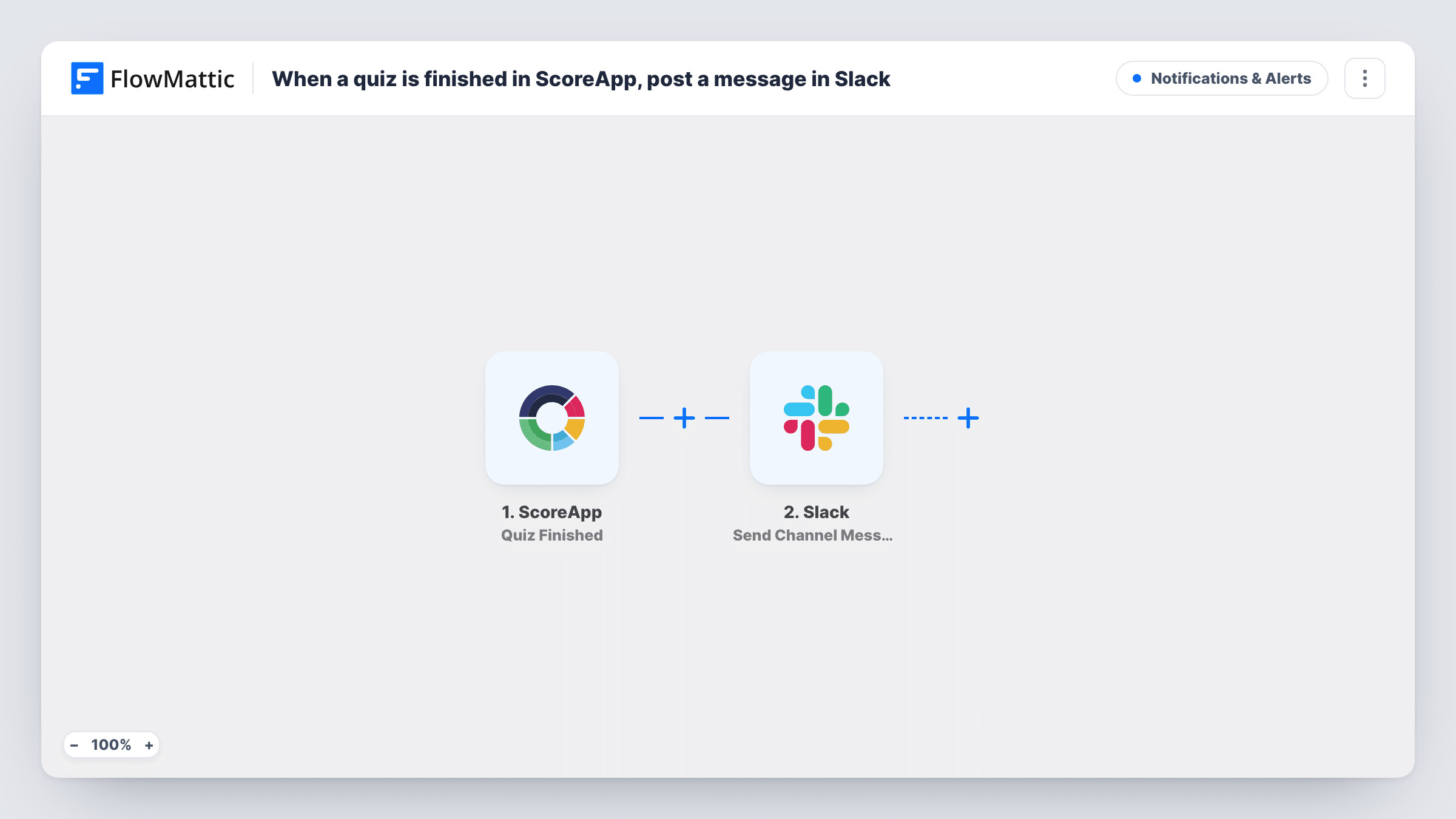
When someone answers the last question of your ScoreApp quiz, this workflow posts a message in a Slack channel you choose, with the quiz details you map into it.
 ScoreApp
 Slack
2 steps Setup ~5 min Used on 2.7k sites Free to import
What this workflow does
A finished quiz is a moment when a lead is paying attention. If the only record of it sits in the ScoreApp dashboard, your team finds out later or not at all. This workflow puts each completion in front of them in Slack.
The ScoreApp trigger, Quiz Finished, fires when somebody answers the last question in your quiz. FlowMattic then runs Slack's Send Channel Message action, which posts to the channel you pick. You write the message and map in values from the quiz, such as the quiz name or the person's details if the event carries them.
Every finished quiz produces a message, because the template has no Filter. If your quiz gets a lot of traffic, think about where the messages go, or narrow them as the tips describe. Each post is logged in Task History.
Sales channel alerts for a scorecard funnel
A B2B company uses a ScoreApp readiness quiz. Each completion appears in the sales channel, and a rep picks it up from there.
Watching a new quiz go live
You launch a quiz and want to see completions arrive. A dedicated Slack channel shows each one as it happens, which helps you spot whether people are reaching the end.
Coach notified of each assessment
A coach runs a self-assessment quiz and keeps one Slack channel for leads, so finished assessments land in the same place as client chat.
How this workflow runs
What happens at each step once the workflow is on, and what you need before you import it.
 ScoreApp Quiz Finished
Fires when somebody answers the last question in your ScoreApp quiz. The quiz data from that event is available to put into the Slack message.
- Slack Send Channel Message
Sends your message to the Slack channel picked in this step. Write the text and map in values from the finished quiz, then connect your Slack workspace on import.
What you need
- FlowMatticCore
- ScoreApp AccountAccount
- Slack AccountAccount
After importing, map your own data. To keep the template universal, not every step is pre-filled. Open each step in the builder and connect your accounts and fields (channels, lists, sheets, recipients) before you switch the workflow on.
Make it yours
Changes worth making after you import it.
- Complete your own quiz once after import. That captures the Quiz Finished fields, so you can see what the event carries, such as an email or score, before you build the message.
- To post only some completions, add a Filter after the trigger on a quiz value, for example a score above a level. Check how the score arrives first, since number conditions compare whole numbers.
- If the channel is private, replace this step with Slack's Send Private Channel Message action. To message one person, use Send Direct Message.
Questions about this workflow
Does it run when a lead only starts the ScoreApp quiz?
No. Quiz Finished fires only when someone answers the last question. ScoreApp also has a Quiz Started trigger if you want alerts earlier.
Will the Slack message include the lead's name and email?
Only if the Quiz Finished event carries them and you map them in. A person can finish a quiz before or after giving details, so check a test run to see what arrives.
Can it post to a private Slack channel?
Not with Send Channel Message, which posts to regular channels. Use Slack's Send Private Channel Message action instead if the channel is private.
Can I post to different Slack channels for different quizzes?
Yes. Replace the single Slack step with a Router whose routes check the quiz name, each with its own Send Channel Message step. Quiz names don't overlap, so each completion follows one route.
More Notifications & Alerts workflows
Other ready-to-import templates from the same category.



Import this workflow into your WordPress site
Download the JSON, import it from the Workflows screen and connect your accounts. Every run stays on your server, with no per-task fees.
30-day money-back guarantee Unlimited workflows and runs Self-hosted