

When a lead signs up in ScoreApp, create a new contact in HubSpot CRM
When a lead fills in the details form in your ScoreApp quiz, FlowMattic creates a matching contact in HubSpot CRM, so your sales team sees quiz leads without importing a spreadsheet.
 ScoreApp
 HubSpot CRM
2 steps Setup ~5 min Used on 547 sites Free to import
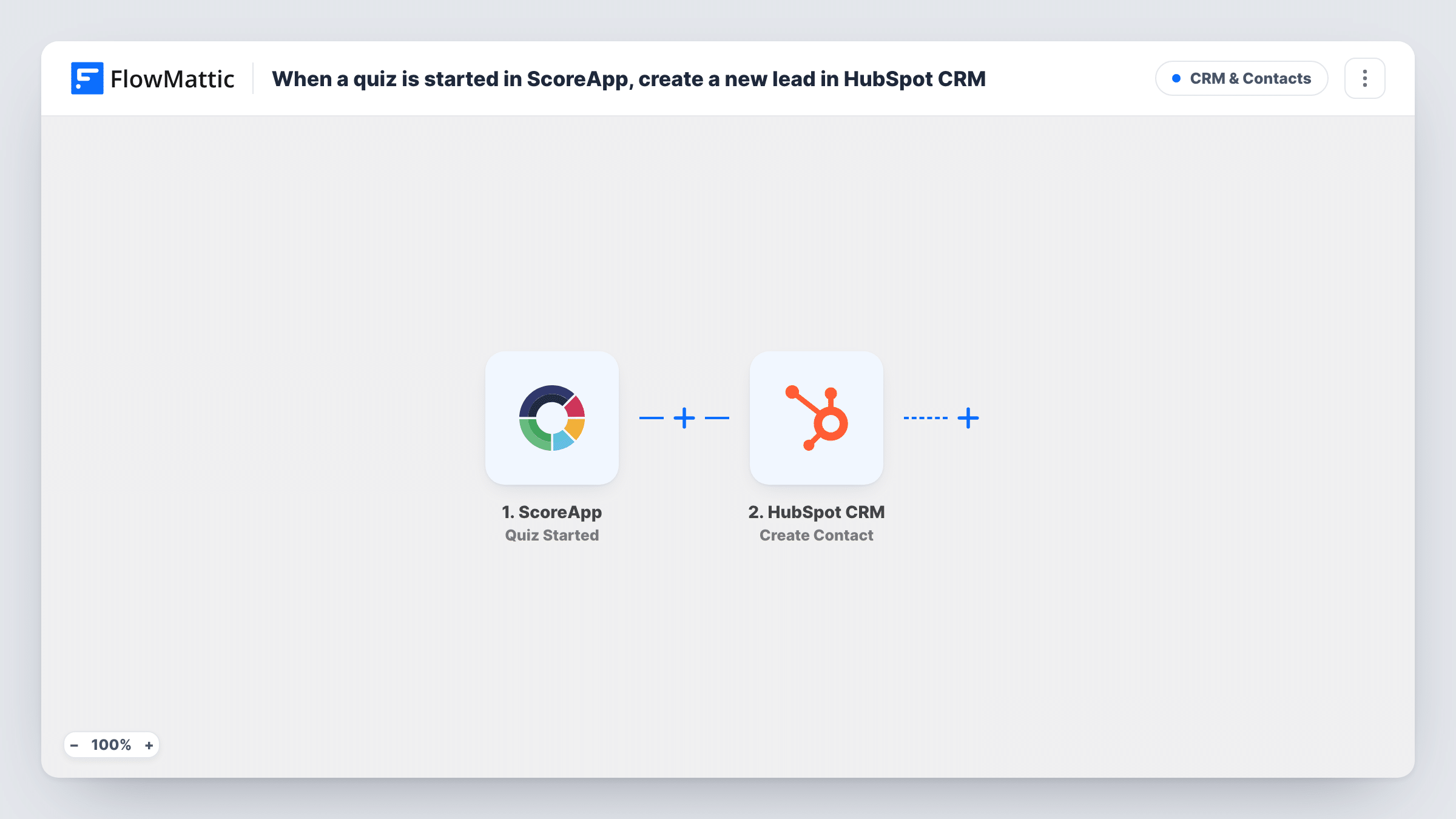
What this workflow does
A scorecard or quiz in ScoreApp is a good way to collect leads, but those leads are only useful once your sales team can see them. This workflow puts each one into HubSpot CRM as a contact as soon as they hand over their details.
The ScoreApp Lead Signed Up trigger fires when a lead provides their details through the quiz's lead form. At that point ScoreApp has the person's contact details, which is what a HubSpot contact needs.
Next, a new HubSpot CRM contact is created from those details. It ships unmapped: after import you connect HubSpot and map the lead's email, name and any other fields ScoreApp sends into the contact properties you use.
It won't merge the lead into a contact you already have. If the email already belongs to a HubSpot contact, HubSpot may refuse the request, and the run's entry in Task History shows what it said. Run a test sign-up before you share the quiz to confirm the contact appears the way you expect.
Scorecard leads for a consultancy
A consultancy's business-readiness scorecard sends every lead who enters their details into HubSpot, where a consultant picks them up for a call.
Quiz leads in the sales pipeline
A software company runs a ScoreApp quiz on its pricing page, and sales reps find the new contacts in HubSpot the same day.
Event follow-up from a quiz
A speaker shares a ScoreApp quiz during a talk and follows up with everyone who signed up from HubSpot afterwards.
How this workflow runs
What happens at each step once the workflow is on, and what you need before you import it.
 ScoreApp Lead Signed Up
Fires when a lead hands over their details through the lead form in your ScoreApp quiz. Their name, email and other form answers are passed to HubSpot.
- HubSpot CRM Create Contact
Adds the ScoreApp lead to HubSpot CRM as a new contact. Nothing is mapped yet: connect your HubSpot account and map the lead's email address, name and other fields into the contact properties you want filled.
What you need
- FlowMatticCore
- ScoreApp AccountAccount
- HubSpot CRM AccountAccount
After importing, map your own data. To keep the template universal, not every step is pre-filled. Open each step in the builder and connect your accounts and fields (channels, lists, sheets, recipients) before you switch the workflow on.
Make it yours
Changes worth making after you import it.
- Map ScoreApp's quiz name into a HubSpot contact property if you run several quizzes, so your team can see which one each contact came from.
- Submit the lead form yourself once before mapping, then open Task History to see exactly which fields ScoreApp sends for a lead.
- Set the HubSpot lifecycle stage or lead status in the Create Contact step, if you use those, so quiz leads land in the right view for sales.
Questions about this workflow
When does a ScoreApp quiz lead reach HubSpot?
When they submit their details in the quiz's lead form. People who answer questions but never fill in that form don't start a run, because Lead Signed Up only fires on the form.
What if a ScoreApp lead's email is already in HubSpot CRM?
Create Contact only creates new contacts, so HubSpot may refuse a duplicate email. Check the run in Task History to see what HubSpot returned.
Which HubSpot properties are filled for each quiz lead?
Just the properties you fill in when you set up the Create Contact step. The template leaves it empty, so you choose which ScoreApp fields go into which HubSpot properties.
More CRM & Contacts workflows
Other ready-to-import templates from the same category.






Import this workflow into your WordPress site
Download the JSON, import it from the Workflows screen and connect your accounts. Every run stays on your server, with no per-task fees.
30-day money-back guarantee Unlimited workflows and runs Self-hosted