

Add a new Senseily registrant to a FluentCRM list for onboarding
When someone creates an account in your Senseily school, FlowMattic creates or updates their FluentCRM contact by email and adds them to the list you use for onboarding emails.
 Senseily
 FluentCRM
3 steps Setup ~5 min Used on 2.4k sites Free to import
What this workflow does
New students are most receptive in their first days, which is when an onboarding series helps them find their way around your school. This workflow moves each Senseily registrant into FluentCRM straight away and puts them on the list that drives those welcome emails.
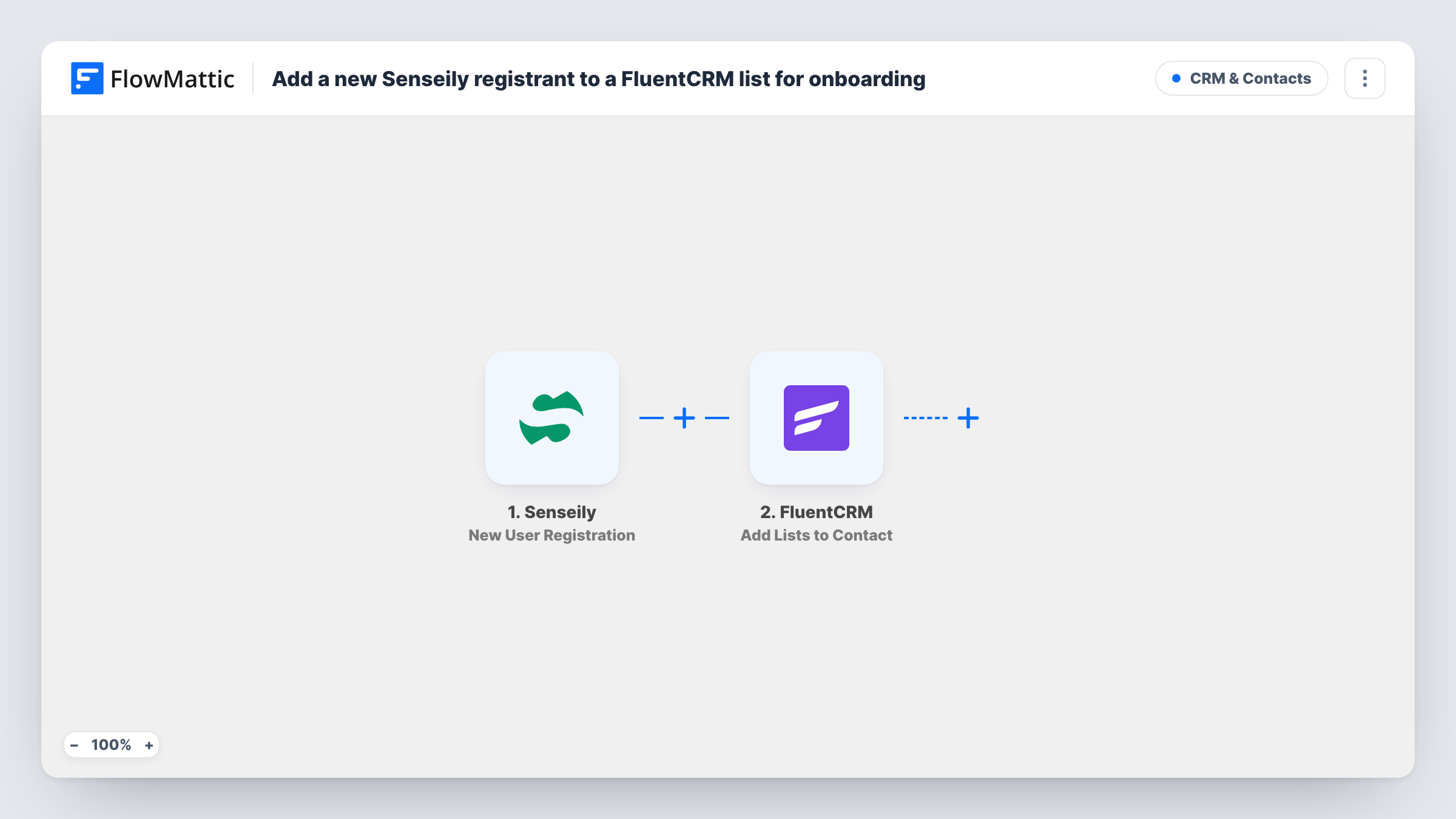
The Senseily New User Registration trigger fires when a user creates an account in your school. FlowMattic receives their registration details, such as the name and email address.
Two FluentCRM steps follow. Create or Update Contact matches on email: a new registrant becomes a contact, and someone already in FluentCRM, for example a newsletter subscriber, has their contact updated instead of duplicated. Add Lists to Contact then attaches one or more lists to that contact. It works on a contact that already exists, which is why the create step comes first.
Both steps ship unmapped. After import, map the Senseily email and name into the first FluentCRM step, then in the second step map the contact from the first step's result and choose your onboarding list. Register a test account and check Task History to confirm the contact and list were set.
Welcome series for an online course school
A language school on Senseily adds every new account to a FluentCRM onboarding list whose automation sends a week of getting-started emails.
Separating students from newsletter readers
A creator whose newsletter readers also register in Senseily keeps a single contact for each person and adds a Students list when they create an account.
Nudging registrants toward a first enrollment
A coding academy puts new registrants on a list that FluentCRM uses to send course recommendations until they enroll.
How this workflow runs
What happens at each step once the workflow is on, and what you need before you import it.
 Senseily New User Registration
Starts a run for each new account opened in your Senseily school. Their registration details, including the email address FluentCRM needs, are passed to the next steps.
- FluentCRM Create or Update Contact
Creates a FluentCRM contact for the registrant, or updates the existing contact with the same email. Unmapped as imported: map the Senseily email and name, plus any other fields you keep.
- FluentCRM Add Lists to Contact
Adds your chosen list or lists to the contact from the previous step. The template leaves this open: map the contact from the Create or Update step and pick the onboarding list.
What you need
- FlowMatticCore
- Senseily AccountAccount
- FluentCRM PluginPlugin
After importing, map your own data. To keep the template universal, not every step is pre-filled. Open each step in the builder and connect your accounts and fields (channels, lists, sheets, recipients) before you switch the workflow on.
Make it yours
Changes worth making after you import it.
- Build the onboarding emails as a FluentCRM automation that starts when a contact is added to the list, so the list step is what kicks off the series.
- Also tag new registrants with FluentCRM's Add Tags to Contact action after the list step, if your reports group students by tag rather than list.
- Run one test registration with an address already in FluentCRM, then confirm in the contact's profile that the onboarding list was added and no second contact appeared.
- For a second workflow on course enrollments, use Senseily's New Course Enrollment trigger with the same FluentCRM steps and a list per course.
Questions about this workflow
What if the Senseily registrant is already a FluentCRM contact?
Create or Update Contact finds them by email and updates that contact, so you don't get a duplicate. The list step then adds the onboarding list to the same contact.
Why does the Senseily workflow need a FluentCRM step before the list step?
Add Lists to Contact only works on a contact that exists. The first step makes sure the registrant is in FluentCRM, and the second attaches the list to them.
Will the welcome emails come from this Senseily workflow?
No. It creates the contact and adds the list. The emails come from a FluentCRM automation or sequence you set up for that list.
Are students who enroll in a course included too?
Only through their account registration. This workflow uses New User Registration, so course enrollments don't start it. Senseily's New Course Enrollment trigger covers those.
More CRM & Contacts workflows
Other ready-to-import templates from the same category.







Import this workflow into your WordPress site
Download the JSON, import it from the Workflows screen and connect your accounts. Every run stays on your server, with no per-task fees.
30-day money-back guarantee Unlimited workflows and runs Self-hosted