

Create a HubSpot CRM contact for every new Calldrip lead
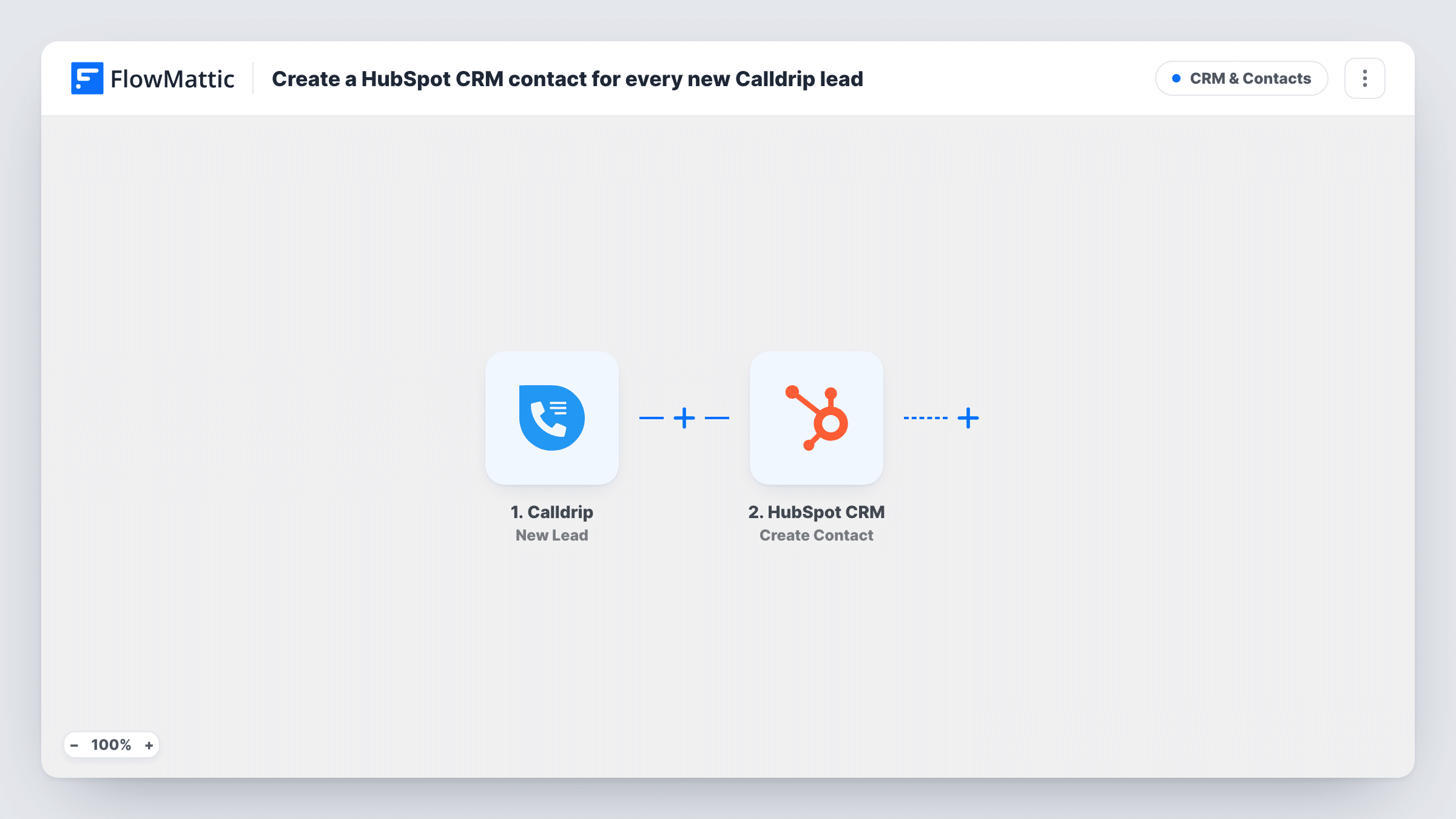
When Calldrip generates a new lead from a call, FlowMattic creates a contact for that person in HubSpot CRM, so leads your team speaks to by phone end up in the CRM you report and follow up from.
 Calldrip
 HubSpot CRM
2 steps Setup ~5 min Used on 410 sites Free to import
What this workflow does
Calldrip connects your team with new leads by phone, and HubSpot is where you keep the record of who those people are and what happens next. When the two don't talk, someone has to retype each caller's details into HubSpot after the call, and some never get entered. This workflow creates the HubSpot contact for each new Calldrip lead.
Each run starts with the Calldrip New Lead trigger, which reacts to every lead Calldrip produces from a call. FlowMattic receives the lead's details, such as name, phone number and email when Calldrip has them. The HubSpot CRM step then runs Create Contact and adds a contact built from the values you map.
The HubSpot step never searches for or edits an existing contact. If a lead's email is already in HubSpot, HubSpot may refuse the duplicate, and Task History shows the response it gave. Leads without an email address still need something HubSpot accepts, so check what Calldrip sends in a test run.
Home services company taking quote calls
A roofing firm uses Calldrip to call back web leads. Each new lead lands in HubSpot as a contact, where the office books the site visit.
Reporting on phone-sourced leads
Marketing wants to see how many HubSpot contacts started with a Calldrip call. Mapping a fixed value into a contact property you already use for source makes them easy to count.
Sales team that lives in HubSpot
Reps plan their day from HubSpot tasks and sequences. With Calldrip leads created as contacts, they can enrol callers without copying details across.
How this workflow runs
What happens at each step once the workflow is on, and what you need before you import it.
 Calldrip New Lead
Starts the workflow each time a call produces a new lead in your Calldrip account. Run a test after connecting Calldrip so FlowMattic captures the lead's fields for mapping.
- HubSpot CRM Create Contact
Creates a contact in HubSpot CRM from the Calldrip lead. Connect your HubSpot account and map the lead's name, phone and email into the contact, then check the result in a test run.
What you need
- FlowMatticCore
- Calldrip AccountAccount
- HubSpot CRM AccountAccount
After importing, map your own data. To keep the template universal, not every step is pre-filled. Open each step in the builder and connect your accounts and fields (channels, lists, sheets, recipients) before you switch the workflow on.
Make it yours
Changes worth making after you import it.
- Add a Filter after the trigger that continues only when the Calldrip lead has an email address, if your team wants every HubSpot contact to be reachable by email.
- Add a Slack Send Channel Message step after the HubSpot step so the sales channel hears about each new Calldrip lead with a name and number.
- Send a test lead with and without an email address to see how HubSpot handles each, and adjust the fields you map before you switch the workflow on.
Questions about this workflow
What if the Calldrip lead is already a HubSpot contact?
Create Contact doesn't check first, so HubSpot may refuse a duplicate email. Task History shows the response HubSpot gave for that run.
Which Calldrip lead details reach HubSpot?
Whatever the New Lead trigger returns and you map into the contact. Run a test with a real or sample lead to see the available values.
Are older Calldrip leads copied to HubSpot CRM?
No. Only leads generated after the workflow is switched on start a run. Older leads stay in Calldrip unless you import them into HubSpot yourself.
Can Calldrip leads become HubSpot deals as well as contacts?
Yes, by adding a step. Place HubSpot's Create Deal action after Create Contact, map the Calldrip details into it, and test the two steps together.
More CRM & Contacts workflows
Other ready-to-import templates from the same category.




Import this workflow into your WordPress site
Download the JSON, import it from the Workflows screen and connect your accounts. Every run stays on your server, with no per-task fees.
30-day money-back guarantee Unlimited workflows and runs Self-hosted