

When a new donor is created in GiveWP, create a contact in HubSpot
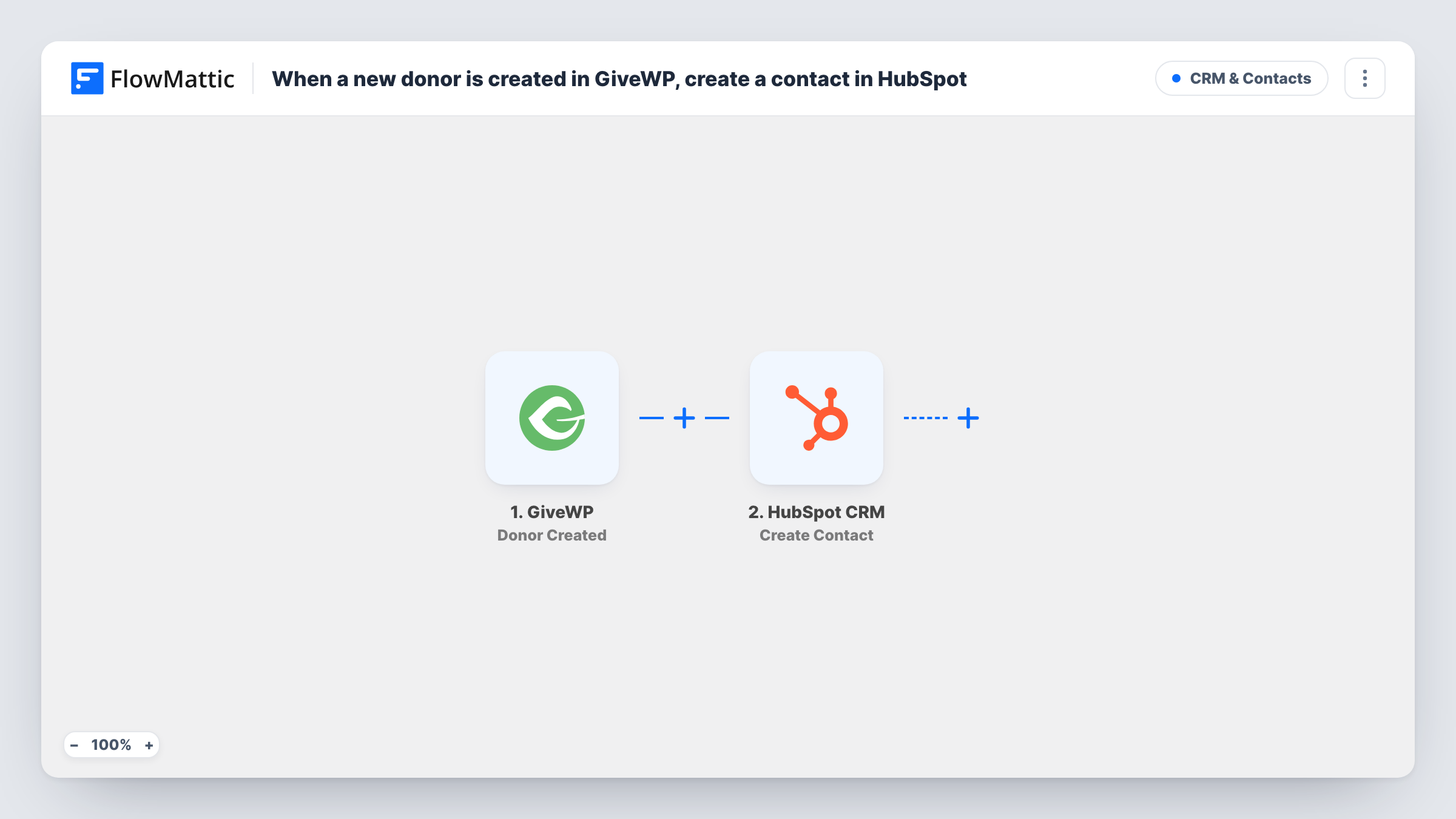
Each time GiveWP creates a new donor record on your WordPress site, this workflow creates a contact for that donor in HubSpot, so your fundraising or outreach team can work from the CRM.
 GiveWP
 HubSpot CRM
2 steps Setup ~5 min Used on 403 sites Free to import
What this workflow does
GiveWP keeps donor records inside WordPress, but the people who thank, report to and steward donors often live in HubSpot. Exporting donor lists and importing them again is slow and easy to forget. This workflow adds each new donor to HubSpot as soon as GiveWP creates them.
The GiveWP trigger fires when a new donor is created on your site, which usually happens with that person's first donation. FlowMattic passes the donor's data to HubSpot CRM, where the Create Contact action adds them using the values you map, such as their name and email address.
Returning donors already have a GiveWP donor record, so their later gifts don't start this workflow again. Only new donors reach HubSpot. Task History lists each run, so you can see which donors were sent and spot any HubSpot errors.
Thank-you sequences for first-time donors
New donors appear in HubSpot, where your team can enrol them in a welcome or thank-you sequence you have set up there.
A single list of supporters
Your charity tracks volunteers and partners in HubSpot. Adding GiveWP donors to the same CRM puts every supporter in one place.
Major gift prospect reviews
Development staff review new HubSpot contacts each week to decide who to call, without asking the web team for a donor export.
How this workflow runs
What happens at each step once the workflow is on, and what you need before you import it.
 GiveWP Donor Created
Fires when GiveWP creates a new donor on your WordPress site. The donor's details become available to map in the HubSpot step.
- HubSpot CRM Create Contact
Creates a contact in HubSpot CRM from the GiveWP donor. Connect your HubSpot account and map the donor's name and email to the contact.
What you need
- FlowMatticCore
- GiveWP PluginPlugin
- HubSpot CRM AccountAccount
After importing, map your own data. To keep the template universal, not every step is pre-filled. Open each step in the builder and connect your accounts and fields (channels, lists, sheets, recipients) before you switch the workflow on.
Make it yours
Changes worth making after you import it.
- Make one test donation after import so FlowMattic captures a real donor record, then map the fields in the HubSpot step.
- Add a second action after HubSpot, such as a Slack message, so your team sees each new donor as they arrive.
- If donors may already be HubSpot contacts from another source, test with a known email first to see how HubSpot handles the duplicate.
Questions about this workflow
What happens if the GiveWP donor is already a contact in HubSpot?
The step creates a contact, and HubSpot does not allow two contacts with the same email, so it returns an error for that run. Task History shows the error on the HubSpot step.
Do repeat donations in GiveWP create new HubSpot contacts?
No. The trigger fires when a donor is created, not on each donation, so a returning donor doesn't start the workflow again.
Are donation amounts sent to HubSpot?
Not as imported. The trigger is about the donor, so the step creates a contact from donor details. Use a GiveWP donation trigger in a separate workflow if you need gift amounts in HubSpot.
More CRM & Contacts workflows
Other ready-to-import templates from the same category.






Import this workflow into your WordPress site
Download the JSON, import it from the Workflows screen and connect your accounts. Every run stays on your server, with no per-task fees.
30-day money-back guarantee Unlimited workflows and runs Self-hosted