

When a new quote is sent, add the client to FluentCRM
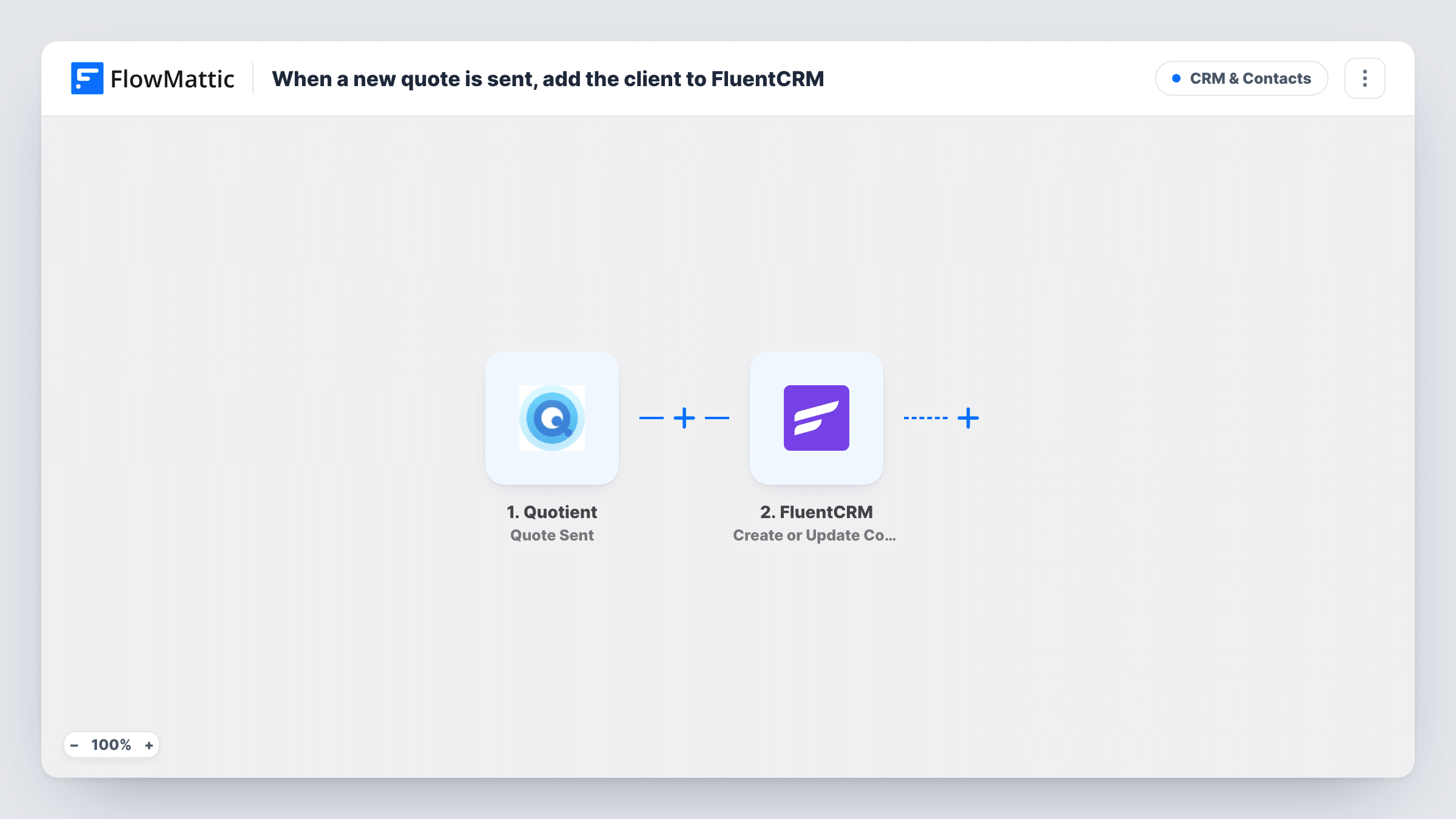
When you send a quote from Quotient, this workflow creates or updates the client as a contact in FluentCRM on your WordPress site, so everyone you quote is on your list for follow-up emails.
 Quotient
 FluentCRM
2 steps Setup ~5 min Used on 2.5k sites Free to import
What this workflow does
A sent quote means a real prospect, someone who asked about your work and is now deciding. If your email follow-ups run from FluentCRM, that person should be there too. This workflow puts them in FluentCRM as soon as the quote goes out.
The Quotient trigger fires when a quote is sent. FlowMattic passes the quote data, including the client's details, to FluentCRM. The Create or Update Contact action adds the client as a new contact, or updates them if their email is already in your CRM. Map the client's email and name, and any other details you want to keep.
FluentCRM runs inside WordPress, so the contact is stored on your own site. Clients who receive several quotes are updated rather than duplicated. Task History shows each quote that ran and what was sent to FluentCRM.
Follow-up emails while a quote is open
Clients you quote appear in FluentCRM, where you can send them a short sequence with case studies while they decide.
Keeping repeat clients up to date
A client you quote for a second job is updated in FluentCRM with the details from the new quote, so your list holds their current information.
Building a list of past enquiries
Even clients who don't accept stay in FluentCRM, so you can tell them about new services or seasonal offers later.
How this workflow runs
What happens at each step once the workflow is on, and what you need before you import it.
 Quotient Quote Sent
Fires when a quote is sent from your connected Quotient account. The quote and client details become available to map into FluentCRM.
- FluentCRM Create or Update Contact
Adds the client to FluentCRM as a contact, or updates the contact if that email already exists. Map the client's email and name from the Quotient quote.
What you need
- FlowMatticCore
- Quotient AccountAccount
- FluentCRM PluginPlugin
After importing, map your own data. To keep the template universal, not every step is pre-filled. Open each step in the builder and connect your accounts and fields (channels, lists, sheets, recipients) before you switch the workflow on.
Make it yours
Changes worth making after you import it.
- Send a test quote to yourself after import so FlowMattic captures the Quotient fields before you map the contact.
- Add a second step that sends a Slack message to your sales channel whenever a quote goes out, alongside the FluentCRM update.
- Add a Filter after the trigger if only quotes above a certain total should add the client to FluentCRM. Decimal totals are compared as whole numbers.
Questions about this workflow
What if the Quotient client is already a FluentCRM contact?
The step uses Create or Update Contact, so the existing contact is updated with the details from the new quote instead of being added twice.
Does this workflow know whether the quote was accepted?
No. It runs when a quote is sent, before the client responds. For accepted quotes, build a separate workflow on a Quotient acceptance trigger if FlowMattic lists one for Quotient.
Does FluentCRM need to be on the same site as FlowMattic for Quotient clients to be added?
Yes. The FluentCRM step works with the FluentCRM plugin on the WordPress site where FlowMattic is installed.
More CRM & Contacts workflows
Other ready-to-import templates from the same category.





Import this workflow into your WordPress site
Download the JSON, import it from the Workflows screen and connect your accounts. Every run stays on your server, with no per-task fees.
30-day money-back guarantee Unlimited workflows and runs Self-hosted